Best practices
Here are some best practices to offer the best user experience for your integration.
Rendering video
- Implement pagination or a swipe gesture to render the next set of user videos in the container. This is useful when you have more users than the amount of videos you can render (25 on desktop browsers, and 9 on mobile browsers). Pagination enables users to toggle through the videos to see them all.
- Implement the names that are overlaid over the user video feeds.
- Add
<meta charset="UTF-8" />to your web app's entry point (index.html) to ensure the browser uses UTF-8. Without it, the browser might default to a different encoding, which can prevent users from accessing media features and trigger console errors immediately after a session is joined.
Responsive design and aspect ratio
To provide a consistent user experience across different devices and window sizes, follow these responsive design best practices.
Aspect ratio
By default, the Video SDK renders video at a 16:9 aspect ratio for desktop browsers and mobile devices in landscape mode. For mobile devices in portrait mode, it renders at 9:16.
To ensure that the aspect ratio remains consistent when a user resizes their browser window or changes device orientation, use CSS to manage the video container. For example:
video-player {
    width: 100%;
    height: auto;
    aspect-ratio: 16/9; /* or 9/16 for portrait */
}
If the sender's aspect ratio changes (for example, if they rotate their device), the video-aspect-ratio-change event triggers. You should listen for this event and adjust your UI accordingly.
Video layout and density
While the Video SDK allows you to decide the size and number of videos to render, we recommend the following layouts for the best balance of performance and usability:
- Mobile: Render 4 videos per page in a 2x2 grid.
- Desktop: Render 9 videos per page in a 3x3 grid.
The Video SDK provides APIs to determine the maximum number of videos that can be rendered based on the device's capabilities (up to 25 on desktop and 9 on mobile). You can also use pagination to show multiple videos.
UI Toolkit
The Zoom Video SDK UI Toolkit implements these responsive best practices and can be used as a reference or a recommended implementation for your own application.
Cameras
-
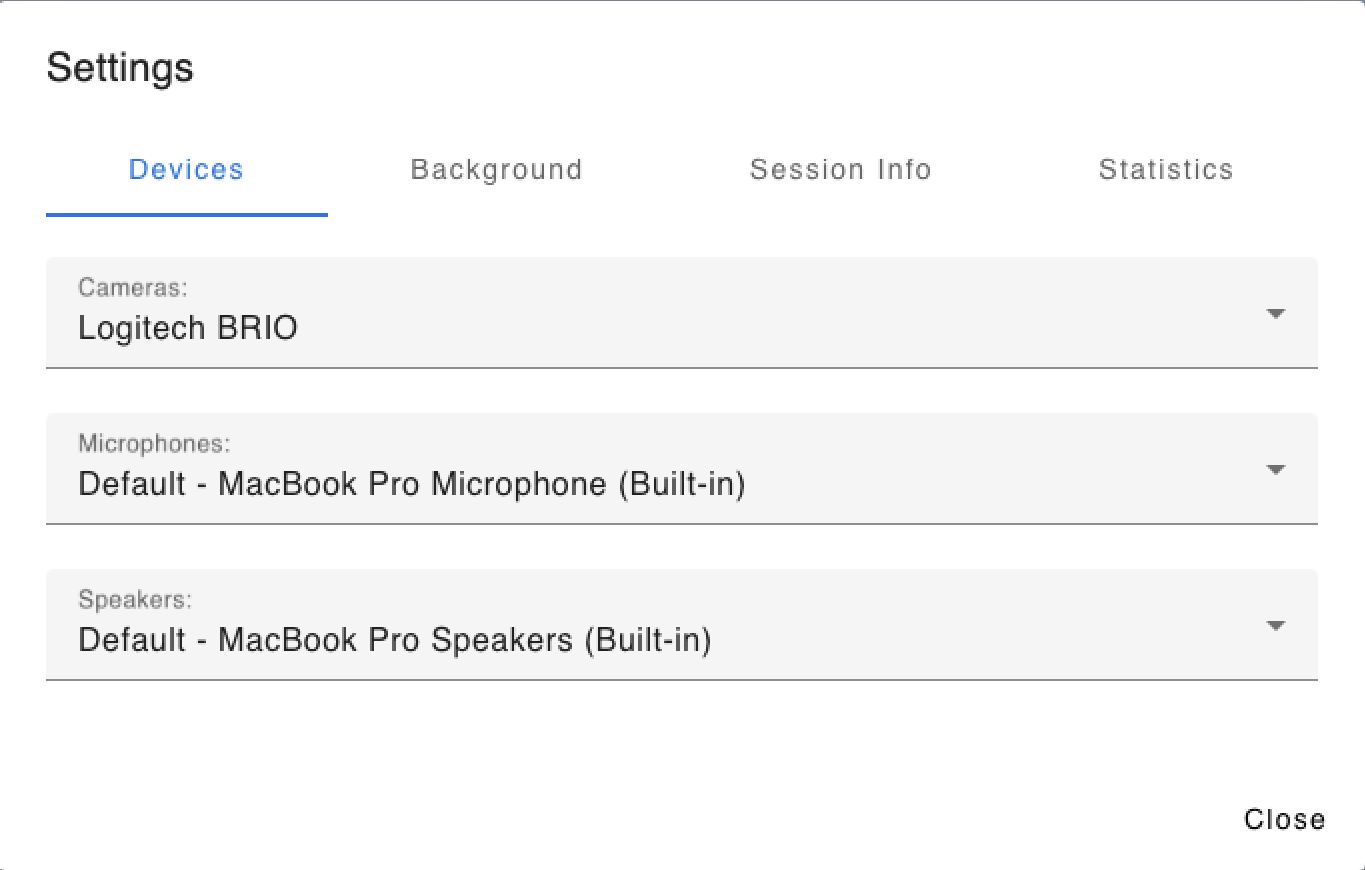
Provide the option to choose a camera. This allows the end user to switch to their camera or choose their desired camera device. See switch camera for details.
-
Add support for hot plugging and unplugging. Use the
device-changeevent listener to listen for when a camera is plugged in or unplugged. This can be useful to notify the user if their camera runs out of battery, loses connection, or for easily switching to a new device when one is connected or plugged in. Seedevice-changefor details. -
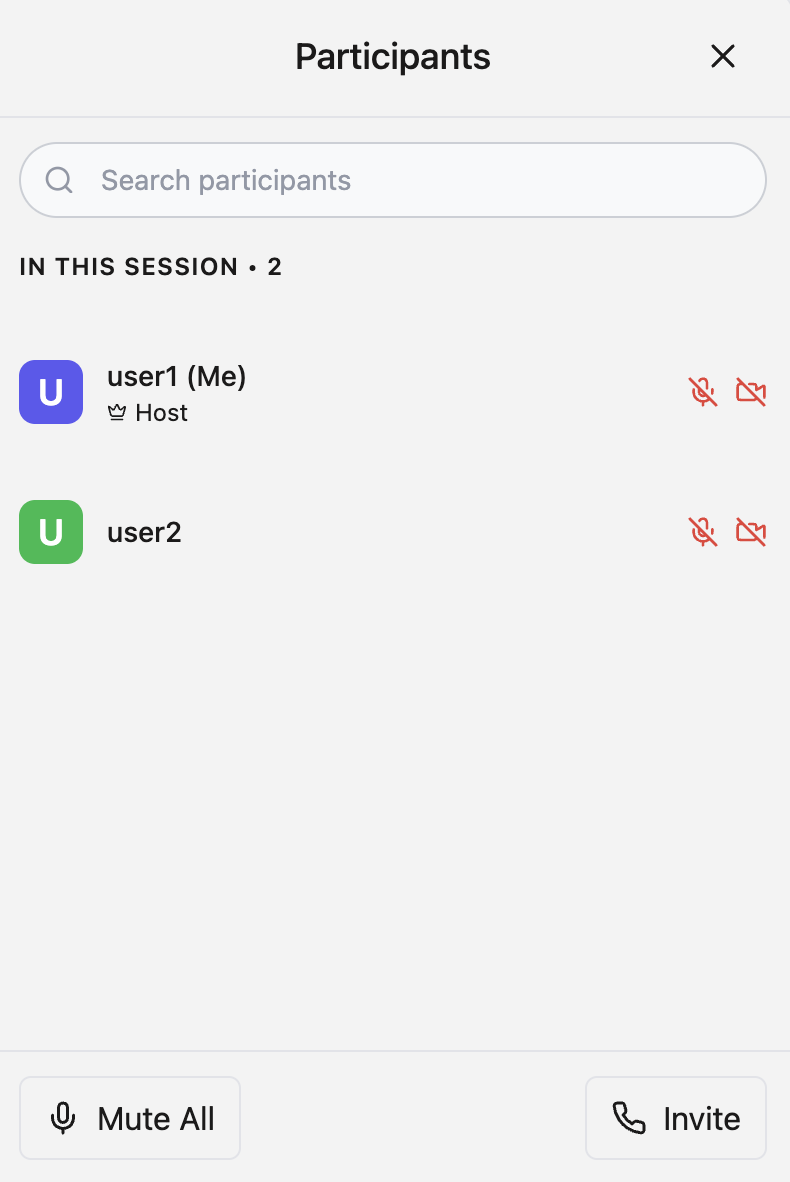
Show users' camera statuses so everyone can see that a user has their camera off or on.
Permission changes and errors
- Handle system and browser permission errors, for example, if the end user has not granted camera access within the browser or webpage, or they have denied access, display the error and a call to action to the end user. You can also show a notification to the other users that this user is having trouble with allowing their camera to be enabled.
- If session audio and video stop working due to a permission change, for example, perhaps the user disabled video permission in Chrome, you can use the
permission-changeevent listener to detect this and message the user to authorize permission again.
Support for Chrome <permission> element
Zoom supports the <permission> element in Chrome to give users contextual control over access permissions. Use it to enable the user to trigger the microphone and camera permission prompt in the browser by clicking it (it appears as a button).
<style>
    permission {
        background-color: lightgray;
        color: black;
        border-radius: 10px;
    }
</style>
<permission type="geolocation"></permission>
This requires the origin trial Trial for Page Embedded Permission Control - Cam/Mic/Geolocation. See the following resources for details.
- Rethink web permissions: Seamless user control of powerful capabilities with Chrome's new proposed
<permission>element - The
<permission>element - Seamless user control of powerful capabilities
User changes
- If the SDK is put into the background on a mobile device or if the device sleeps, the video turns off, but audio stays on. You don't need to do anything to turn the video back on when the SDK is made active again. If the user turns off the device or closes the app (such as by swiping up to close it in the App Switcher on iOS), the client side is destroyed. Use
leaveOnPageUnloadfor the best experience when the user leaves the session in this way.