Sessions
A Video SDK session connects two or more users for realtime, two-way communication. Zoom creates sessions on demand; they don't need to be scheduled. You can run an unlimited amount of sessions concurrently. Up to 5,000 users can join a session. A user can be in one session per browser tab at a time.
Install the Video SDK, then start and join sessions to use video, audio, and other features. Once the session is over, leave or end it.
Life cycle of a Video SDK experience
The life cycle of a Video SDK session includes the following stages for a successful user experience.
- Pre-session - Things that should happen before a session starts.
- In session - How to make the session state clear to users and handle any connection issues that may occur.
- Post-session - How to make it clear to all users when they've left the session, when others have left the session, or that the session has ended, and how to clean up the Video SDK for post-session workflows or new session joins.
Pre-session
Before you start development, be sure to use the latest version of the Video SDK for the most recent improvements and bug fixes. We suggest highlighting to your users to always use the latest version of their device's operating system and the latest version of their browsers.
Angular framework note: Angular has an edge case with change detection where you must run the Video SDK outside the Angular zone. See Using Angular for details.
Audio, video, and network tests
-
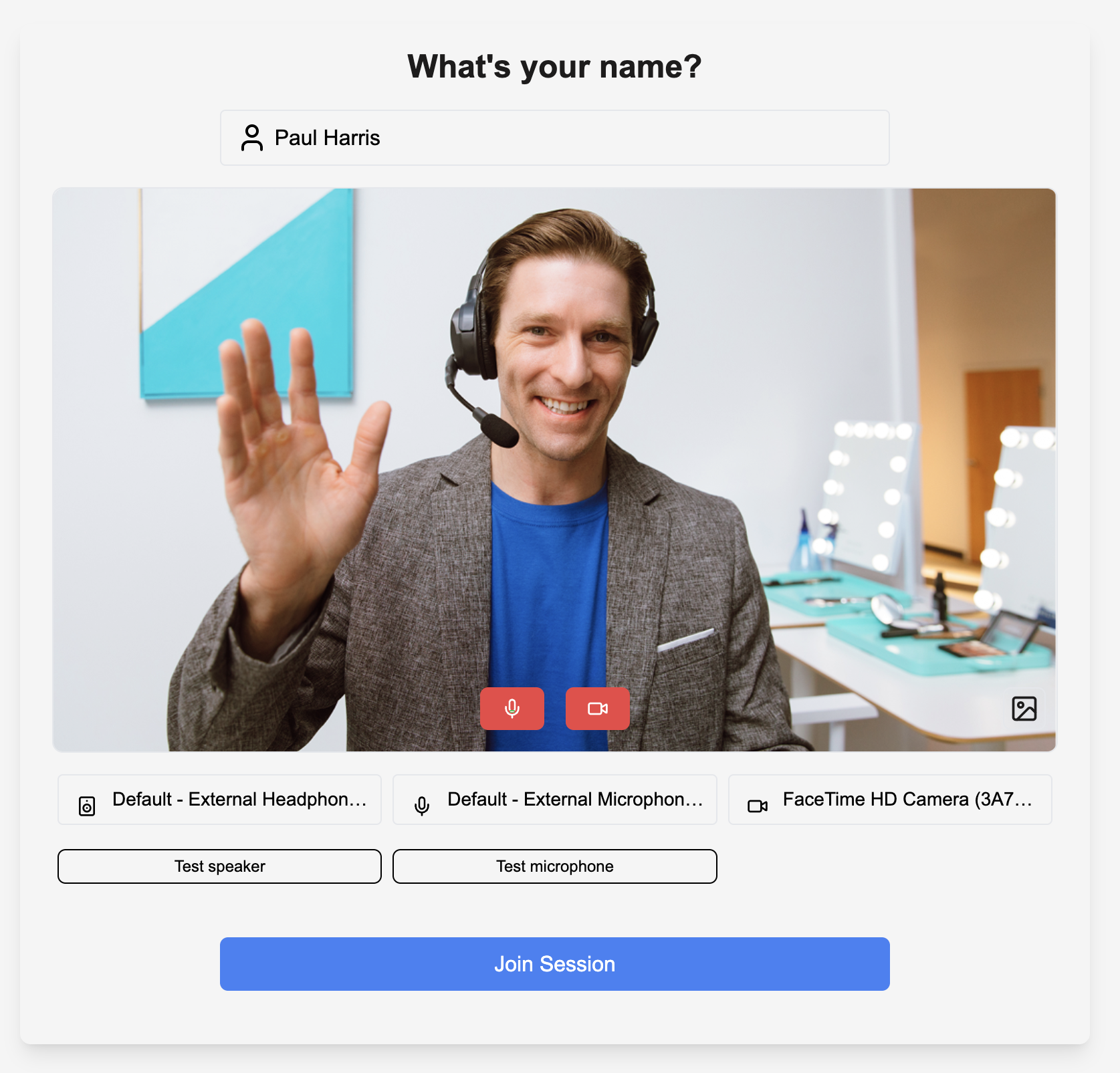
Before joining a session, you can show a preview flow where you let the user test their camera, microphone, and speaker (if supported by the browser). This allows them to accept the browser permission of accessing their mic and camera, and can even allow them to pre-select which camera and microphone they'd like to use in the session.
-
We also suggest adding a network strength test (see example on Stack Overflow) to your preview page if you'd like to show the user their network strength to help set expectations of how the service quality will function.
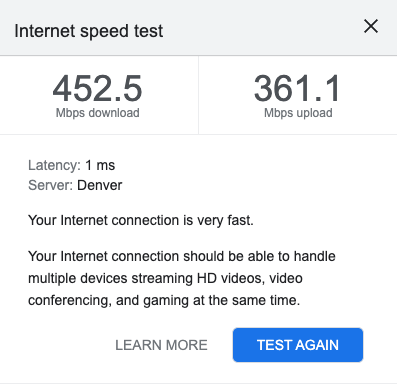
You can also use Zoom Probe SDK for web to check if audio and video hardware, network, and Zoom infrastructure offers the best experience for your users.
For example, integrate it into your solution to enable users to test their microphone, speaker, and video settings before joining a session, or to investigate customer issues such as as blurry video, choppy audio, and poor network connectivity.
Preload assets and check support
Before you start a session, we recommend that you preload the Zoom WebAssembly assets when the users first visit the webpage. This will make calling the join function must faster when the user joins the session, as the WebAssembly dependencies will already be ready. Be sure to await the init function before calling the join function.
As a best practice, before calling the init function, we recommend that you check whether the device supports the core feature you are building for, like video, audio, or screen (screen sharing), by calling the ZoomVideo.checkSystemRequirements() function. See browser support for details.
In session: Start and join sessions
To start and join sessions, after you've installed the Video SDK, create the client, init the Video SDK, and declare a variable called stream. Then, call the join function and pass in a session name, Video SDK JWT, username, and sessionPasscode. After joining the session, define stream to client.getMediaStream(). You'll use this namespace to build out features.
import ZoomVideo from "@zoom/videosdk";
var client = ZoomVideo.createClient();
var stream;
client.init("en-US", "Global", { patchJsMedia: true }).then(() => {
    client
        .join("sessionName", "VIDEO_SDK_JWT", "userName", "sessionPasscode")
        .then(() => {
            stream = client.getMediaStream();
        });
});
import ZoomVideo from "@zoom/videosdk";
var client = ZoomVideo.createClient();
var stream;
await client.init("en-US", "Global", { patchJsMedia: true });
await client.join(
    "sessionName",
    "VIDEO_SDK_JWT",
    "userName",
    "sessionPasscode",
);
stream = client.getMediaStream();
- The session begins when the first user joins.
- The session name must match the
tpcin the Video SDK JWT. - The host of the session is the user with a
roleset to1in the Video SDK JWT. - The
sessionPasscodeis optional, but if set for a session, it's required for other users joining that session.
init parameters and options
initis a promise function that must resolve before resolving thejoinfunction. If you call thejoinfunction before theinitfunction promise has resolved, the Video SDK won't work and will throw an error.patchJsMediahandles how the SDK updates Video SDK media dependencies. Set totrueto automatically receive non-breaking enhancements and fixes. Note that you still must update to the latest version of the SDK to keep up with all enhancements and bug fixes.stayAwakeprevents devices from sleeping while the user is in a session.leaveOnPageUnload- removes the user from the session when they refresh or close the page, so that the user doesn't still appear to be in the session when they close the browser tab instead of pressing the button to leave the session.
See InitOptions for more.
join parameters
Start a session with the join function. Pass in a session name, Video SDK JWT, user name, and a session password. To specify the host of the session, pass role 1 into the Video SDK JWT. If multiple users use role 1, the first to join will be the host and others will be managers. See user roles and actions for details. To join session users, pass role 0 into the Video SDK JWT.
| Parameter | Required | Parameter Description |
|---|---|---|
topic | Yes | The name of the session you are creating or joining. Should be alphanumeric with a max-length of 150 characters. It can include symbols and the space character. Session names are case insensitive (they are all converted to lowercase). This must match the tpc value in the SDK JWT payload. |
token | Yes | JWT token generated from your SDK credentials. See Authorize for details. |
userName | Yes | Display name of the user shown in the session. If empty, the name is displayed as the string "null". Max 200 characters. Values longer than 200 characters are truncated without error. |
sessionPassword | No, unless set by the host. | Password for session. If set, the session will be private and can only be joined if the user provides a valid password. If not set, the session will be public for anyone in your account and users only need to use the topic to join. The field has a max-length limit of 10 characters, printable ASCII characters only (ch >= 32 && ch < 127). |
sessionIdleTimeoutMins | No | The number of minutes a session can remain idle (with only one user present and no cloud recording) before it automatically ends. The default is 40 minutes. This setting applies only when the host is the sole user; otherwise, the default timeout applies. |
See join in the Video SDK reference for details.
Post-session: Leave and end session
To leave a session, call the client.leave() function. When the last user leaves, the session will end.
client.leave();
To end a session, call the client.leave() function and pass in true. Only the host can end a session with users present.
client.leave(true);
Add a notification when a host ends a session to inform users why the session ended.

Note: If the user exits by closing the browser, tab, force-closes the app, or runs out of battery, handle with
leaveOnPageUnload.
Clean up the Video SDK
After the session has ended, you should also stop rendering the videos and call destroyClient to destroy the SDK so it can be used again if needed.
User roles and actions
People in a session can hold one of the following roles: host, manager, or participant.
Host
The user with the host role_type is the host of the session.
A host of the session has the following privileges.
- View information of users in the session.
- Change the display name of a user in the session.
- Mute or unmute a user's audio.
- Transfer the host role to someone else in the session.
- Promote another user to be a manager of the session.
- Remove participants from the session.
- Revoke manager privilege from a user.
- Start a live stream.
- Prevent other users from sharing their screen (lock screen).
- End the session.
Manager
The manager or co-host role can be assigned to a participant by the host to help the host to manage the session participants.
A manager of the session is assigned the following subset of the host privileges.
- Remove participants from a session.
- Change the display name of a user in the session.
- Mute or unmute a user's audio.
- Prevent other users from sharing their screen (lock screen).
Participant
A regular user who joins the session without host or manager permission. A participant has privileges to view their own information as well as the information of other users.
User list
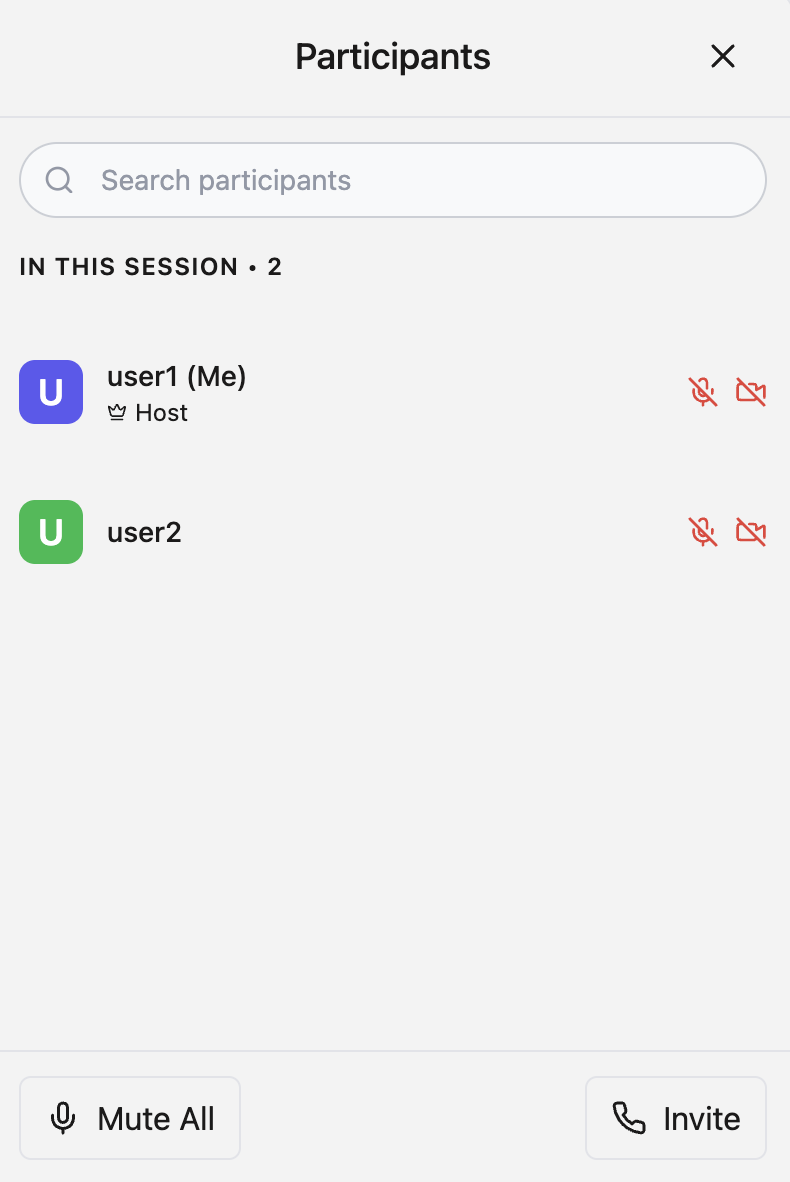
We recommend listing the users who are connected to the session and a user count so that other users can see who they are in a session with.
We also recommend adding their video, audio, and screen share state next to their names so that you can see their state. This is helpful when a user cannot be heard, but they are actually muted. If you can see their audio status is muted, you can tell them that they need to unmute to be heard.
See the VideoClient namespace reference documentation to learn more about managing host, manager, and user roles.
Add features
Now that you have added sessions to your integration, you can add Video SDK features such as video, audio, screen sharing, chat, and more. See the VideoClient namespace in the Video SDK Reference for details on all available methods and callbacks.