Event handling
You must handle these audio, video, share, and other events for the best user experience and to prevent edge cases.
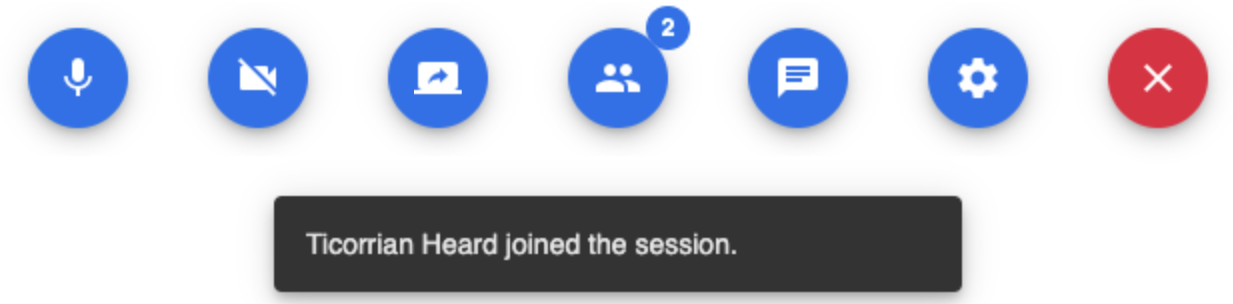
For example, add some sort of notification when a user joins or leaves so that other users are aware. This is especially important if you are rendering less videos or "users" in your video layout than users who are present in the session.
Subscribe to events using the on method and unsubscribe using the off method.
Session events
Use session events to be notified of connection and user events.
Connection issues and host ended session
Use the connection-change event listener to detect when the host ended a session, the SDK kicked a user from a session, or the session had connection issues.
This crucial event sends a notification of the session's status. For example, if the session reconnects due to network issues or if the host ends the session and it closes. This helps inform both the user with connection issues and the other users in the session that the user is experiencing problems and attempting to reconnect due to poor signal strength.
The payload structure for this event is as follows:
{
  /**
   * Connection state.
   */
  state: ConnectionState;
  /**
   * Reason for the change.
   */
  reason?: ReconnectReason | ClosedReason;
  /**
   * If the reason is `JoinSubsession` or `MoveToSubsession`, this is the subsession name.
   */
  subsessionName?: string;
  /**
   * Error code if the state is 'Fail'
   */
  errorCode?:number;
}
ConnectionState can have the following values:
enum ConnectionState {
    /**
     * Connected.
     */
    Connected = "Connected",
    /**
     * Reconnecting (usually occurs in failover).
     */
    Reconnecting = "Reconnecting",
    /**
     * Closed.
     */
    Closed = "Closed",
    /**
     * Failed.
     */
    Fail = "Fail",
}
We recommend listening for the connection-change event and handling each connection state as follows:
client.on("connection-change", (payload) => {
    if (payload.state === ConnectionState.Closed) {
        /**
         * Session ended by the host or the SDK kicked the user from the session
         * (use `payload.reason` to see why the SDK kicked the user).
         **/
    } else if (payload.state === ConnectionState.Reconnecting) {
        /**
         * The client-side connection to the server was lost (e.g., when driving through a tunnel) and will attempt to reconnect for a few minutes.
         * Alternatively, if the user joins or leaves a subsession, use `payload.subsessionName` to retrieve the subsession name.
         */
    } else if (payload.state === ConnectionState.Connected) {
        /**
         * SDK connected the session successfully.
         */
    } else if (payload.state === ConnectionState.Fail) {
        /**
         * SDK join session failed, use `payload.errorCode` and `payload.reason` to find out why.
         */
    }
});
user-added | user-removed | user-updated
The user-added and user-removed events allow you to track when users join or leave the session. You can use them as follows:
client.on("user-added", (payload) => {
    payload.forEach((item) => {
        console.log(`${item.userId} joined the session.`);
    });
});
client.on("user-removed", (payload) => {
    payload.forEach((item) => {
        console.log(`${item.userId} left the session.`);
    });
});
/**
 * If you don't need to track individual users and just want the latest user list,
 * call `client.getAllUser()` within these callbacks.
 */
The user-updated event is also useful for tracking changes to users' video or microphone states. It can be especially helpful when a user is reconnecting to a session and others in the session can't hear their audio or see their video.
isInFailover
The isInFailover object is part of the Participant interface. Track changes using the isInFailover property:
client.on("user-updated", (payload) => {
    payload.forEach((item) => {
        console.log(`${item.userId} properties were updated.`);
    });
});
If isInFailover is true, the user is not connected and will be removed from the session in two (2) minutes. We recommending showing something in your user interface so that others will know the user is no longer connected.
Media events
Use media events to be notified of device, media, and network changes.
device-change
This event triggers when a device (camera, microphone, or speaker) is plugged in or unplugged. This allows you to update the device selection UI accordingly:
client.on("device-change", () => {
    const cameras = stream.getCameraList();
    const microphones = stream.getMicList();
    const audioSpeakers = stream.getSpeakerList();
    const activeCamera = stream.getActiveCamera();
    const activeMic = stream.getActiveMicrophone();
    const activeSpeaker = stream.getActiveSpeaker();
    /**
     * If your UI provides a device selection list, update it with the new data.
     */
});
device-permission-change
This event notifies you when the browser changes the device permission status (for example, microphone or camera access). Some browsers persist the permission decision, while others, like Safari, require users to grant permission every time. This event can help you prompt users when permissions are denied or blocked.
client.on("device-permission-change", (payload) => {
    const { name, state } = payload;
    /**
     * name contains 'microphone' or 'camera'
     * state contains 'denied', 'granted' or 'prompt'
     * */
    if (state === "denied") {
        /**
         * Show a prompt guiding users to grant permission.
         */
        console.warn(`${name} permission is denied, please grant it`);
    }
});
active-media-failed
Even though the Video SDK handles many media stream exceptions, some cases—such as denied permissions, device issues, or memory constraints—require user intervention. The active-media-failed event provides detailed error information (including the exception type, error code, and suggested actions) to help developers diagnose and resolve these issues.
See the following error codes and suggested actions.
Audio exceptions
| Exception | Error code | Suggested action |
|---|---|---|
ActiveMediaFailedCode.AudioConnectionFailed | 101 | Refresh the browser to reconnect. |
ActiveMediaFailedCode.AudioStreamEnded | 102 | Refresh the browser; the audio stream was interrupted (possibly due to device issues or another app). |
ActiveMediaFailedCode.MicrophonePermissionReset | 103 | Grant the necessary microphone permissions. |
ActiveMediaFailedCode.AudioStreamFailed | 104 | Close all browsers and rejoin the session. |
ActiveMediaFailedCode.MicrophoneMuted | 105 | Unmute the mic via system or browser settings. |
ActiveMediaFailedCode.AudioStreamMuted | 106 | The microphone was temporarily occupied and then released, typically due to scenarios like answering a phone call or another application using the microphone. Prompt the user to click on the page so that the SDK can restore audio. |
ActiveMediaFailedCode.AudioPlaybackInterrupted | 107 | The audio playback of other users in the session was interrupted by the system. Prompt the user to click on the page to resume audio playback. |
Video exceptions
| Exception | Error code | Suggested action |
|---|---|---|
ActiveMediaFailedCode.VideoConnectionFailed | 201 | Refresh the browser. |
ActiveMediaFailedCode.VideoStreamEnded | 202 | Refresh the browser; the camera stream may have been blocked. |
ActiveMediaFailedCode.CameraPermissionReset | 203 | Grant camera permission. |
ActiveMediaFailedCode.WebGlContextInvalid | 204 | (WASM video only) Issue with the canvas required for video rendering. This could be due to using an incorrect canvas element or the browser not supporting WebGL rendering. Verify the canvas element or browser compatibility for WebGL. |
ActiveMediaFailedCode.WasmOutOfMemory | 205 | Close all browsers and rejoin the session. |
ActiveMediaFailedCode.VideoStreamFailed | 206 | Close all browsers and rejoin the session. |
ActiveMediaFailedCode.VideoStreamMuted | 207 | The camera was temporarily occupied and then released. Prompt the user to click on the page so that the SDK can restore video. |
Screen share exception
| Exception | Error code | Suggested action |
|---|---|---|
ActiveMediaFailedCode.SharingStreamFailed | 301 | Close all browsers and rejoin the session. |
Example
client.on("active-media-failed", (payload) => {
    const { code, message } = payload;
    const {
        MicrophoneMuted,
        AudioStreamMuted,
        AudioPlaybackInterrupted,
        CameraPermissionReset,
        MicrophonePermissionReset,
    } = ActiveMediaFailedCode;
    if (
        [
            CameraPermissionReset,
            MicrophonePermissionReset,
            MicrophoneMuted,
        ].includes(code)
    ) {
        /**
         * Guide the user to grant the camera/microphone permission.
         * For example, display a modal directing them to the settings page.
         */
    } else if (
        [AudioStreamMuted, AudioPlaybackInterrupted, VideoStreamMuted].includes(
            code,
        )
    ) {
        /**
         * Prompt the user to click anywhere on the page to resume audio playback.
         * For example, use a toast notification.
         */
    } else {
        /**
         * Display a modal notifying the user of the stream failure,
         * using `message` as a description, along with a button to refresh the page.
         */
    }
});
current-audio-change
While the user-updated event captures general changes in a user's audio status (such as joining, leaving, or muting), the current-audio-change event provides more detailed context. It includes the specific reason for leaving audio or being muted.
Use current-audio-change to determine when and why the user left audio. For example, to take a phone call, described by LeaveAudioSource.
client.on("current-audio-change", (payload) => {
    const { action, source } = payload;
    if (action === AudioChangeAction.Leave) {
        if (
            source === LeaveAudioSource.EndedBySystem ||
            source === LeaveAudioSource.MicrophoneError
        ) {
            /**
             * Display a message to the user that the audio has ended due to a system error or microphone error.
             */
        }
    } else if (action === AudioChangeAction.Muted) {
        if (
            source === MutedSource.PassiveByMuteOne ||
            source === MutedSource.PassiveByMuteAll
        ) {
            /**
             * Display a message to the user that the audio has been muted by the host.
             */
        }
    }
});
auto-play-audio-failed
Due to browser privacy policies, audio auto-play requires user interaction. If stream.startAudio is called immediately upon joining a session, it might fail. Use the auto-play-audio-failed event to get notified of this issue so you can prompt users to interact with the page to restore audio.
client.on("auto-play-audio-failed", () => {
    /**
     * Prompt the user to click anywhere on the page to resume audio playback.
     * For example, display a toast notification with guidance.
     */
});
video-aspect-ratio-change
The aspect ratio of the captured video may vary by device. The video is rendered in a 16:9 ratio by default for desktop and landscape mobile. For portrait mode on mobile devices, it renders at 9:16. Discrepancies can occur if the sender's ratio differs. The video-aspect-ratio-change event allows you to dynamically adjust the rendering aspect ratio to match the sender's.
For more information on handling aspect ratios and responsive design, see Video: Best practices.
client.on("video-aspect-ratio-change", (payload) => {
    /**
     * This event is only triggered when the render aspect ratio differs from the sending aspect ratio,
     * so it is not expected to fire frequently.
     */
    const { userId, aspectRatio } = payload;
    /**
     * Locate the corresponding video-player element.
     * This example uses a query selector; in production, you might maintain a map of user IDs to video-player elements.
     */
    const videoPlayerElement = document.querySelector(
        `video-player[node-id="${userId}"]`,
    );
    if (videoPlayerElement) {
        videoPlayerElement.style.aspectRatio = aspectRatio;
    }
});
network-quality-change
Unstable network conditions are a key factor affecting the audio/video experience. Displaying both the local and remote users' network status can help all users understand and anticipate potential quality issues. This event provides real-time updates on network quality changes.
client.on("network-quality-change", (payload) => {
    /**
     * `type`: 'uplink' or 'downlink'
     * `level`: numeric value where:
     *      0,1 = poor quality,
     *      2 = normal,
     *      3,4,5 = good quality.
     */
    const { userId, type, level } = payload;
    /**
     * We recommend using a cellular signal-style icon to represent the network quality visually.
     */
    console.log(`User ${userId} ${type} network quality changed to ${level} `);
});
See network quality for more examples.
speaking-while-muted
This feature helps prevent awkward communication gaps and improves meeting flow by ensuring users know when they need to unmute themselves.
Use the speaking-while-muted event listener to detect when a user attempts to speak while their audio is muted. This event triggers when the SDK detects audio input from the user's microphone while their audio stream is muted, preventing situations where users are unaware they cannot be heard by other users.
We recommend implementing this event listener to provide real-time feedback, improving user experience by immediately alerting users when they speak while muted.
client.on("speaking-while-muted", () => {
    // Display a notification to inform the user they are speaking while muted.
    // Show a toast message with an unmute button for a quick solution.
    showNotification("You are speaking while muted. Click to unmute.", {
        action: () => client.unmuteAudio(),
    });
});