Service quality
You can use service quality callbacks to notify users about video, audio, and screen sharing quality during a session and unstable network conditions. You can also use these to measure or show latency, FPS, and resolution. Zoom Video SDK optimizes the FPS and resolution to the current device and network capabilities to optimize a good, smooth experience.
Additionally, you can build network strength indicators for your users or a real-time statistics dashboard of video, audio, and screen share quality. This is similar to how Zoom Meetings shares diagnostic information.
If you want near real time analytics to quickly diagnose and resolve network disruptions, consider purchasing a Quality of Service Subscription (QSS) plan to use our QSS API and webhooks for Video SDK.
You can also report issues to Zoom using the client-side telemetry issue report function.
Network quality
The network-quality-change event returns a user's video network quality, as an uplink and downlink score. The scores are measured from 0-5, poor to strong:
0-1: poor quality2: normal quality3-5: good quality
You can use this event listener to create a connection signal icon or notify the end user if their network is unstable. To get a network quality score, there must be at least two users in the session with their video on.
client.on("network-quality-change", (payload) => {
    console.log(payload);
});
For example, you can display your own network uplink and downlink strength. You can use this to notify users they have a weak connection so they understand why they may not be able to hear or view video smoothly.
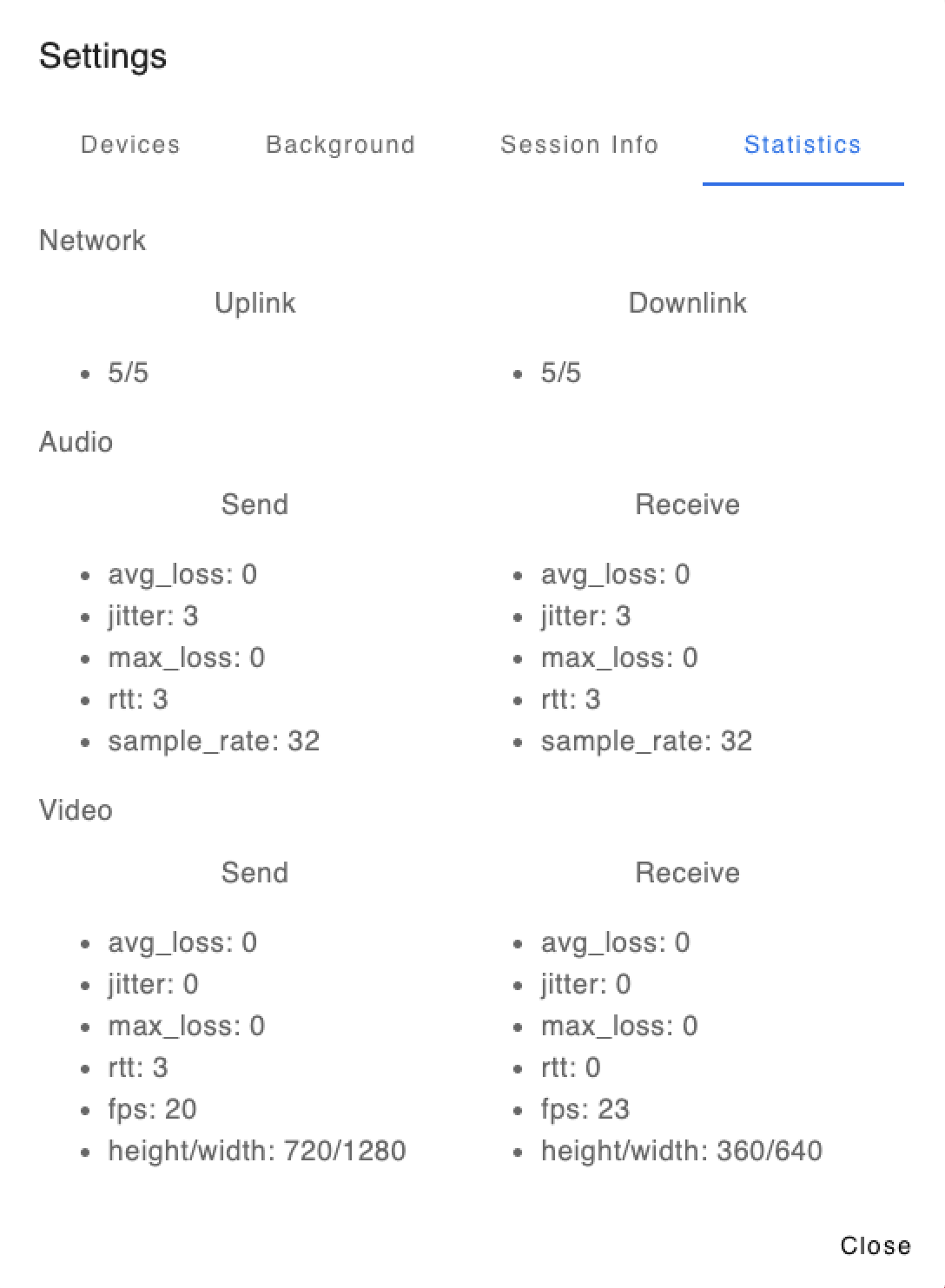
Use the connection-change event to get informed if the SDK disconnects the user for network reasons.
Video quality
The video-statistic-data-change event returns a user's video quality, such as frames per second (FPS) and resolution. When the encoding property is false, the payload is the video quality data you are receiving. When true, the payload is the video quality data you are sending.
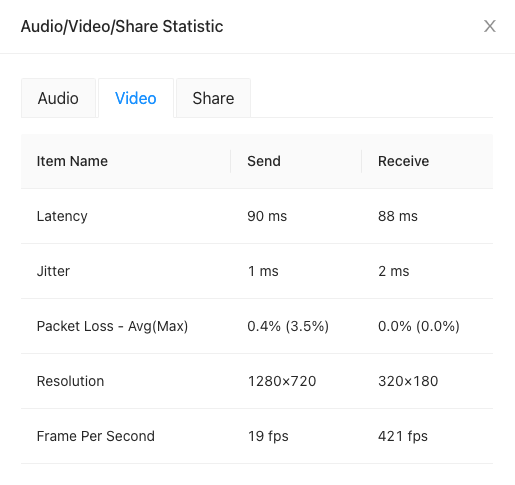
To receive this data, there must be at least two users in the session with their video on, and you must subscribe to the event. Call session.subscribeVideoStatisticData() to subscribe.
By default this returns the highest FPS and resolution being sent and received by users.
session.subscribeVideoStatisticData();
client.on("video-statistic-data-change", (payload) => {
    console.log(payload);
});
To get per user FPS and resolution, pass the {detailed: true} property into session.subscribeVideoStatisticData() and listen to the video-detailed-data-change event. This sends data about each video tile. It consumes more CPU and memory so it may be more useful during development.
Call getMaxRenderableVideos to get the concurrent remote video renders supported by the current device. This returns the number of simultaneous video renders. This value is typically affected by the capabilities of the GPU, CPU, and SharedArrayBuffer.
Audio quality
The audio-statistic-data-change event returns a user's audio quality, such as packet loss and sample rate. When the encoding property is false, the payload is the audio quality data you are receiving. When true, the payload is the audio quality data you are sending.
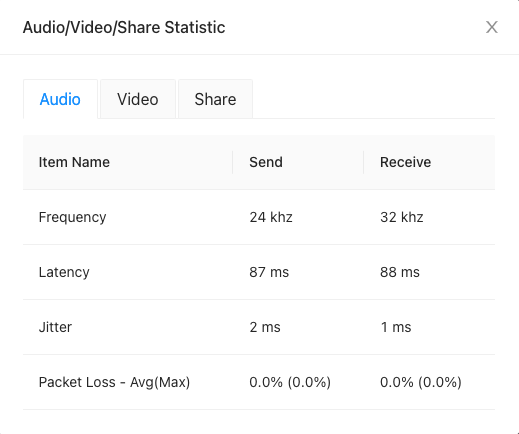
To receive this data, there must be at least two users in the session with their audio connected, and you must subscribe to the event. Call session.subscribeAudioStatisticData() to subscribe.
session.subscribeAudioStatisticData();
client.on("audio-statistic-data-change", (payload) => {
    console.log(payload);
});
Sharing quality
The share-statistic-data-change event returns a user's sharing quality. When the encoding property is false, the payload is the sharing quality data you are receiving. When true, the payload is the sharing quality data you are sending.
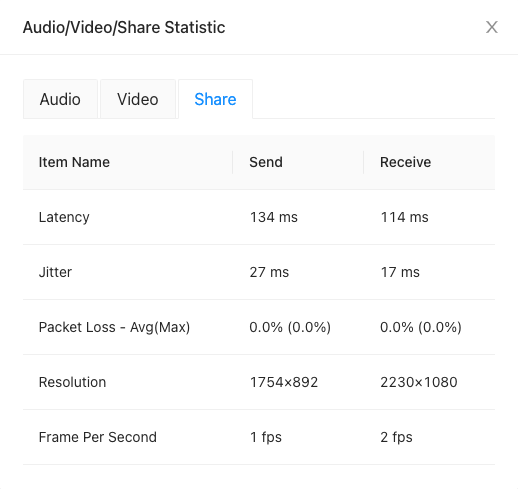
To receive this data, there must be at least two users in the session with one sharing, and you must subscribe to the event. Call session.subscribeShareStatisticData() to subscribe.
session.subscribeShareStatisticData();
client.on("share-statistic-data-change", (payload) => {
    console.log(payload);
});
Report issues to Zoom
By default, Video SDK sends detailed client-side debugging logs and reports to Zoom. This improves visibility into connection issues, crashes, and other client-side problems, allowing Zoom to investigate and resolve them more quickly. The detailed report includes end-user device information, network conditions, parameters, return values of SDK method calls, and other diagnostic data, similar to the Report Problem feature in Zoom Meetings and Webinars.
Note
You may need to provide notice to your end users and allow them to opt out before sending detailed reports to Zoom.
In the client.init method, the isLogDetailed option is set to true by default. This enables the SDK to send detailed telemetry to Zoom when the session ends or the user leaves. Set this option to false if you only want to send baseline telemetry logs. However, we recommend keeping it enabled to provide full visibility.
Set a Tracking ID
To help Zoom identify issues at the user level, include a telemetry_tracking_id property in your Video SDK JWT payload. Use a UUID for each session; we recommend using version 1 as described in rfc4122.
Example:
{
    "telemetry_tracking_id": "a8b7f844-1d32-4eeb-93a4-785a77f49428"
}
This ID will be included in the detailed telemetry reports sent to Zoom.
Collect user rating feedback
Zoom Meetings have a subjective end-of-meeting experience feedback survey that's useful to gauge meeting quality in order to improve it.
You can create a similar survey for Video SDK sessions. Use a score of 1-5; 1 indicating the worst score and 5 indicating the best, and an option for a feedback string. Report the rating to Zoom using the reportRating method. Zoom will investigate the quality of the session if the score was low.
clientSideTelemetry.reportRating(5, "Video quality was great!");
clientSideTelemetry.reportRating(3, "Video quality was ok.");
clientSideTelemetry.reportRating(
    1,
    "There were issues with the video quality.",
);
More service quality features
For the full set of service quality features, see Stream in the Video SDK Reference.