Core features
See the following core features for video such as how to start and stop video, switch cameras, render remote videos, multiple videos, and render active speaker. Then see the other sections to learn how to add virtual background, Pan, Tilt, Zoom (PTZ) camera controls, a second camera, picture-in-picture, the ability to play a video media file, and rounded corners for video.
Start video
You can start and render video using individual HTML elements. The startvideo function prompts the browser to ask for camera permissions. Be sure to tie the startVideo function to a user button click or the browser could block access to the camera. Once the user grants camera permission to the browser, you can attach the self view video within the video container.
Use UTF-8 encoding
Add
<meta charset="UTF-8" />to your web app's entry point (index.html) to ensure the browser uses UTF-8. Without it, the browser might default to a different encoding, which can prevent users from accessing media features and trigger console errors immediately after a session is joined.
HTML example
<!doctype html>
<html lang="en">
    <meta charset="UTF-8" />
    <head>
        <title>Video Player App</title>
    </head>
    <body>
        <video-player-container></video-player-container>
    </body>
</html>
CSS example
/* adjust the CSS to your liking */
video-player-container {
    width: 100%;
    height: 1000px;
}
video-player {
    width: 100%;
    height: auto;
    aspect-ratio: 16/9;
}
JavaScript example
stream.startVideo().then(() => {
    stream
        .attachVideo(client.getCurrentUserInfo().userId, RESOLUTION)
        .then((userVideo) => {
            document
                .querySelector("video-player-container")
                .appendChild(userVideo);
        });
});
await stream.startVideo();
let userVideo = await stream.attachVideo(
    client.getCurrentUserInfo().userId,
    RESOLUTION,
);
document.querySelector("video-player-container").appendChild(userVideo);
- The video is rendered in a 16:9 ratio by default for desktop and landscape mobile. For portrait mode on mobile devices, it renders at 9:16. See Video: Best practices for more information on responsive design.
- You can crop the HTML
videoelement using CSS or JavaScript to shape the video how you'd like. - You can send up to two video streams per connected user. To send a second camera stream use the screen share channel. Zoom renders the self view on the
videoelement depending on the device and browser.
Stop video
To stop your video, call stopVideo and detach the video from the DOM.
stream.stopVideo().then(() => {
    stream.detachVideo(USER_ID);
});
await stopVideo();
stream.detachVideo(USER_ID);
Switch camera
To switch the camera input, get the list of cameras, then pass in a deviceId to the switchCamera function.
let cameras = stream.getCameraList();
stream.switchCamera(cameras[1].deviceId);
Mobile browser cameras
Specifying mobile or tablet browser cameras is different from desktop browsers. Mobile browsers and WebRTC only support the built-in front and back cameras and not external USB cameras.
To specify the mobile or tablet browser camera, you must use the facingMode of either user for the front camera, or environment for the back camera (instead of the deviceId).
By default, the SDK uses the front camera. If the mobile device is rotated, the camera will automatically rotate.
var mobileDevice;
if (/iPhone|iPad|iPod|Android/i.test(navigator.userAgent)) {
    mobileDevice = true;
}
if (videoDevices.length && mobileDevice) {
    videoDevices = [
        {
            label: "Front Camera",
            deviceId: "user",
        },
        {
            label: "Back Camera",
            deviceId: "environment",
        },
    ];
}
// front camera
localVideoTrack.switchCamera(videoDevices[0].deviceId);
// back camera
localVideoTrack.switchCamera(videoDevices[1].deviceId);
Render remote videos
You can render up to 25 videos at a time on desktop browsers and 9 videos on mobile browsers. For WebAssembly video, enable SharedArrayBuffer or without SAB, set the enforceMultipleVideos init option to true. You can show additional videos using pagination. The maximum rendering video quality on web is 720p. No additional requirements for WebRTC.
Zoom offers an attach mechanism to render videos, which allows you to render videos on individual HTML elements within a container.
<video-player-container></video-player-container>
Adjust the CSS to your liking.
video-player {
    width: 25%;
    height: auto;
    aspect-ratio: 16/9;
}
When a user turns their video on or off, you will receive the peer-video-state-change event. To start or stop rendering the video of a user, call attachVideo or detachVideo respectively.
client.on("peer-video-state-change", (payload) => {
    if (payload.action === "Start") {
        // a user turned on their video, render it
        stream.attachVideo(payload.userId, 3).then((userVideo) => {
            document
                .querySelector("video-player-container")
                .appendChild(userVideo);
        });
    } else if (payload.action === "Stop") {
        // a user turned off their video, stop rendering it
        stream.detachVideo(payload.userId);
    }
});
When a user joins for the first time, you can add logic to check if there are remote user videos already being sent, and if there are, you can render them.
client.join(topic, token, userName, password).then(() => {
    stream = zoomVideo.getMediaStream();
    client.getAllUser().forEach((user) => {
        if (user.bVideoOn) {
            stream.attachVideo(user.userId, 3).then((userVideo) => {
                document
                    .querySelector("video-player-container")
                    .appendChild(userVideo);
            });
        }
    });
});
Video pagination example
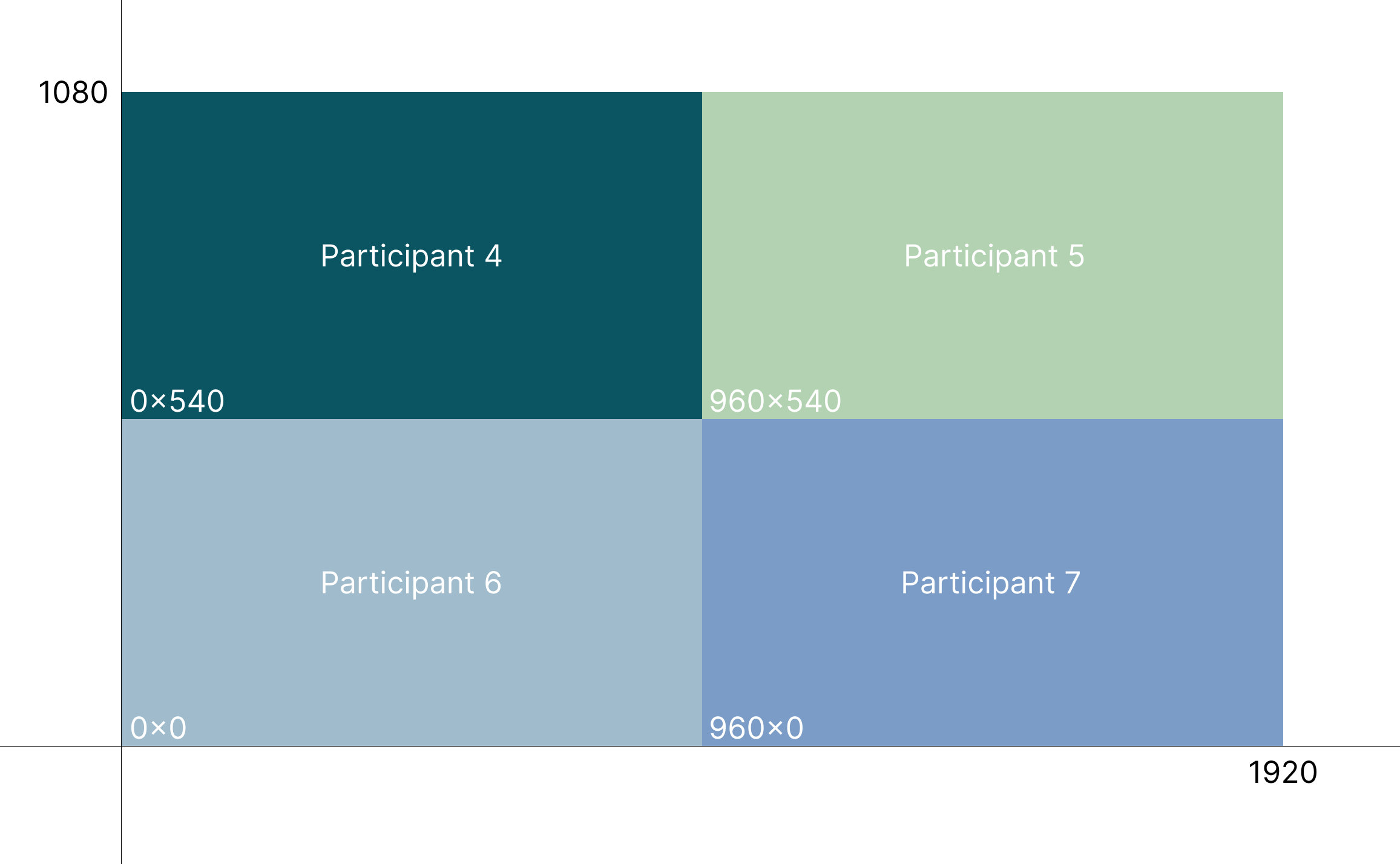
You can render user videos on individual HTML elements. This allows dynamic video layouts like cropping, different ratios, adding border radius, and more. This example shows how you would render four videos at a time, with eight users in the session, assuming all users have their cameras on.
-
Render the first four videos on a single user's container:
<video-player-container></video-player-container>video-player-container { width: 100%; height: 1000px; display: flex !important; flex-wrap: wrap; align-content: baseline; } video-player { width: 100%; height: auto; flex: 0 0 50%; aspect-ratio: 16/9; }let users = client.getAllUser(); stream.attachVideo(users[0].userId, 3).then((userVideo) => { document.querySelector("video-player-container").appendChild(userVideo); }); stream.attachVideo(users[1].userId, 3).then((userVideo) => { document.querySelector("video-player-container").appendChild(userVideo); }); stream.attachVideo(users[2].userId, 3).then((userVideo) => { document.querySelector("video-player-container").appendChild(userVideo); }); stream.attachVideo(users[3].userId, 3).then((userVideo) => { document.querySelector("video-player-container").appendChild(userVideo); });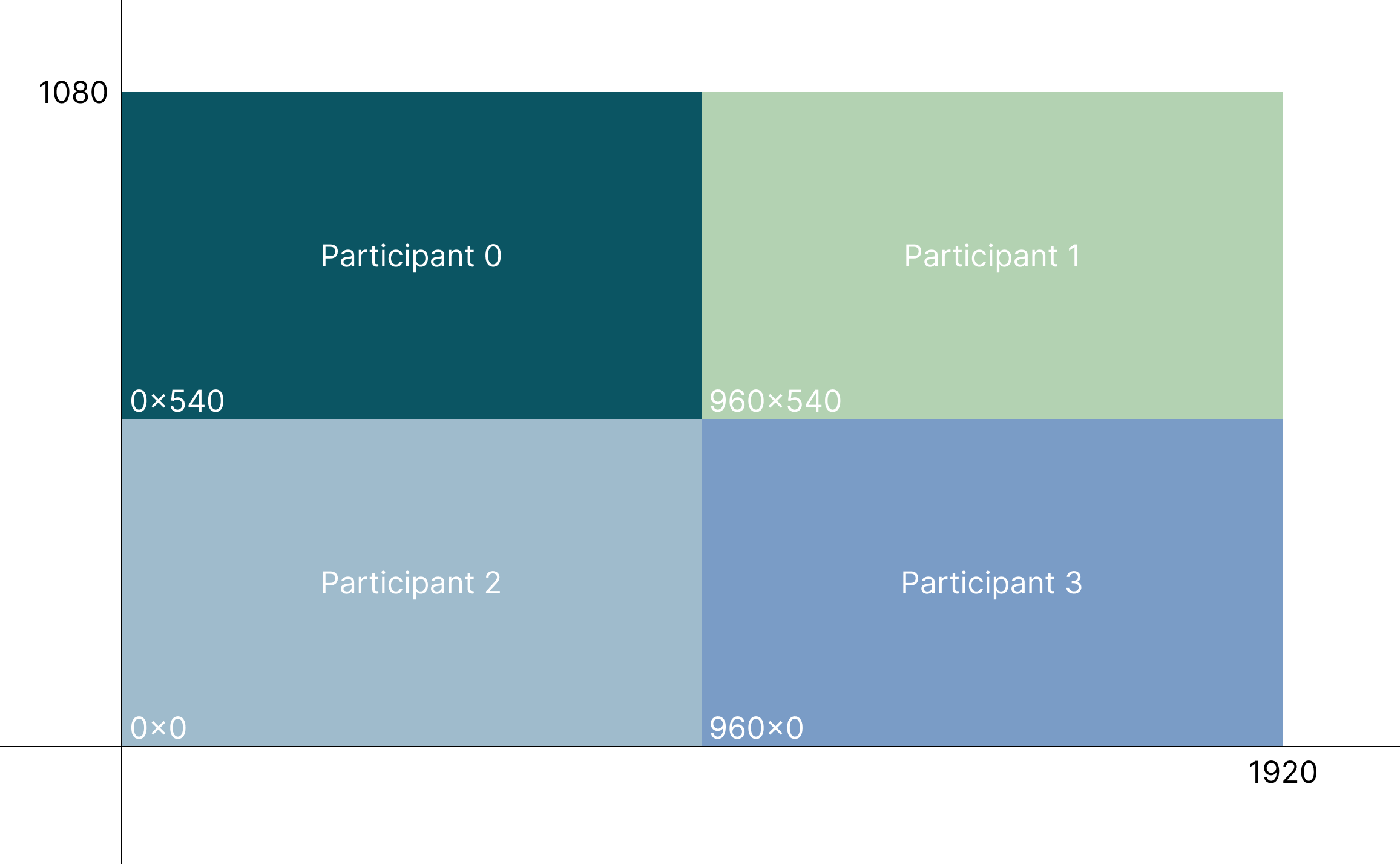
-
Render the next four videos after a button click.
function nextVideos() {
    // stop rendering the current 4 videos
    stream.detachVideo(users[0].userId);
    stream.detachVideo(users[1].userId);
    stream.detachVideo(users[2].userId);
    stream.detachVideo(users[3].userId);
    // render the next 4 videos
    stream.attachVideo(users[4].userId, 3).then((userVideo) => {
        document
            .querySelector("video-player-container")
            .appendChild(userVideo);
    });
    stream.attachVideo(users[5].userId, 3).then((userVideo) => {
        document
            .querySelector("video-player-container")
            .appendChild(userVideo);
    });
    stream.attachVideo(users[6].userId, 3).then((userVideo) => {
        document
            .querySelector("video-player-container")
            .appendChild(userVideo);
    });
    stream.attachVideo(users[7].userId, 3).then((userVideo) => {
        document
            .querySelector("video-player-container")
            .appendChild(userVideo);
    });
}
-
Render the previous four videos after a button click.
function previousVideos() {
    // stop rendering the current 4 videos
    stream.detachVideo(users[4].userId);
    stream.detachVideo(users[5].userId);
    stream.detachVideo(users[6].userId);
    stream.detachVideo(users[7].userId);
    // render the previous 4 videos
    stream.attachVideo(users[0].userId, 3).then((userVideo) => {
        document
            .querySelector("video-player-container")
            .appendChild(userVideo);
    });
    stream.attachVideo(users[1].userId, 3).then((userVideo) => {
        document
            .querySelector("video-player-container")
            .appendChild(userVideo);
    });
    stream.attachVideo(users[2].userId, 3).then((userVideo) => {
        document
            .querySelector("video-player-container")
            .appendChild(userVideo);
    });
    stream.attachVideo(users[3].userId, 3).then((userVideo) => {
        document
            .querySelector("video-player-container")
            .appendChild(userVideo);
    });
}
Dynamically render active speaker
If you want to render the active speaker video in a different way, for example, in a larger area in the container, use the video-active-change. This event is useful for re-rendering or re-sizing the video for the person currently speaking because it fires when the active speaker is talking for more than one second, allowing for a smoother user experience than the Audio active-speaker event.
The video-active-change event fires for active speakers who have their video on or off, so you can render the person who is speaking in a larger speaker view layout, whether rendering a video or displaying a video off icon.
client.on("video-active-change", (payload) => {
    console.log("Active speaker, use for any video adjustments", payload); // new active speaker, for example, use for video rendering changes, size changes, depending on your use case.
});
Make sure to check if the active speaker has changed.
More video features
For the full set of video features, see Stream in the Video SDK Reference.