Build a video conferencing app with the Zoom Video SDK & Angular
Zoom's Video SDK provides developers access to high-quality media while allowing full customization. This blog will cover both generating JSON Web Tokens (JWTs) to authenticate a video session and building the video-call interface using the Zoom Video SDK.
This application uses AnalogJS as its fullstack framework. If you're using Angular with a different backend, you can skip to the Build the videocall component section, and use your own backend logic to generate JWTs. You can find the code for the complete project on Github.
Prerequisites:
- Node LTS & NPM
- A Zoom Video SDK Account
- Angular ^v15 (recommended)
Step 1: Scaffold the application
If you already have a AnalogJS project, you can skip this step.
To scaffold the application we'll use the create-analog package, running the npm create analog@latest command in your terminal. These are the config options we selected:
◇  What would you like to start with?
│  fullstack application
│
◇  Would you like to add tailwind to your project?
│  Yes
Step 2: Configuring the project
Install the dependencies
This project uses the Zoom Video SDK for video-call integration & the jsrsasign cryptography library to generate JWTs. Install these dependencies using the following command:
npm install @zoom/videosdk jsrsasign
We're using v1.11.10 of the Zoom Video SDK for Web.
Script to enable shared array buffers
To leverage the full power of the Video SDK, including features like rendering multiple videos, virtual background, & background noise suppression, we need to enable support for Shared Array Buffers (SAB).
To do so, download this file and place it in the public folder of your project as public/coi-serviceworker.js. From there, copy this script tag into your index.html file:
<script src="/coi-serviceworker.js"></script>
Add environment variables
To complete the setup, we'll need to add in environment variables, which will be your Video SDK key and secret (you can locate your credentials on your Video SDK Dashboard. Make sure you're logged in to your Video SDK account). Because we're using AnalogJS on top of Angular, we don't need to use an environment.ts file, but can instead read in variables directly from an .env file. We'll create and add this file in the root of our project, and then add in our variables.
VITE_ZOOM_SDK_KEY="Your Zoom SDK Key"
VITE_ZOOM_SDK_SECRET="Your Zoom SDK Secret"
You can find detailed instructions on accessing your credentials in our docs.
State-management within our application
With Angular, we can use signals to maintain and update state throughout our applicaiton. By creating our signals in a .server.ts file, we can inject and use our signals throughout our application, keeping subscribed to any changes. The two pieces of state we want to use throughout our application are the sessionName and the generated JWT. We'll create a file within our app folder called data.service.ts:
import { signal, Injectable } from "@angular/core";
@Injectable({
    providedIn: "root",
})
export class dataService {
    sessionName = signal("session name here");
    jwt = signal("");
}
Step 3: Create the homepage
Our homepage for this applicaton will give users a space to name their session, which will internally update our sessionName variable. We'll write this logic inside our already populated index.page.ts file (you can erase any code that was autogenrated upon app scaffolding). We'll create a component that will contain an input field and a 'Create Session' button. To access and update our sessionName signal, we'll import inject from @angular/core and inject our imported dataService service.
@Component({
  selector: 'app-home',
  standalone: true,
  providers: [Router],
  template: `
    <h1>Video SDK with Angular + Analogjs</h1>
      <input placeholder="session name here" (input)="updateName($event)" />
  `,
})
export default class HomeComponent {
  //save input as slug name
  dataService = inject(dataService);
  sessionName = this.dataService.sessionName;
  router: Router = inject(Router)
On the same page, we'll create two functions. The first, createSession, will redirect users to our call page. To do this, we'll use the router package imported from '@angular/router' and use the navigate method. This function is executed when the 'create session' button is clicked, as shown in the code above.
  createSession() {
    console.log(this.sessionName());
    this.router.navigate(['Call', this.sessionName()])
  }
The next function will update our sessionName signal, according to user input, using signal's .set method. This function is executed when a user types into the input field.
  updateName(e: Event) {
    this.sessionName.set((e.target as HTMLInputElement).value)
  }
}
Step 4: Dynamic route for video chat
One of the great things about AnaglogJs is its file-based routing. With it, we can create a dynamic route to set up a link for each session based on the user's inputted session name. Users on the same link will be able to join the same session.
Let's create a Call folder within our project, and a [slug].page.ts file within that sub-folder. (By using .page.ts at the end of our filename, we're utilizing file-based routing, making the usual need for a .routes.ts file in an angular project obsolete.) Your folder structure should mimic the following:
├── Root Project
│   ├── src
│   │   ├── app
│   │   │  ├──pages
│   │   │  │  ├── Call
│   │   │  │      ├── [slug].page.ts
In this file, we'll import and load a VideoCall component (a placeholder for now, as we'll create the actual component later) that will contain the logic needed to run a video-call with the Video SDK. The @defer block enables a type of lazy loading for the Videocall component, to ensure there's no attempt to access it before it is fully loaded.
@Component({
  import VideoCallPageComponent from "../videocall.page";
  selector: 'app-page',
  standalone: true,
  imports: [VideoCallPageComponent],
  template: `@defer {<app-videocall/>}`,
})
export default class pageComponent {
}
Step 5: Generate your JWT token
To generate our JWT token needed to authenticate and join a Video SDK session, we'll move into the (auto-generated) server folder of our project. Here, you can go ahead and delete the pre-loaded hello.ts file located inside /server/routes/v1. We'll create a new file called getData.server.ts. Your file structure should mimic the following:
├── Root Project
│   ├── src
│   │   ├── server/routes/v1
│   │   │  ├── getData.server.ts
In this file, we'll import our downloaded cryptography library and use it to create a generateSignature function. Then, we'll call that function in an async/await function, getData, using our slug as a parameter. When we call generateSignature inside of getData, we'll pass through the slug parameter and the number 1 (to signify the user as host) as arguments. The code for this file is below:
export const getData = async (slug: string) => {
    const JWT = await generateSignature(slug, 1);
    return JWT;
};
function generateSignature(name: string, role: number) {
    const iat = Math.round(new Date().getTime() / 1000) - 30;
    const exp = iat + 60 * 60 * 2;
    const oHeader = { alg: "HS256", typ: "JWT" };
    const sdkKey = import.meta.env["VITE_ZOOM_SDK_KEY"];
    const sdkSecret = import.meta.env["VITE_ZOOM_SDK_SECRET"];
    const oPayload = {
        app_key: sdkKey,
        tpc: name,
        role_type: role,
        version: 1,
        iat: iat,
        exp: exp,
    };
    const sHeader = JSON.stringify(oHeader);
    const sPayload = JSON.stringify(oPayload);
    const sdkJwt = KJUR.jws.JWS.sign("HS256", sHeader, sPayload, sdkSecret);
    return sdkJwt;
}
You can read more about JWT generation in our documentation.
We'll import and call our getData function back on the client-side when we generate our JWT.
Step 6: Build the videocall component
The Videocall component will be responsible for initializing and joining the session, and rendering the video and audio elements. In this file, we'll:
- Create a function join our session
- Create a function to leave our session
- Create a render video function to display user videos
- Create a function to turn camera on/off
- Create a function to turn on audio, mute, and unmute
- Create buttons for these respective functions
HTML elements and styling
Before we move into our VideoCallPageComponent Class, we'll want to add in some key pieces to our Component object. First, we'll need a video-player-container to house our rendered videos. Within that container, we'll also need to create a div for our session container.
@Component({
  selector: 'app-videocall',
  standalone: true,
  template: `
  <h2>Session: {{sessionName()}} </h2>
    <video-player-container>
      <div id='sessionContainer'>
    </video-player-container>
  </div>
You'll also notice that we're dynamically rendering the session name based on user input by inserting the value of our invoked sessionName signal. We'll use the show html tag to conditionally render our video-player-container, to prevent an empty gap shown on the page when videos are not yet available.
To properly display each video-box, we'll add in the following object to our styles key within our Component object.
styles: `
  #sessionContainer {
    height: "75vh";
    margin-top: "1.5rem";
    margin-left: "3rem";
    margin-right: "3rem";
    align-content: "center";
    border-radius: "10px";
    overflow: "hidden";
  }
  `;
Setting up our state
We need to manipulate some pieces of sate throughout this file, so we'll inject/declare them at the top of our class component within the file. The code to do so is below:
export default class VideoCallPageComponent {
  dataService = inject(dataService);
  sessionName = this.dataService.sessionName;
  jwt = this.dataService.jwt;
  sessionContainer: any;
  inSession = signal(false);
  isVideoMuted = signal(!this.client.getCurrentUserInfo()?.bVideoOn);
  isAudioMuted = signal(this.client.getCurrentUserInfo()?.muted ?? true);
We also need to create our client to access the Video SDK:
client = ZoomVideo.createClient();
Initializing and joining a session
To join a session, we'll create an asychronous function called joinSession. We'll assign our sessionContainer variable to the HTML element we added into our video-player-container in the section above. We'll also set our JWT to the output of calling our getData function (created on the server-side in step 5 and imported at the top of the file). As the argument, we'll pass in our sessionName variable.
this.sessionContainer = document.getElementById("sessionContainer");
this.jwt.set(await getData(this.sessionName()));
Next, we need to initialize our session and add an event listener for the peer-video-state-change event. This event listener will allow us to execute the renderVideo function to update the video layout as users turn on and off their cameras. We'll join the session with client.join(), passing in our sessionName variable, our generated JWT, and a username. Once joined, we'll set our inSession value to true.
await this.client.init("en-US", "Global", { patchJsMedia: true });
this.client.on(
    "peer-video-state-change",
    (payload) => void this.renderVideo(payload),
);
await this.client
    .join(this.sessionName(), this.jwt(), this.userName)
    .catch((e) => {
        console.log("error here", e);
    });
this.inSession.set(true);
To access our media (camera and audio), we'll call .getMediaStream() on our client, and store it to the variable mediaStream. From there, we can now start our audio and video, and set our state accordingly.
const mediaStream = this.client.getMediaStream();
await mediaStream.startAudio();
this.isAudioMuted.set(this.client.getCurrentUserInfo().muted ?? true);
await mediaStream.startVideo();
this.isVideoMuted.set(!this.client.getCurrentUserInfo().bVideoOn);
await this.renderVideo({
    action: "Start",
    userId: this.client.getCurrentUserInfo().userId,
});
Leaving a session
To leave the session, we'll create the leaveSession function. Within it, we'll remove the event listener and call the leave method on our client. From there, we'll navigate back to our homepage.
  async leaveSession(){
    this.client.off('peer-video-state-change',
    (payload: {action: "Start" | "Stop"; userId: number}) =>
    void this.renderVideo(payload)
    );
    await this.client.leave().catch((e) => console.log('leave error', e))
    window.location.href ='/'
  }
Rendering videos
To properly update our videos, we'll create and use the renderVideo function. It'll take the event data from the peer-video-state-change event and use it to update the videos in the DOM based on the action from the event. if the action is 'Stop', we'll remove the video element by calling the detachVideo method our mediaStream, then remove the element from the DOM using the remove method on our mediaStream. If the action is Start, we'll add the video to the DOM by first calling the attachVideo method on our mediaStream, then attaching it to our assigned HTML element (sessionContainer) using the appendChild method.
  async renderVideo(event: {action: "Start" | "Stop"; userId: number}){
    const mediaStream = this.client.getMediaStream();
    if (event.action === "Stop") {
      const element = await mediaStream.detachVideo(event.userId);
      Array.isArray(element) ? element.forEach((el) => el.remove()) :
      element.remove();
    } else {
      const userVideo = await mediaStream.attachVideo(event.userId, VideoQuality.Video_360P);
      this.sessionContainer.appendChild(userVideo as VideoPlayer);
    };
  }
The styling for the video-player-container is omitted in this article, but can seen in the repo under 'src -> app -> styles.css'
Managing audio and video
To turn our video and audio on/off, we'll create a onCameraClick function and a onMicrophoneClick function. Both functions will call the appropiate methods to either start or stop the media, based on the current state. Our onCameraClick button will make use of the renderVideo function created above.
  async onCameraClick() {
    const mediaStream = this.client.getMediaStream();
    if (this.isVideoMuted()) {
      await mediaStream.startVideo();
      this.isVideoMuted.set(false);
      await this.renderVideo({
        action: "Start",
        userId: this.client.getCurrentUserInfo().userId
      });
    } else {
      await mediaStream.stopVideo();
      this.isVideoMuted.set(true);
      await this.renderVideo({
        action: "Stop",
        userId: this.client.getCurrentUserInfo().userId
      });
    }
  }
  async onMicrophoneClick() {
    const mediaStream = this.client.getMediaStream();
    this.isAudioMuted() ? await mediaStream?.unmuteAudio() : await mediaStream?.muteAudio();
    this.isAudioMuted.set(this.client.getCurrentUserInfo().muted ?? true)
  };
Creating our buttons
To trigger these functions, we'll bind them to specific buttons that will be conditionally rendered. If a user is currently in a session, our session button will read leave session, and vise versa. To conditionally render our buttons, we need to import the NgIf package and set it equal the appropiate condition. All the included buttons, as well as our imports array, are show below:
    <lucide-icon name="camera"></lucide-icon>
`,
  imports: [NgIf],
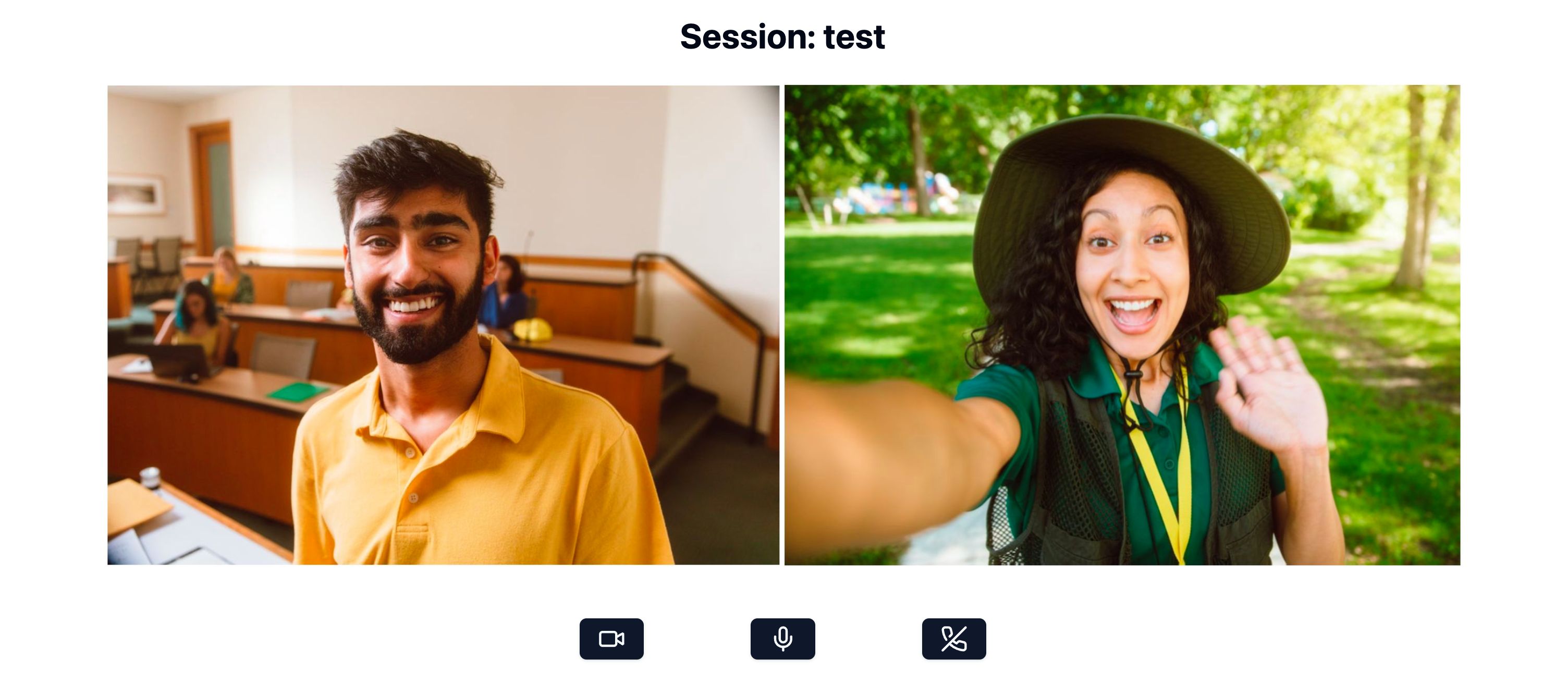
That's all the code needed to build a video-conferencing application using Zoom's Video SDK and Angular. You can launch your application by running npm run dev in the root directory. The app will be available at http://localhost:5173/.
Conclusion
We hope this guide has given you a good starting point to build your own video conferencing app using the Zoom Video SDK with Angular & AnalogJS. Be sure to check out our other blos where we build the same app with React & Next.js, Vue & Nuxt and SvelteKit.
For further community discussion and insight from Zoom Developer Advocates and other developers, please check out the Zoom Developer Forum. For prioritized assistance and troubleshooting, take advantage of Premier Developer Support and submit a ticket.