As of version 2.2.0, the Meeting SDK for web component view has positioning capabilities. Each component can be placed in a specific area on your page. You can also disable dragging a component.
Positioning components
In the client.init() function's customize property, configure positioning and dragging for the components.
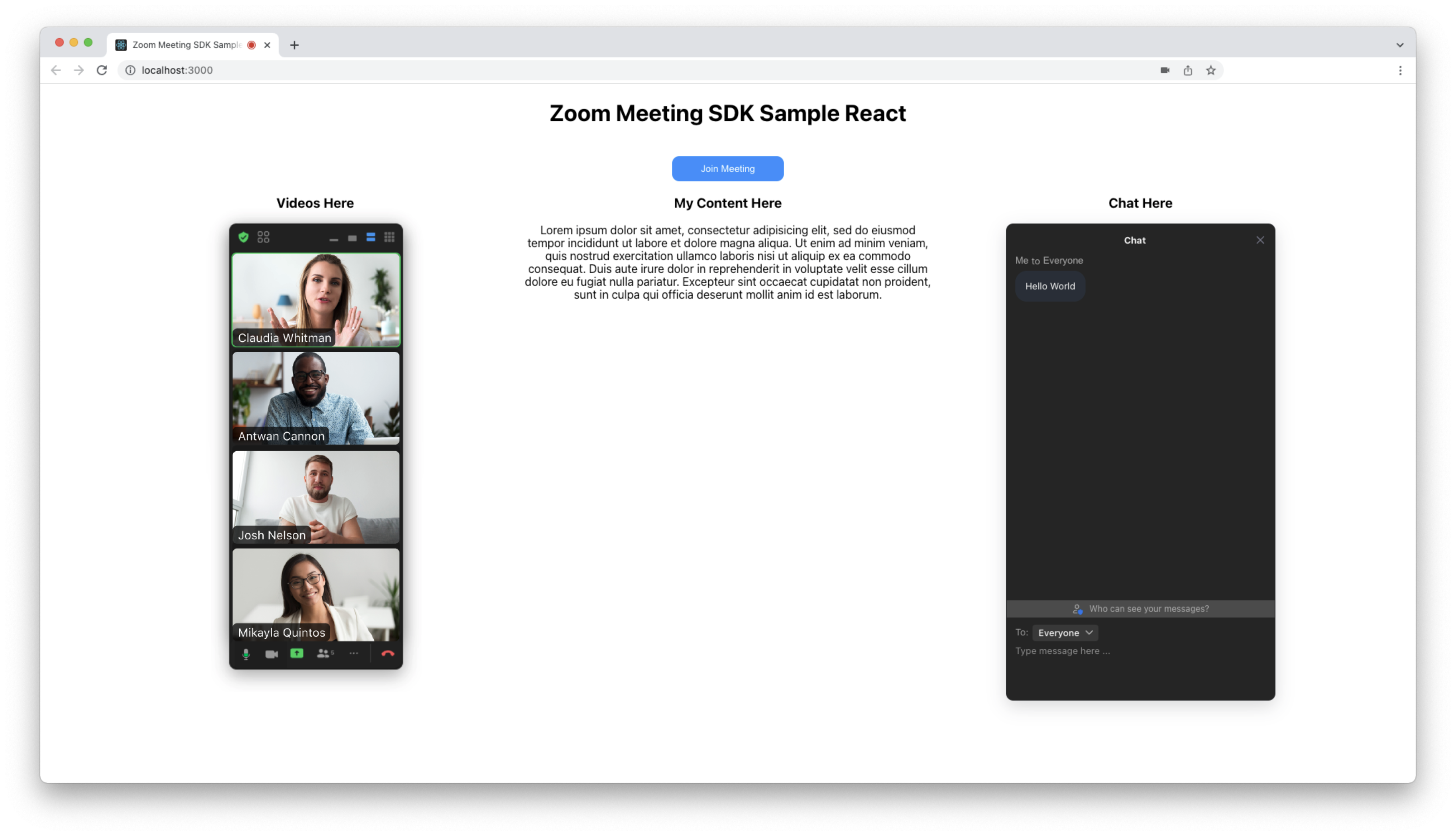
For example, if you'd like the video component positioned on the left and the chat component on the right, and dragging disabled for both, use the following approach.
let meetingSDKElement = document.getElementById('meetingSDKElement');

let meetingSDKChatElement = document.getElementById('meetingSDKChatElement');

client.init({
    zoomAppRoot: meetingSDKElement,
    language: 'en-US',
    customize: {
        video: {
            popper: {
                disableDraggable: true,
            },
        },
        chat: {
            popper: {
                disableDraggable: true,
                anchorElement: meetingSDKChatElement,
                placement: 'top',
            },
        },
    },
});
<div class="row">
    <div class="column">
        <h3>Videos Here</h3>
        <div id="meetingSDKElement"></div>
    </div>
    <div class="column">
        <h3>My Content Here</h3>
        <p>
            Lorem ipsum dolor sit amet, consectetur adipisicing elit, sed do
            eiusmod tempor incididunt ut labore et dolore magna aliqua. Ut enim
            ad minim veniam, quis nostrud exercitation ullamco laboris nisi ut
            aliquip ex ea commodo consequat. Duis aute irure dolor in
            reprehenderit in voluptate velit esse cillum dolore eu fugiat nulla
            pariatur. Excepteur sint occaecat cupidatat non proident, sunt in
            culpa qui officia deserunt mollit anim id est laborum.
        </p>
    </div>
    <div class="column">
        <h3>Chat Here</h3>
        <div id="meetingSDKChatElement"></div>
    </div>
</div>
.row {
    display: flex;
}

.column {
    flex: 1;
    position: relative;
}

#meetingSDKElement {
    top: 59px !important;
    left: 0 !important;
    right: 0;
    margin-left: auto;
    margin-right: auto;
    width: 244px; /* width of speaker and ribbon view */
}
Since the SDK root element (zoomAppRoot) works differently than child components, the video -> popper object: anchorElement, modifiers, placement, and anchorReference properties are not available. However, you can still position the root element via CSS.
You can also use Material UI Popper components for positioning. See the linked documentation for more information, as well as the popper interfaces and types in the Meeting SDK Web component view and the InitOptions reference documentation.