Integrate SDK into your app
The Zoom Video SDK allows you to add real-time voice, video and chat capabilities to your app. See the following sections for details.
Prerequisites
To integrate the SDK into your app, you must have:
- Android Studio.
minSdkVersion26 (Android 8 or later) withtargetSdkVersion35, NDK minimum 27 and above.- A physical Android device using the
armeabi-v7aorarm64-v8aABI and Android API Level 26 or above (Devices usingx86orx86_64ABIs are no longer supported beyond version 5.17.10, or any additional patches in the 5.17.X version). - Valid SDK credentials.
- Experience developing native Android apps.
Feature libraries
Some features have been separated from the main SDK to make the file size smaller if you do not want to include these features. To include these features, add following additional Android archive (AAR) files as appropriate:
mobilertc.aar: Zoom UI componentsvideo-effects.aar: Virtual background feature.zm-annoter.aar: Support annotation service during screen share.
Find these files under the folders of the same name in the SDK package.
Import the SDK libraries
You can build using Maven or by adding the dependencies yourself.
Using Maven
You can integrate the SDK through the Maven Central Repository. For all versions after 1.9.0, the SDK was updated to use a new group ID in Maven. The new group ID can also be used for versions before 1.9.0.
The SDK has multiple components. All developers using the SDK must use the follwing core module. If you're building using Gradle or Groovy, add this line to your app/build.gradle file:
implementation 'us.zoom.videosdk:zoomvideosdk-core:<VERSION>'.
You can also use the following for annotation.
implementation 'us.zoom.videosdk:zoomvideosdk-annotation:<VERSION>'
And the following for virtual background.
implementation 'us.zoom.videosdk:zoomvideosdk-videoeffects:<VERSION>'
In each code sample, replace <VERSION> with the version of the SDK, such as 1.10.5
If you're using a different build system, see the Video SDK repository pages for more details:
Not using Maven
If you're not using Maven, follow the instructions below.
Once you have downloaded the SDK and unzipped it, copy the mobilertc folder into the root directory of the project.
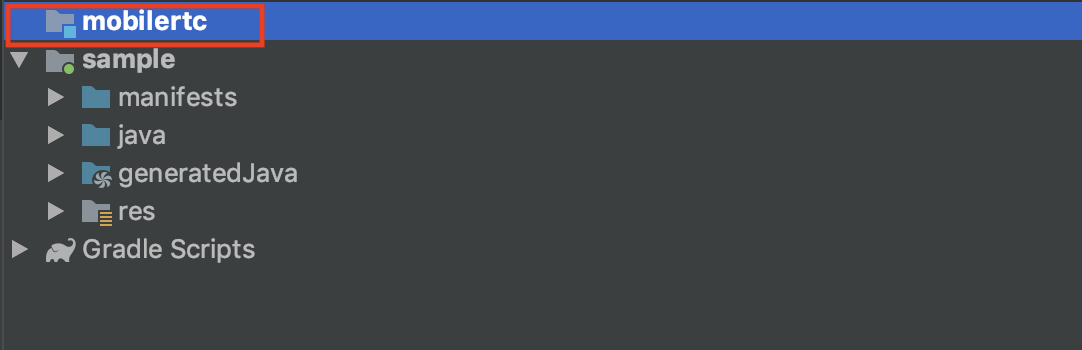
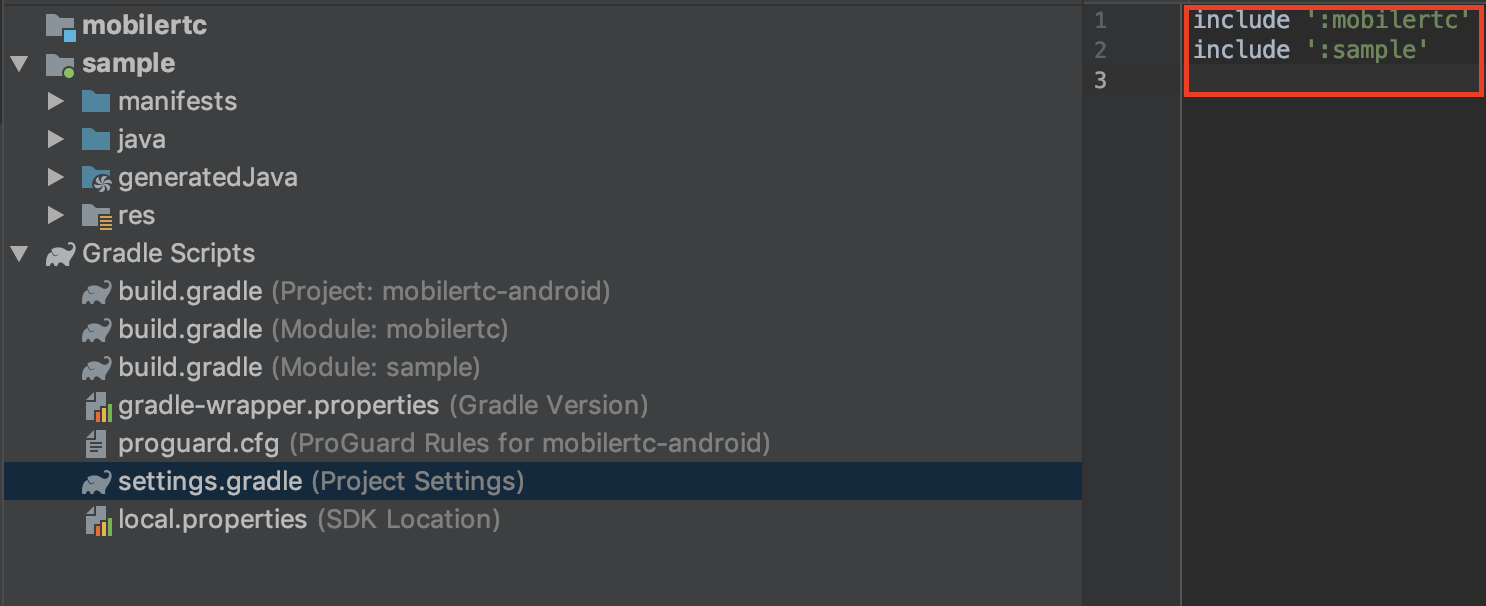
Open settings.gradle and include mobilertc in the project.
In build.gradle(Module: sample) add mobilertc as a dependency for the project:
dependencies {
    implementation project(':mobilertc')
}
Then, add the following dependencies required by the SDK to your build.gradle(Module: mobilertc file:
dependencies.add("default","androidx.security:security-crypto:1.1.0-alpha03")
dependencies.add("default","com.google.crypto.tink:tink-android:1.5.0")
dependencies.add("default","androidx.appcompat:appcompat:1.3.0")
The version required by the SDK can change, so we recommend checking the latest version of the SDK sample app whenever a new SDK version is integrated into your project.
Click Sync Project with Gradle Files and wait for synchronization to complete.
Add permissions
The Video SDK requires the following permissions. Ensure that your app manifest has been set up properly to request these permissions.
| Name | Description |
|---|---|
| Camera | Required for video |
| Microphone | Required for audio |
| System Alert Window | Required to show system alert window |
| Photo Library | Used for sharing images from the photo library |
Foreground permissions
Starting with Android 14, Google requires developers to specify appropriate foreground service types in their apps. The Video SDK uses these foreground service permissions.
| Permission | Description |
|---|---|
FOREGROUND_SERVICE_MICROPHONE | Allow the capability to receive audio when the app is put in the background. |
FOREGROUND_SERVICE_MEDIA_PLAYBACK | Allow the capability to share audio while screen sharing. |
FOREGROUND_SERVICE_MEDIA_PROJECTION | Allow the capability to project the screen while screen sharing. |
FOREGROUND_SERVICE_CONNECTED_DEVICE | Allow the capability to use Bluetooth device as the audio source. |
FOREGROUND_SERVICE_PHONE_CALL | Allow the capability to use Bluetooth device for the meeting call. |
The screen sharing feature in Video SDK requires foreground service. If the screen sharing feature is not included in your project, add the following code in Androidmanifest.xml to remove the service and permissions. Note that removing FOREGROUND_SERVICE_MICROPHONE permission might cause an audio issue when the application is in the background. Therefore, to ensure the audio works as expected, maintain FOREGROUND_SERVICE_MICROPHONE and FOREGROUND_SERVICE_CONNECTED_DEVICE permissions in the project and start the foreground service when joining a meeting.
<uses-permission android:name="android.permission.FOREGROUND_SERVICE_CONNECTED_DEVICE" tools:node="remove"/>
<uses-permission android:name="android.permission.FOREGROUND_SERVICE_MICROPHONE" tools:node="remove"/>
<uses-permission android:name="android.permission.FOREGROUND_SERVICE_PHONE_CALL" tools:node="remove"/>
<uses-permission android:name="android.permission.FOREGROUND_SERVICE_MEDIA_PROJECTION" tools:node="remove"/>
<uses-permission android:name="android.permission.FOREGROUND_SERVICE_MEDIA_PLAYBACK" tools:node="remove"/>
Initialize the SDK
SDK Initialization is required before calling any other functions of the SDK. To initialize the SDK, create an instance of the ZoomSDKInitParams object and set the domain of the context to "zoom.us". Optionally, you may also enable logging for debugging purposes.
Note that you must call the Video SDK from the main thread.
val params = ZoomVideoSDKInitParams().apply {
    domain = "https://zoom.us" // Required
    logFilePrefix = "MyLogPrefix" // Optional for debugging
    enableLog = true // Optional for debugging
}
ZoomVideoSDKInitParams params = new ZoomVideoSDKInitParams();
params.domain = "https://zoom.us"; // Required
params.logFilePrefix = "MyLogPrefix"; // Optional for debugging
params.enableLog = true; // Optional for debugging
Troubleshooting: conflicts with libc++_shared.so
To fix a conflict with libc++_shared.so, try these options in this order. Check after each change to see if that fix resolves the issue.
-
Check the project's NDK version. Our SDK's currently supported NDK version is 27. If you're not sure which version you're using, define the NDK version in the
build.gradlefile. -
Check if there are any other
libc++_shared.soreferences in your project that cause a conflict.- If you have your own C++ library in your project, define the
ndkVersion27 inbuild.gradle. - If you're using a third-party module that includes
libc++_shared.so, remove the third-party module from your project or removelibc++_share.sofrom the module.
- If you have your own C++ library in your project, define the
-
Add these
packagingOptionsinbuild.gradle.packagingOptions { pickFirst 'lib/x86/libc++_shared.so' pickFirst 'lib/x86_64/libc++_shared.so' pickFirst 'lib/armeabi-v7a/libc++_shared.so' pickFirst 'lib/arm64-v8a/libc++_shared.so' }
Initialization fields
The following table describes each field in ZoomVideoSDKInitParams.
| Field | Description |
|---|---|
audioRawDataMemoryMode | ZoomVideoSDKRawDataMemoryMode. Raw data buffer exists in heap or stack. |
domain | Required. String. The web domain. |
enableFullHD | Boolean. Only for Oculus devices. |
enableLog | Optional. Boolean. Enable log. |
extendParam | ZoomVideoSDKExtendParams. For the speaker test file path. |
logFilePrefix | String. Log file prefix. |
shareRawDataMemoryMode | ZoomVideoSDKRawDataMemoryMode. Raw data buffer exists in heap or stack. |
videoRawDataMemoryMode | ZoomVideoSDKRawDataMemoryMode. Raw data buffer exists in heap or stack. |
For more information on how to use the ZoomVideoSDKRawDataMemoryMode object, see Raw Data.
Verify initialization
After creating your params object with the domain, call the initialize function on the SDK from your activity and verify that it was correctly initialized.
val sdk = ZoomVideoSDK.getInstance()
val initResult = sdk.initialize(this, params)
if (initResult == ZoomVideoSDKErrors.Errors_Success) {
    // You have successfully initialized the SDK
} else {
    // Something went wrong, see error code documentation
}
ZoomVideoSDK sdk = ZoomVideoSDK.getInstance();
int initResult = sdk.initialize(this, params);
if (initResult == ZoomVideoSDKErrors.Errors_Success) {
    // You have successfully initialized the SDK
} else {
    // Something went wrong, see error code documentation
}
Once the SDK is successfully initialized, you will be able to call the SDK functions. You will also be able to set up a listener to listen for events such as when a user joins a session or leaves a session.
Initialize with debug log
You can enable the debug log feature when initializing the SDK with the following method:
ZoomVideoSDKInitParams params = new ZoomVideoSDKInitParams();
    params.domain = Constants.WEB_DOMAIN;
    params.enableLog = true;
    params.videoRawDataMemoryMode = ZoomVideoSDKRawDataMemoryMode.ZoomVideoSDKRawDataMemoryModeHeap;
    params.audioRawDataMemoryMode = ZoomVideoSDKRawDataMemoryMode.ZoomVideoSDKRawDataMemoryModeHeap;
    params.shareRawDataMemoryMode = ZoomVideoSDKRawDataMemoryMode.ZoomVideoSDKRawDataMemoryModeHeap;
    ZoomVideoSDK.getInstance().initialize(this.getApplicationContext(), params);
Once you've initialized the log feature, the SDK creates an encrypted log file in the following path: /sdcard/Android/data/yourappname/logs/
If you are using the Android Studio emulator, find the device files on the "Device File Explorer" tag on the bottom-right. The path of the log file is:
us.zoom.sdkexample
│───data
│───files
└───logs
    └───zSdkApp_0.log
The log file has a 5MB fixed maximum storage capacity. Once it reaches the maximum capacity, it automatically re-records from the beginning and overrides the previous data.
Listen for callback events
The ZoomVideoSDKDelegate allows you to subscribe to callback events that provide status updates on the operations performed in your app that are related to the Video SDK. For example, you might want to be notified when a user has successfully joined or left a session.
Add a listener
To subscribe to these events, you must define your own instance of the ZoomVideoSDKDelegate object and you must add it to the SDK by calling the addListener function. In this section, we will show you how to implement this listener and assign it to the SDK instance and also provide you with examples of the event handlers associated with the SDK.
ZoomVideoSDK.getInstance().addListener(listener)
ZoomVideoSDK.getInstance().addListener(listener);
Sample listener
val listener = object : ZoomVideoSDKDelegate {
// You can use any of the available event callbacks here based on your use case.
// Example - To listen for when a user enters a wrong password while attempting to join a session, use the onSessionPasswordWrong() callback function
    override fun onSessionPasswordWrong(handler: ZoomVideoSDKPasswordHandler?) {
        // Recommended action: prompt user to enter password again and pass user input into
        // handler.inputSessionPassword
        handler?.inputSessionPassword("stringFromUserInput")
        // Alternatively, you may abandon the attempt to join the session
        handler?.leaveSessionIgnorePassword()
    }
}
ZoomVideoSDKDelegate listener = new ZoomVideoSDKDelegate() {
    @Override
    public void onSessionPasswordWrong(ZoomVideoSDKPasswordHandler handler) {
        // Recommended action: prompt user to enter password again and pass user input into
        // handler.inputSessionPassword
        handler.inputSessionPassword("stringFromUserInput");
        // Alternatively, you may abandon the attempt to join the session
        handler.leaveSessionIgnorePassword();
    }
}
Callback functions
The following is an example of a callback function provided by the Video SDK. See other examples of callback functions at the end of each feature page, such as when users join or leave a session, set up or exit a video session, implement a chat screen, and more.
Use these functions and implement any additional operations as needed after receiving the result of the callback function.
Get notified of operation errors related to the SDK
override fun onError(errorCode: Int) {
// See error code documentation
}
@Override
public void onError(int errorCode) {
    // See error code documentation
}
See Error codes for a list of error codes, descriptions, and troubleshooting suggestions.
Add features
You can set up Video SDK features as well as event listeners for asynchronous events in the Video SDK session. See the rest of this documentation for details on how to add these features and listeners to your app.