Get started
Use the Zoom Video SDK UI Toolkit, a prebuilt user interface, to include the Video SDK in your application or integrate Video SDK directly to customize the experience yourself.
See Video SDK Plans & Pricing for Developer for pricing.
Prebuilt user interface
The Zoom Video SDK UI Toolkit is a prebuilt user interface that you can use to quickly add Video SDK to your app.
See the documentation for details on how to start and join sessions and use the prebuilt Video SDK features. The UI Toolkit is all you need to run the Video SDK in your app.
Custom user interface
For a more sophisticated integration, you can integrate the SDK and features directly into your app. See Integrate for details. Run the sample app to see an example.
Run the sample app
To see an example of the custom user interface, install and run our sample app. Be sure you have the necessary prerequisites before you start.
Find the sample app in the Android SDK folder of the Video SDK download in your Zoom App Marketplace account. It is a video session application that allows hosts to start a session by topic. Audiences can join the session by typing the same topic name.
To run the sample app, you must have the following prerequisites.
- Android Studio.
minSdkVersion26 (Android 8 or later) withtargetSdkVersion35, NDK minimum 27 and above.- A physical Android device using the
armeabi-v7aorarm64-v8aABI and Android API Level 26 or above (Devices usingx86orx86_64ABIs are no longer supported beyond version 5.17.10, or any additional patches in the 5.17.X version). - Experience building Android Apps.
- Valid SDK credentials.
Authenticate
You will need a Native SDK Key and Secret to generate a JSON Web Token (JWT) that your application will pass into the Video SDK. See Video SDK Authentication for details.
For security reasons, these credentials should not be stored in the application itself. You should generate this where you can securely store your Video SDK credentials, such as through a backend (server-side) function.
Configure and build project
Download the SDK package and open the mobilertc-android project in Android Studio.
Open the /sample/src/main/java/us/zoom/sdksample/Constants.java file. Follow the instructions in Authentication to generate an SDK JWT, then change the TOKEN constant to this value.
public interface Constants {
    // TODO Change it to your web domain
    public final static String WEB_DOMAIN = "https://zoom.us";
    public final static String TOKEN = "Your JWT token here";
}
Next, connect your Android device to your computer and run the sample app.

Test the sample app
Once launched, the sample app will run on your connected device.
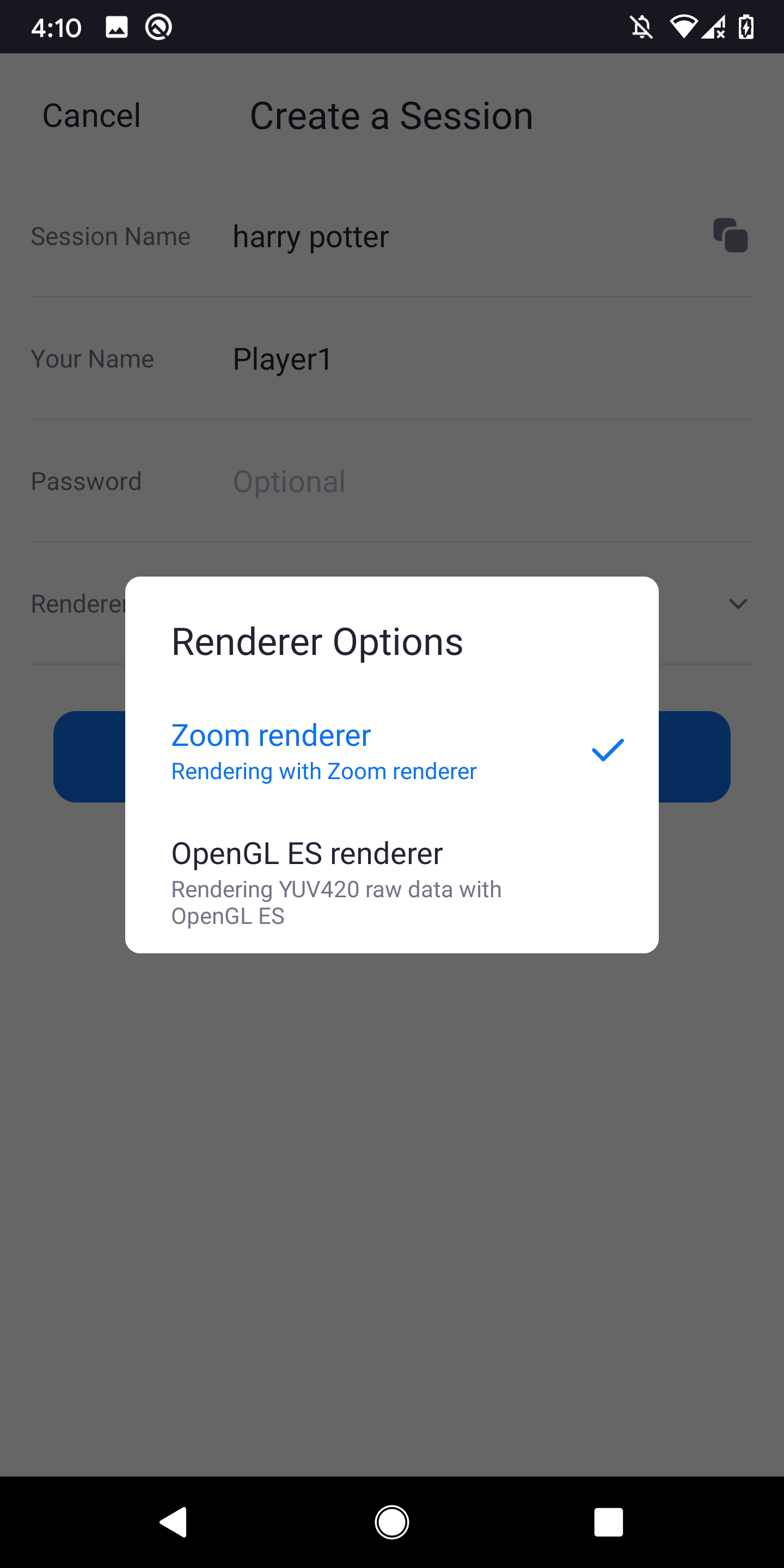
The Video SDK provides raw data for advanced video and audio customization which can be processed by three different render options. This sample app uses these two renderers:
- Zoom renderer - Renderer developed by Zoom and highly-optimized for Zoom services. Designed for ease of use and simple usability.
- OpenGL ES renderer - Cross-platform renderer designed for embedded mobile systems providing a flexible interface between software and graphics acceleration hardware.
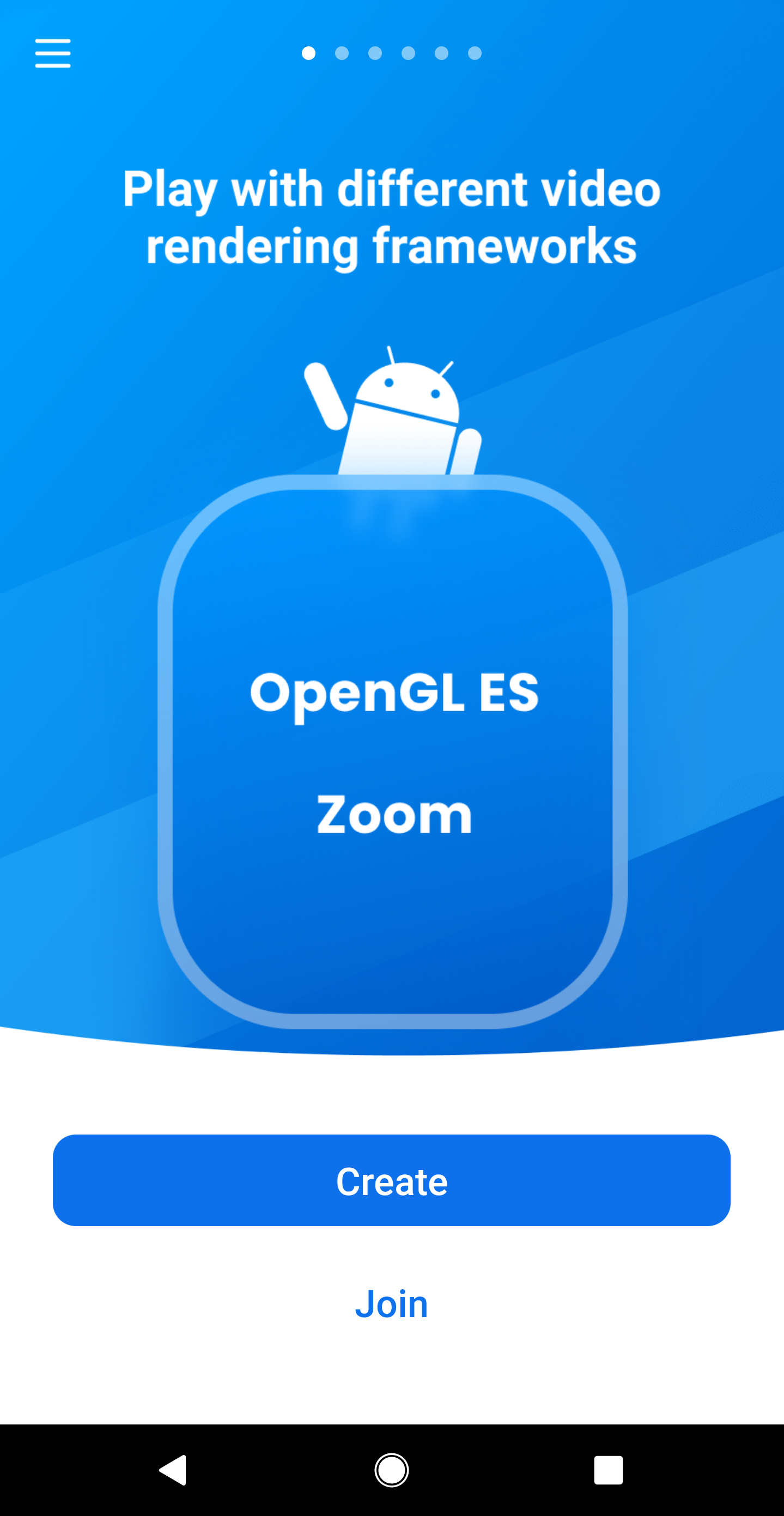
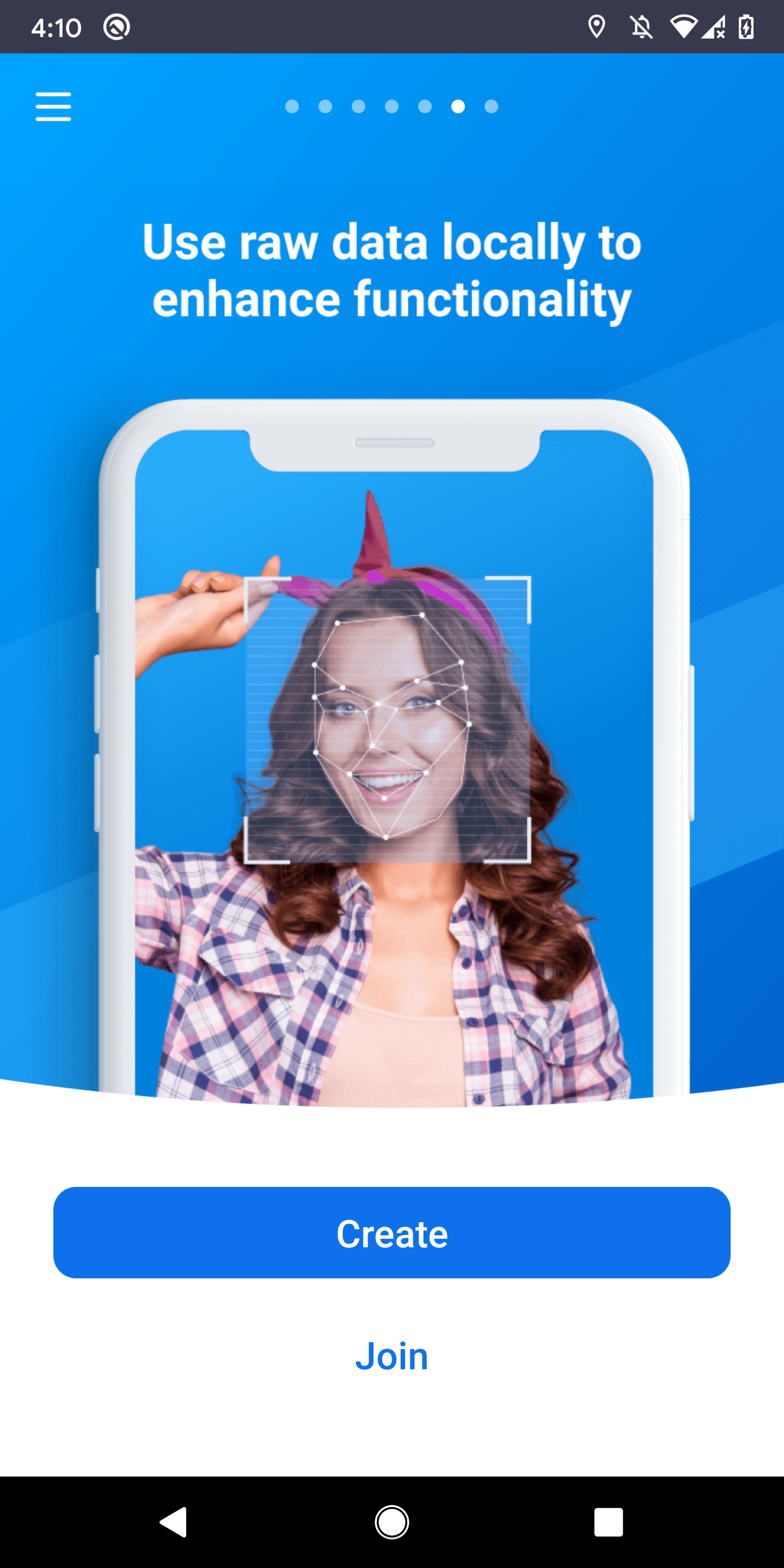
Swipe right on the carousel will show the key features available in Video SDK.
Press Create to create a session. For example, create a session called "Harry Potter" and fill in the display name.
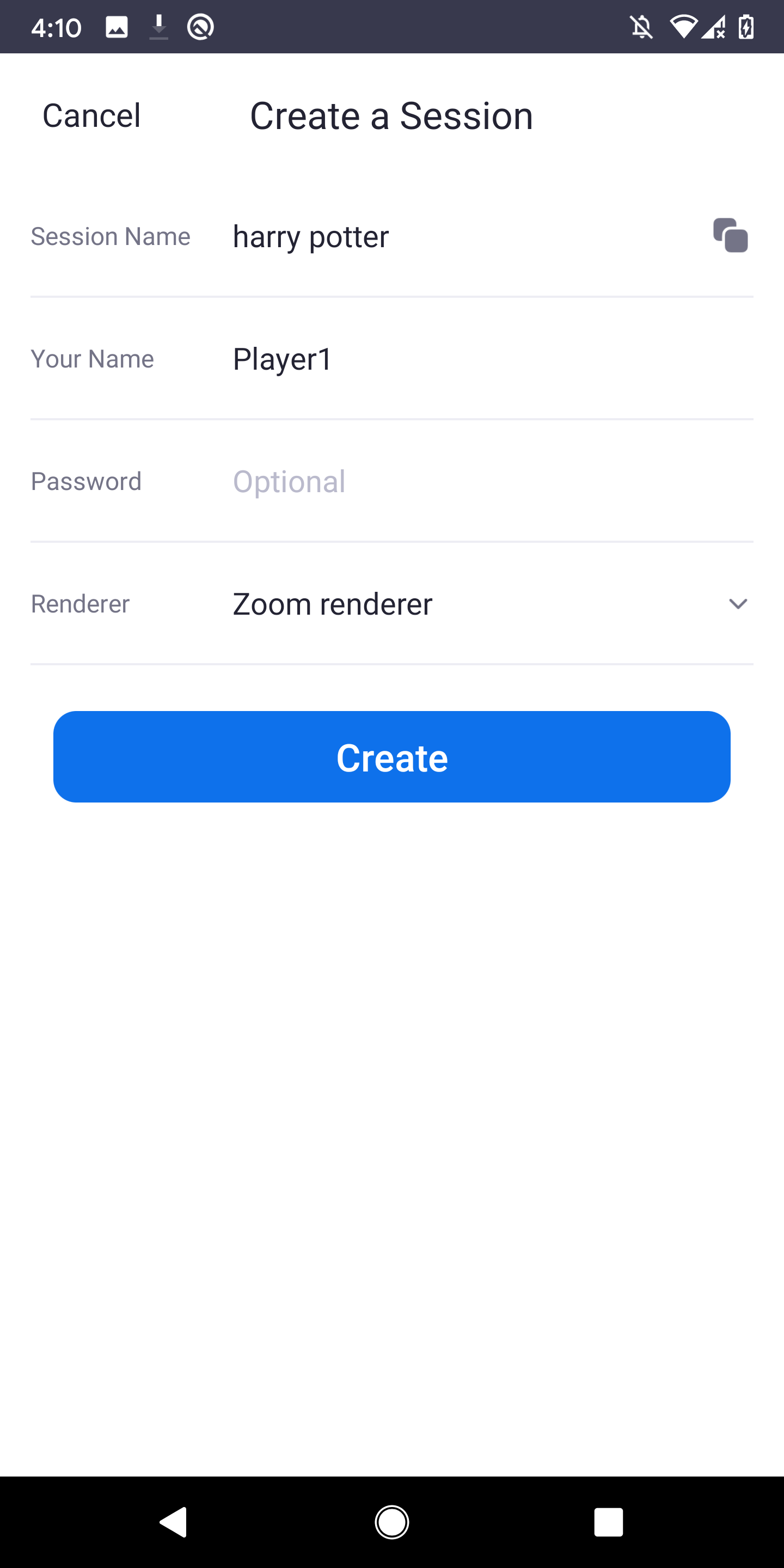
Tap the renderer field to select the renderer to render the video. For demo purpose, the UI will look the same across the renderers.
Once you've selected a renderer, press Create to start a session.
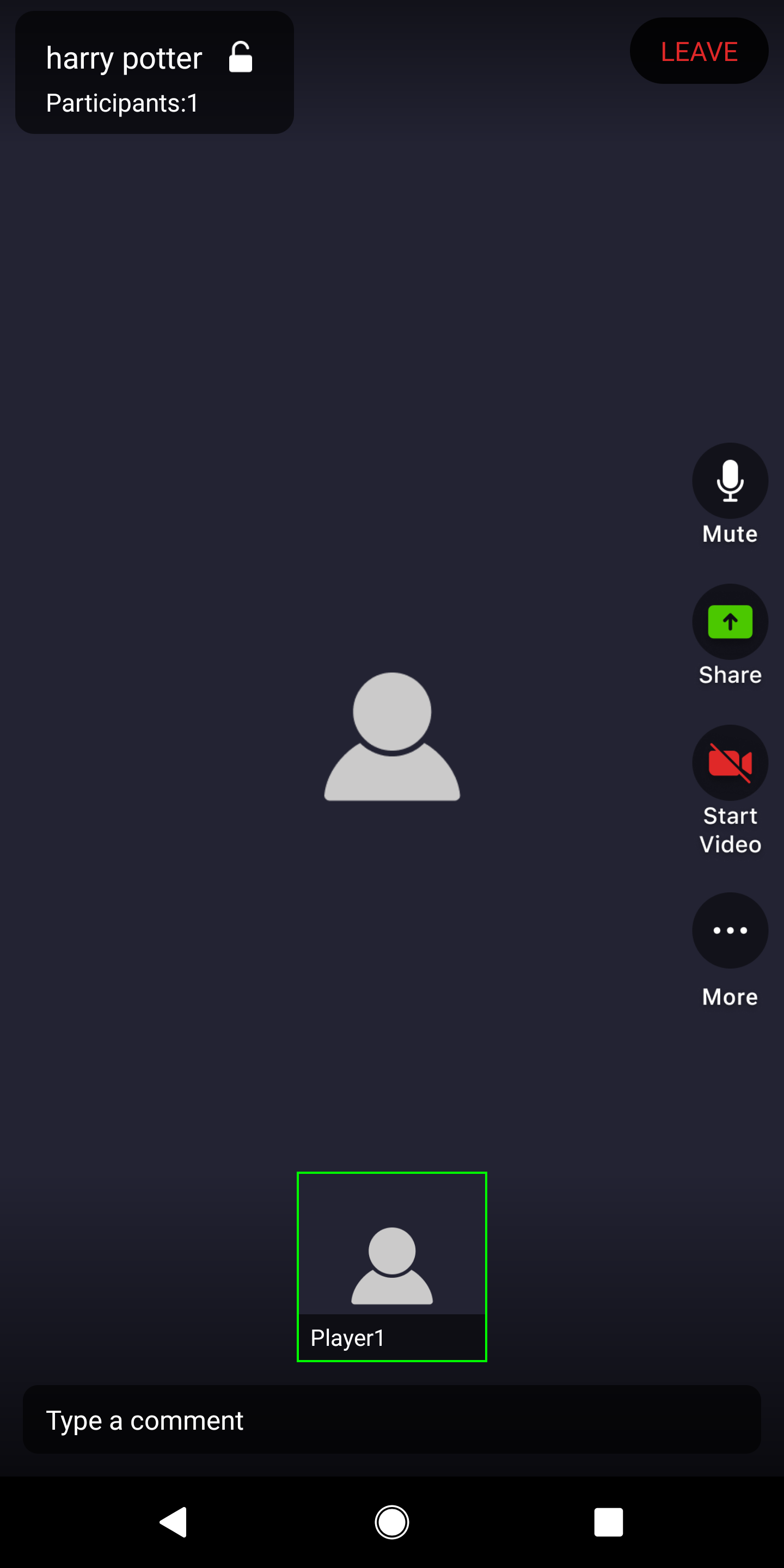
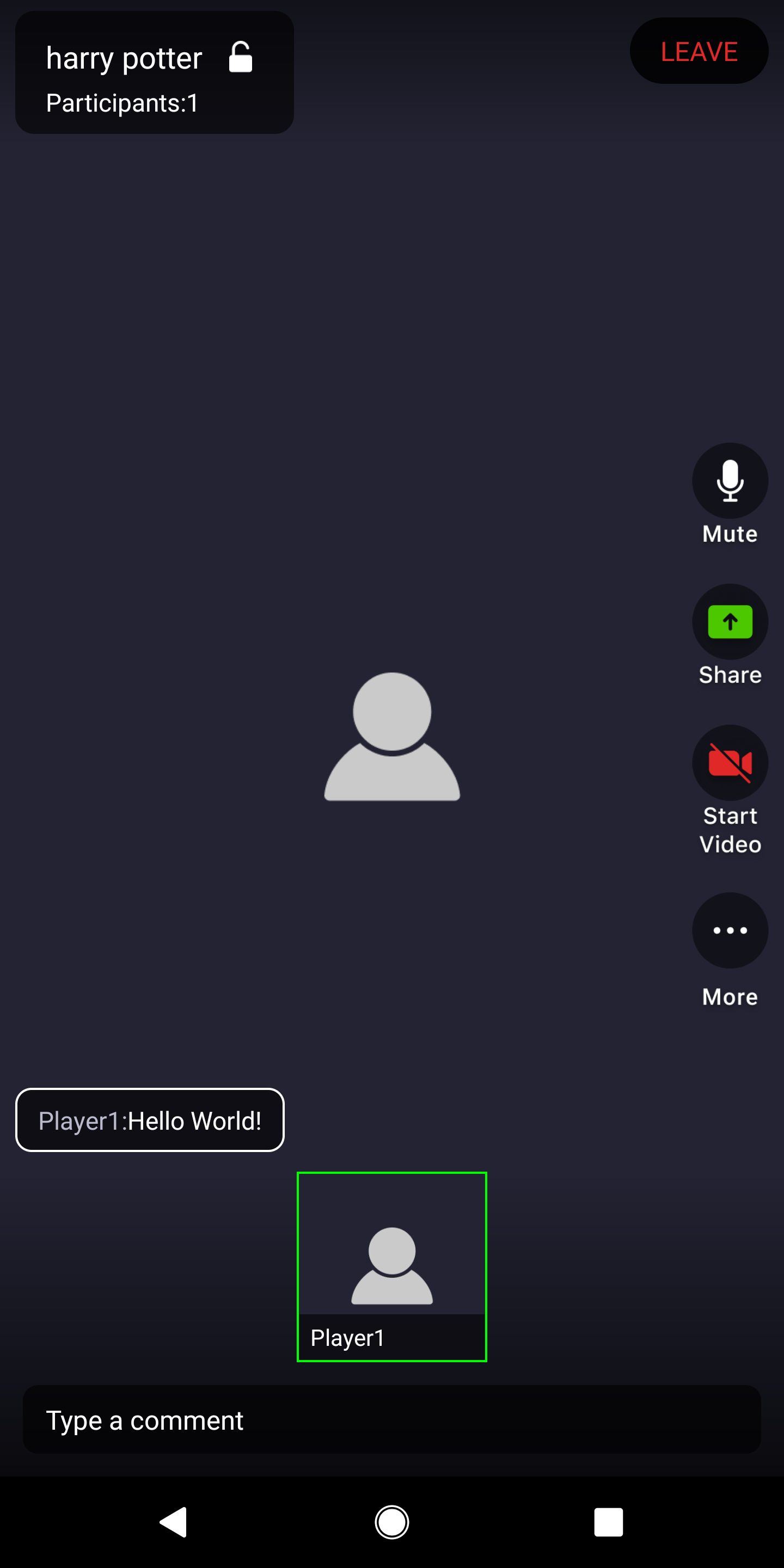
When the session is ready, the video session UI will appear. Other users can type the name "Harry Potter" and join the same session.
In this app, you'll see common Zoom features like muting or unmuting audio, disabling or enabling video, switching cameras, screen sharing, and chat.