Get credentials
App credentials (client ID and client secret) let you make API requests and generate the Meeting SDK JWT, which authorizes the SDK to join meetings. Find them on the Basic Information page.
Requirements for external meeting access
To join meetings outside of your developer account, your app must:
- Be reviewed by Zoom.
- Authenticate with either a ZAK or On Behalf Of (OBF) token to attribute to a user in a meeting.
You can:
- Publish the approved app on the Zoom App Marketplace.
- Set your app to unlisted.
- Contact the Integrated Software Vendor (ISV) sales team for other options.
Prerequisites
-
You have a Zoom account. To create one, go to the Sign up page and follow the steps on the screen.
-
You are either the Zoom account owner, account admin, or have been assigned the Zoom for developers role. See using role management for details.
-
If you have a primary account, you can set up your Zoom user account as a subaccount. See manage plans for details.
-
The administrator has enabled View and Edit permissions under SDK.

Create a Meeting SDK app
Follow the quick start guide to create a general app and configure your app's basic information, credentials, and OAuth settings. Then complete the Meeting SDK-specific setup.
Enable Meeting SDK
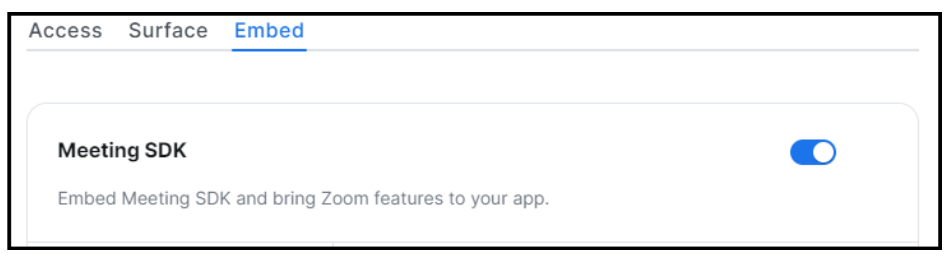
On the Features page, go to the Embed tab, and toggle Meeting SDK on to enable it.
Download the SDK
Download the SDK for your target platform.
Select scopes
On the Scopes page, select the Zoom API methods your app is allowed to call. This defines which information and capabilities are available to your user. See OAuth Scopes for details.
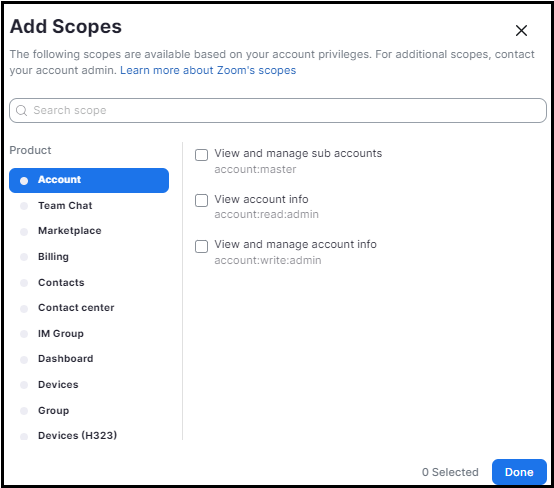
- Select Add Scopes.
- Select the Zoom product and check the desired scopes, then select Done.
- In the Scope Description field, explain how the requested scope is necessary for your app.
When you add a scope, you are submitting a request to the Zoom Security Review team to allow your app to access specific Zoom API endpoints. A key principle in Zoom security practice is minimal access. If the Zoom Security Review team determines the requested scope is not necessary for your app, they may reject the scope request.
-
Use a ZAK token to implement OAuth.
-
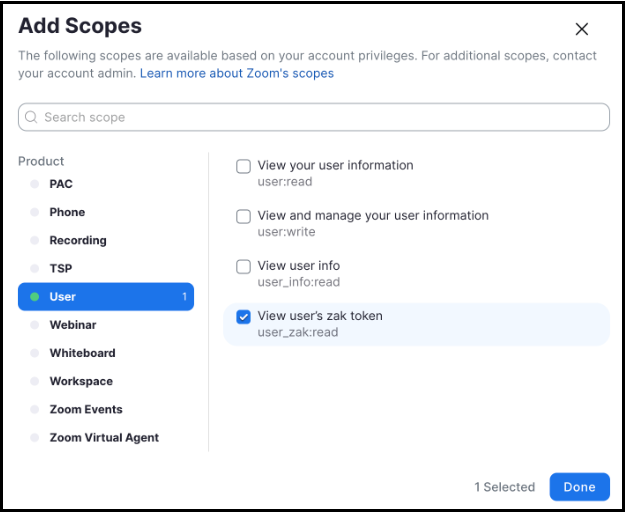
For user-managed apps with Meeting SDK, add the scope: User > View a user's zak token.
-
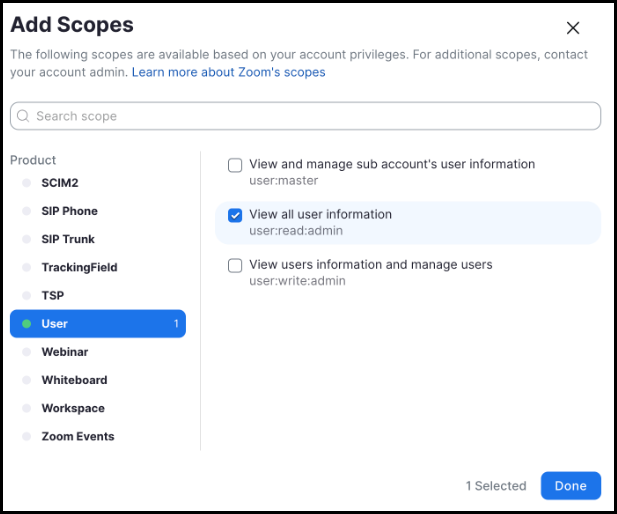
For admin-managed apps, add the scope: User > View all user information.
-
Test and preview your app
On the Local Test page, add and preview your app and share it with internal users.
To add the app for your own account, select Add App Now and then Allow.
To see a summary of your app's details and a preview of your app's listing page on the Zoom App Marketplace, select Preview Your App Listing Page.
For security reasons, we limit the sharing of beta apps. We don't allow beta apps to be published to the Zoom Marketplace, and we allow beta app access only to members of the developer's Zoom account.
To share your app with other users on your account, go to the Authorization URL section, and select Generate and then Copy.
Get credentials from an existing app
- Sign in to the Zoom App Marketplace with your Zoom user account.
- Select Manage at the top right of the page to view your existing apps.
- Select one of your existing MSDK apps and look for the credentials box toward the top of the left column.
If you have problems creating an app or finding your credentials, post in the Developer Forum.