Create an OAuth app
By creating an OAuth app on the Zoom App Marketplace, you can securely integrate with Zoom APIs and access users' authorized data using a user-based authentication approach. This app type can be either added and managed across an account by account admins (account-level app) or by users individually (user-managed app).
Note: To build an app that provides server-to-server interaction with Zoom APIs to manage your account, create a server-to-server OAuth app.
Prerequisites
- You have read Key Concepts.
- You have a Zoom account.
- You are either the Zoom account owner, account admin, or have been assigned the Zoom for developers role.
To enable the Zoom for developers role, log into the Zoom web portal as admin and go to User Management > Roles > Role Settings > Advanced features, and select the View and Edit checkboxes for Zoom for developers.

For more information, see Using role management.
Step 1: Build a general app
- Log onto the Zoom App Marketplace.
- Click Develop > Build App.
- Select General app and click Create.
Step 2: Maintain basic information
On the Basic Info page, add or update information about the app such as the app's name, how the app is managed, app credentials, and OAuth information.
-
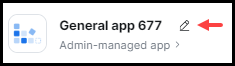
Update your app's name. By default, the build flow generates a generic name for your app. To change your app's name, select the edit icon (pencil) and update the name. To save your changes, click anywhere outside of the app name field.
-
In the Select how the app is managed section, confirm how you want your app to be managed.
The app management type affects the features and scopes available to your app. If you change the app management type later on, make sure you reconfirm the selected features and scopes for your app.
- Admin-managed: Account admins add and manage the app. Depending on the scope, the app can access and manage the user data of users on their account.
- User-managed: Individual users add and manage the app. The app has access to only the user's authorized data.
-
App Credentials - The build flow automatically generates app credentials (client ID & client secret) for your app. App credentials for development differ from app credentials for production. - Use development credentials while you are building and testing your app. - Use production credentials once you are ready to publish your app on the Marketplace.
-
In the OAuth Information section, set up OAuth for your app.
- OAuth redirect URL (required): Enter your development redirect URL or endpoint to set up OAuth between your app and Zoom. Note: The build flow supports custom URL schemes only for Zoom Meeting SDK apps. To enable your app for Meeting SDK, go to Features > Embed.
- Use Strict Mode URL (optional): Allow only the redirects that exactly match the valid OAuth redirect URLs.
- Subdomain check (optional): Only allow the redirects that exactly match the subdomain of the valid OAuth redirect URLs.
- OAuth allow lists (required): Add any unique URLs that Zoom should allow as valid redirects for your OAuth flows. This additional security measure ensures that users are only redirected to the pre-approved endpoints you provided. Include either the complete URL (https://subdomain.domain.tld/path/to/oauth/callback) or the base URL without the path and/or query parameters (https://subdomain.domain.tld).
Step 3: Select Zoom products and features
On the Features page, you can do the following:
| Tab | Relevant for | What you can do |
|---|---|---|
| Access | All apps |
|
| Surface | Zoom apps |
The Surface tab is divided into four sections:
|
| Embed | SDK apps |
You can download Zoom SDKs to embed Zoom in third party
applications.
|
| Connect | Connector apps |
Add APIs to integrate third party data into the Zoom platform. See
the Connect documentation{" "}
for details.
|
Select in which Zoom products users can open your app
On the Surface tab, you can enable users to open your app directly within the Zoom client.
-
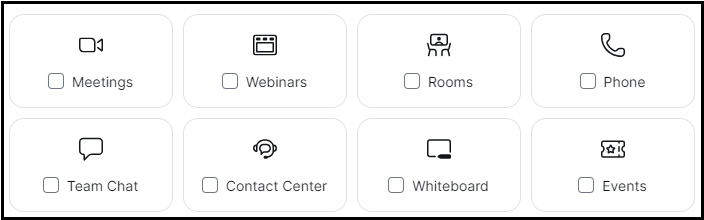
Select the Zoom products that your app works in.
-
Enter the Home URL domain for your product. The Home URL enables you to run a web browser inside the Zoom client, and display the Home URL domain inside the in-client web browser.
You must have the required OWASP response headers in your Home URL.
-
In the Domain Allow List, add URLs to be accepted by the Zoom client.
Select in-client app features
The availability of the features depends on the Zoom products you select and your app's management type. This is a list of the features available to your app based on the app management type.
Note: The management type affects the features and scopes available to your app. If you change the management type later on, make sure you reconfirm the selected features and scopes for your app.
Admin-managed app type
| Works In | In-Client Feature | Accessible in Zoom Client |
|---|---|---|
| Meetings |
|
|
| Webinars |
|
|
| Rooms |
|
|
| Zoom Chat |
|
|
| Whiteboard |
|
|
| Events |
|
|
User-managed app type
| Works In | In-Client Feature | Accessible in Zoom Client |
|---|---|---|
| Meetings |
|
|
| Webinars |
|
|
| Rooms |
|
|
| Zoom Chat |
|
|
| Whiteboard |
|
|
| Events |
|
|
Step 4: Select the scopes (Zoom API methods)
On the Scopes page, select the Zoom API methods your app is allowed to call. This defines which information and capabilities are available to your user. See OAuth Scopes for details.
-
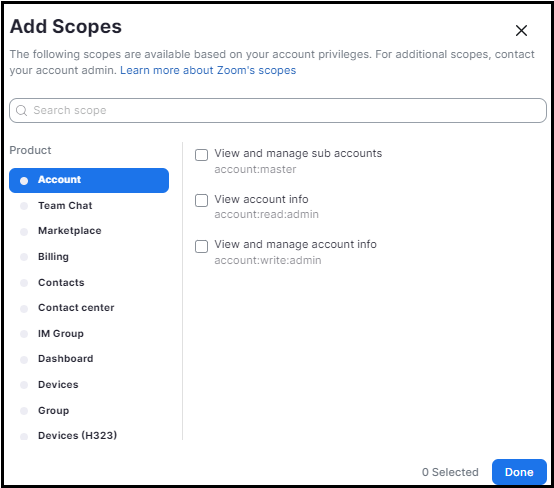
Select Add Scopes.
-
Select the Zoom product and check the desired scopes, then select Done.
-
In the Scope Description field, explain how the requested scope is necessary for your app.
When you add a scope, you are actually submitting a request to the Zoom Security Review team to allow your app to access specific Zoom API endpoints. A key principle in Zoom security practice is minimal access. If the Zoom Security Review team determines the requested scope is not necessary for your app, they may reject the scope request.
Step 5: Test and preview your app
On the Local Test page, add and preview your app and share it with internal users.
To add the app for your own account, select Add App Now and then Allow.
To see a summary of your app's details and a preview of your app's listing page on the Zoom App Marketplace, select Preview Your App Listing Page.
For security reasons, we limit the sharing of beta apps. We don't allow beta apps to be published to the Zoom Marketplace, and we allow beta app access only to members of the developer's Zoom account.
To share your app with other users on your account, go to the Authorization URL section, and select Generate and then Copy.