Zoom Apps SDK Features
This document explains how to enable the Zoom App SDK features for your Zoom Chat App. It is supplemental to the information in Create a Zoom Chat app.
Prerequisite
- You have read Key Concepts.
- You have a Zoom account with permissions to create apps.
- You have read and followed the instructions in Create a Zoom Chat app
Step 1 - Create a Zoom Chat App
Follow the instructions in Create a Zoom Chat app to create a Zoom Chat app.
Step 2 - Configure Zoom App SDK Features
In the build flow for your app, Features page, do the following:
App Shortcuts
App Shortcuts enable you to integrate shortcuts to your service within the Zoom Chat experience. Each shortcut triggers an action. You can all up to 20 shortcuts for an app.
You have the option to add the app shortcuts to the Zoom Chat compose window, the message window, or both.
Zoom Chat Compose Window

Zoom Chat Message Window

To enable app shortcuts, you must enable both App Shortcuts and Display on Zoom Client
-
Click App Shortcuts to enable it, and to display the information fields.
Action Description Action Name The name is displayed in the chat window. Example: Create Issue. Action Command ID The command ID maps to the action in your app. Choose Action Type Choose to display the shortcut in the compose box, message box, or both. Action Icon (optional) Upload an icon for you shortcut. If you don't provide one, Zoom uses a generic icon. Action Dialog Title (optional) The title appears in the shortcut dialog window. If you don't provide one, it displays as Zoom. Action Dialog Size Select the size of the action dialog box: small, medium, or large. -
Save.
-
Enable Display on Zoom Client to display the app shortcut in the Zoom client.
To help you get started, see the Zoom Chat Reference App.
Display on Zoom Client
Enable Display on Zoom Client to display the app shortcut in the Zoom client.
- Home URL (development) - The URL the app shortcut redirects to in your development environment.
- Home URL (production) - The URL the app shortcut redirects to in your production environment.
- Domain Allow List: Add domains for the Zoom client to accept.
- Zoom App SDK: To utilize the Zoom Apps SDK API and events, you must enable the Zoom App SDK option and then click Add APIs to select the APIs and events used in your app.
Mobile Client
Allow users to access your app from the Zoom client for iOS, iPadOS, and Android. Learn more about Zoom Apps for mobile. On the Features page, under Device Features, enable Mobile Client.
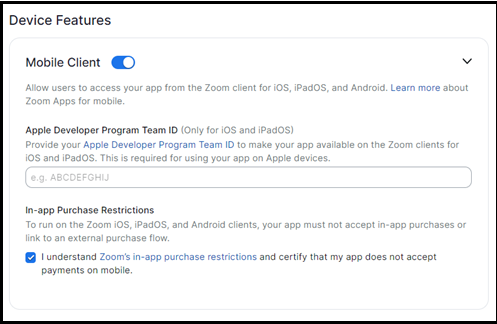
The following information is applicable only when Mobile Client feature is enabled:
-
In-app purchase restrictions
To develop Zoom Apps for Zoom clients for iOS, iPadOS, and Android, your app must not accept in-app purchases using Stripe or other payment processing solutions. Additionally, your app must not link to an external purchase flow.
-
Apple developer program Team ID
This field is only required if you are developing Zoom Apps for Zoom clients for iOS and iPadOS.
You must enter your Apple Developer Program Team ID. A Team ID is a unique 10-character string generated by Apple that's assigned to your team. For more information about the team ID or how to get an ID, see Apple Developer Account.
After you have completed the steps for Create a Zoom Chat app, complete steps 3,4, and 5 below.
Step 3 - Download and Install Zoom Apps SDK
Zoom Chat Apps use the Zoom Apps framework. Download and install the Zoom Apps SDK.
Step 4 - Get the app context token
The app context token in the client expires every 5 minutes. You must use the getAppContext method in your app to get the latest app context token from the client. For more information, see Zoom Apps Context.
Step 5 - Get the product information
Your product may be designed to work with several Zoom products (mobile, personalZoomRoom, sharedZoomRoom). To inform your app which product it is running on, use the zoomSdk.config() method to get the 'product' parameter.
The documentation for the 'config' method may not list the 'product' parameter.
Resources
Common reasons for app submission rejection Use Safari's web inspector to debug Zoom Apps on iOS and iPadOS