Zoom Chat Capabilities
Zoom Chat offers capabilities that enable users to interact with chatbots and apps.
Note
Each user action sends a JSON representation of the action to your chatbot or app's endpoint URL.
An unsecured endpoint URL can leave your server vulnerable to denial-of-service attacks. We recommend verifying all requests sent to your endpoint using our supported webhook verification methods.
Slash commands
After a user enters a Slash command, the chatbot sends an HTTP POST request to the Bot Endpoint URL with a JSON payload. The payload contains all the text that follows the command. This payload also contains information on the user and event, including the account, channel, timestamp, and user name.
For an example in the Build a chatbot tutorial, we have created a Slash Command named /unsplash for the Unsplash chatbot. To use the chatbot, a user would have to enter the command /unsplash island in Zoom Chat.

A user entering the text /unsplash island in the Zoom Chat triggers an HTTP POST request with a JSON payload that contains a cmd field with the value of "island". The request is handled and returned in Zoom Chat as a message in the format specified by the chatbot. In this instance, the chatbot app would receive the command to request the third-party Unsplash API to return a photo of an "island", which is displayed as an image in Zoom Chat.
Below is an example of the request body sent to the Bot Endpoint URL:
{
    "event": "bot_notification",
    "payload": {
        "accountId": "Wk9PTV9BQ0NPVU5UX0lE",
        "channelName": "Marketing",
        "cmd": "island",
        "robotJid": "Wk9PTV9ST0JPVF9KSUQ@xmpp.zoom.us",
        "timestamp": 1740440972844,
        "toJid": "Wk9PTV9DSEFOTkVMX0lE@conference.xmpp.zoom.us",
        "triggerId": "Wk9PTV9UUklHR0VSX0lE",
        "userId": "Wk9PTV9VU0VSX0lE",
        "userJid": "Wk9PTV9VU0VSX0lE@xmpp.zoom.us",
        "userMemberId": "Wk9PTV9VU0VSX01FTUJFUl9JRA",
        "userName": "Jane Dev",
        "userStatus": "authorized"
    }
}
The cmd value reflects the text the user enters after the Slash command. The userName is the string value of the user's displayed name, and channelName is the string value of the channel in which the command was sent. In this example, the user "Jane Dev" entered /unsplash island in the Zoom Chat "Photos" channel.
For more information, see the chatbot webhook event reference.
UI elements
After a user interacts with an Editable Text, Form Field, Dropdown, or Button chatbot message UI Element, the chatbot sends an HTTP POST request to the Bot Endpoint URL with a JSON payload that contains the action. This payload also contains information on the user and event, including the account, channel, timestamp, and user name.
For example, when a user clicks on the Up Vote button in the chatbot message, it would trigger an HTTP POST request with a JSON payload containing an actionItem field with the value of { "text": "Up Vote", "value": "up-vote" }.
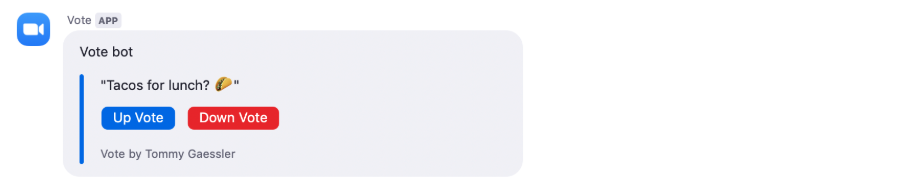
Below is an example of the request body sent to the Bot Endpoint URL when a user clicks on button in a chatbot message:
{
    "event": "interactive_message_actions",
    "payload": {
        "accountId": "Wk9PTV9BQ0NPVU5UX0lE",
        "actionItem": {
            "text": "Up Vote",
            "value": "up-vote"
        },
        "channelName": "Marketing",
        "messageId": "Wk9PTV9NRVNTQUdFX0lE",
        "original": {
            "head": {
                "text": "Vote bot"
            },
            "body": [
                {
                    "footer": "Vote by John Dev",
                    "type": "section",
                    "sections": [
                        {
                            "text": "\"Tacos for Lunch?\"",
                            "type": "message"
                        },
                        {
                            "type": "actions",
                            "items": [
                                {
                                    "style": "Primary",
                                    "text": "Up Vote",
                                    "value": "up-vote"
                                },
                                {
                                    "style": "Danger",
                                    "text": "Down Vote",
                                    "value": "down-vote"
                                }
                            ]
                        }
                    ]
                }
            ]
        },
        "replyMainMessageId": "Wk9PTV9SRVBMWV9NQUlOX01FU1NBR0VfSUQ",
        "robotJid": "Wk9PTV9ST0JPVF9KSUQ@xmpp.zoom.us",
        "timestamp": 1740441144756,
        "toJid": "Wk9PTV9DSEFOTkVMX0lE@conference.xmpp.zoom.us",
        "triggerId": "Wk9PTV9UUklHR0VSX0lE",
        "userId": "Wk9PTV9VU0VSX0lE",
        "userJid": "Wk9PTV9VU0VSX0lE@xmpp.zoom.us",
        "userMemberId": "Wk9PTV9VU0VSX01FTUJFUl9JRA",
        "userName": "Jane Dev",
        "userStatus": "authorized"
    }
}
The actionItem value reflects the action of the user. The userName is the string value of the user's displayed name, and channelName is the string value of the channel in which the command was sent. In this example, the user "Jane Dev" chose the Up Vote button in the Zoom Chat "Marketing" channel.
For more information, see the chatbot webhook event reference.
Add app in channel
You can enable users can add your app directly in Zoom Chat. This allows users to bring your tools directly into channels, group chats, and continuous meeting chats, and to interact with them using simple commands.
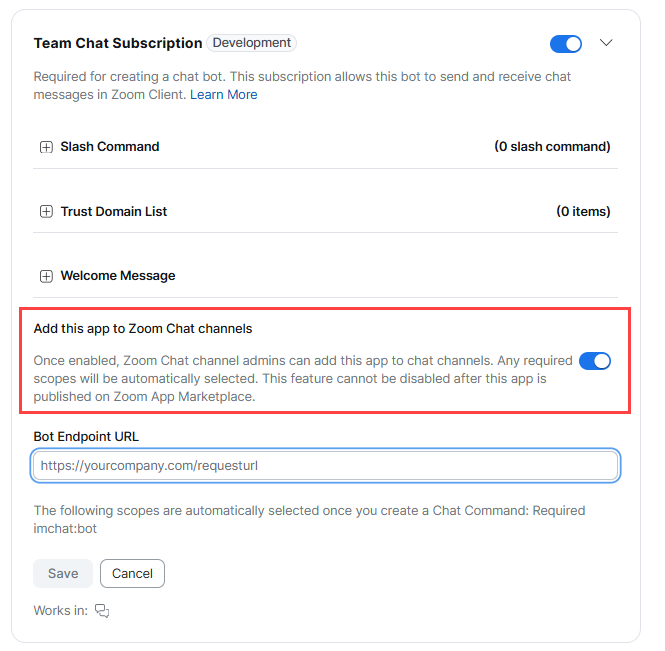
To make your app available to be added in channel go to Surface > Zoom Chat Subscription, and enable Add this app to Zoom chat channels.
This is an example of how users would add an app to a channel via the integrations menu.
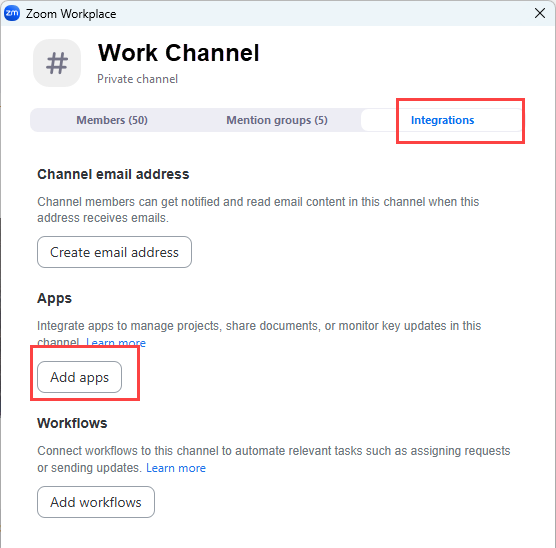
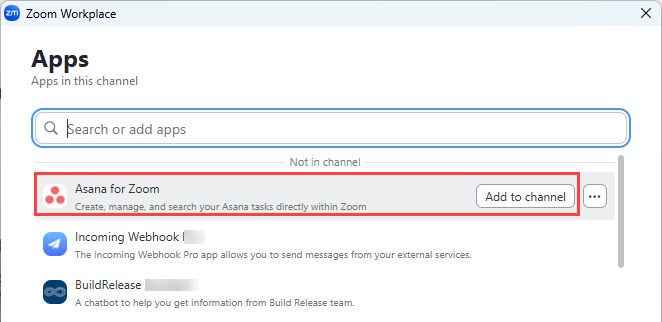
Once added, users can then access the app via the message toolbar.
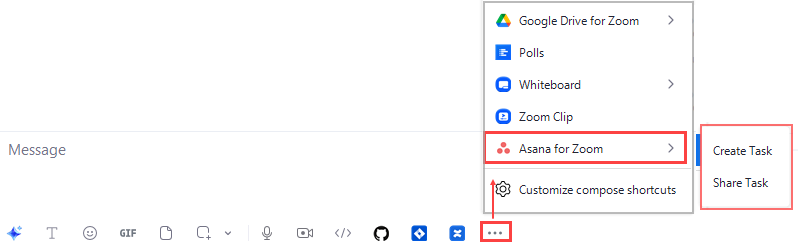
For more information, see How to add an app to a chat.
App mentioned in channel
Once a Chatbot has been added to a channel, it can also be interacted with via tagging it in the chat window.
For example, @Asana_for_Zoom.
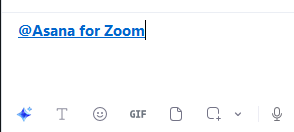
To enable this feature, set your app to listen to the team_chat.app_mention webhook, and configure the Bot Endpoint URL.
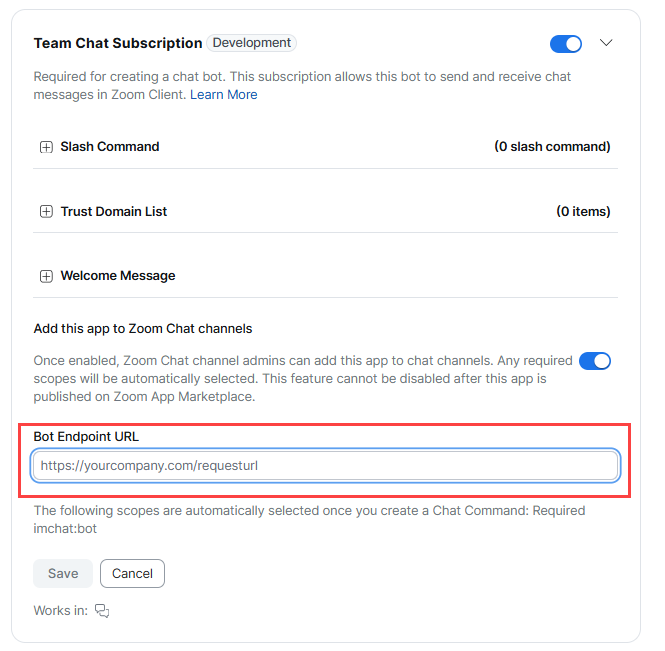
This event triggers when a user mentions a specific app in a chat channel. A POST request with the mention message is sent to the Bot Endpoint URL.
Link unfurl
Link unfurling lets your app display a rich message when you share a specific URL in Zoom Chat. Users can interact with the unfurled content, such as taking action on the resource, without leaving the chat.
For example, a link to a task in a project management tool can expand into a card with task details and buttons to update the status or open the task in the app.
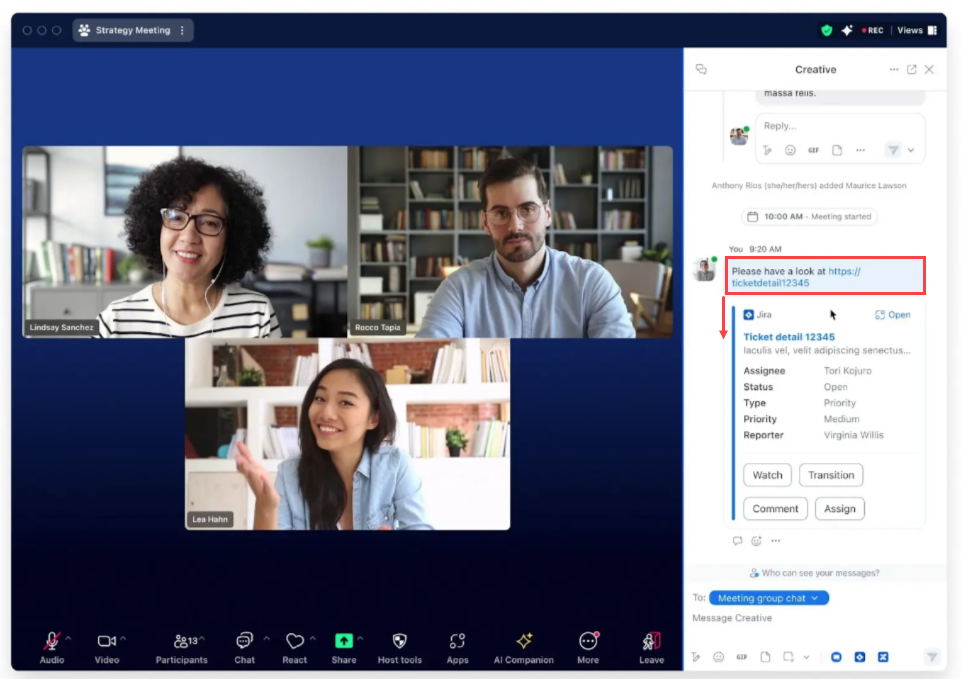
Configuring link unfurling
-
Follow the procedure in Create Chatbot for Zoom Chat.
-
In the Select Zoom products and features step:
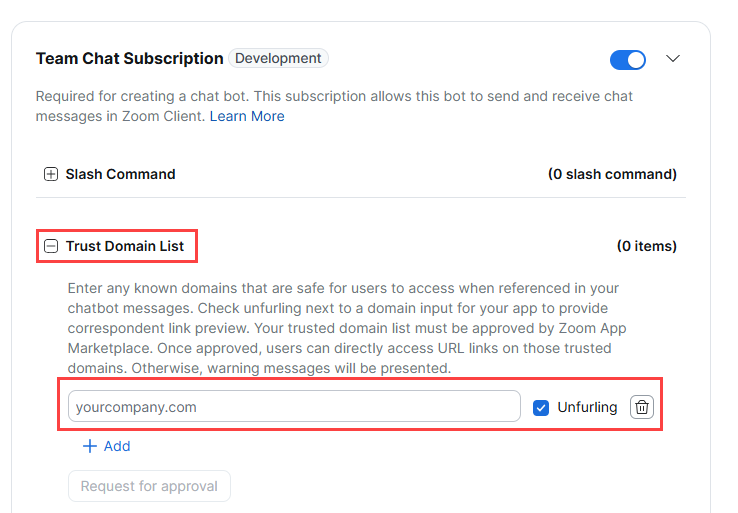
- Enable Zoom Chat Subscription.
- Add the URL for your unfurling link to the Trusted Domain List.
- Check the Unfurling checkbox.
-
Set your app to listen for the team_chat.link_shared webhook.
Link unfurling in action
- When Zoom detects that a user has shared a link in Zoom Chat that matches your app, Zoom sends the team_chat.link_shared event to your app.
- The link information from the webhook queries your resource and gets details for the unfurled card.
- Zoom builds the Chatbot Card JSON. The Chatbot card JSON defines the card layout and any UI elements, such as buttons.
- Zoom sends the card using the Link Unfurls API. The Link Unfurl API call sends your JSON payload to display the rich unfurl message in the chat.
In a scenario where your unfurled card includes UI elements such as buttons, the following can occur:
-
When a user clicks a button, Zoom sends the corresponding webhook to your app.
You can process the action and update the card if needed.
-
If a user clicks the Open app button, you can use the Zoom Apps SDK to display a popup with a custom UI. This works similarly to app shortcuts.