App Conversion
The unified build flow updates and streamlines the app creation process for developers by combining previously separate app types into one general app type and reorganizing the information into more intuitive groups.
We automatically convert legacy apps to general apps, with the exception of:
- Server-to-server apps.
- Webhook-only apps.
- Video SDK apps.
- Key/secret non-oauth meeting SDK apps.
Note
Legacy apps are created using the previous build flow and are defined by separate app types (such as OAuth, JWT, Zoom Apps, etc.).
Key changes and benefits
- There is no change or impact to the end-user experience.
- Use of a single general app that can be deployed on different platforms and surfaces rather than creating a separate app type for each.
- More streamlined screen flow and efficient grouping of information.
Things to know
- App conversion doesn't require review by the Zoom App Marketplace team, and the converted app is immediately available.
- App conversion doesn't change the behavior of your app in any way.
- Once confirmed, a general app cannot be converted back to a legacy app.
- To support the transition of legacy apps to general apps, when you select a legacy app in the Marketplace Created Apps screen, we automatically convert the app and provide a read-only view of the build flow information. The fields become editable after you confirm the conversion.
Note
Only revert the conversion if there are real issues with the app.
What to expect
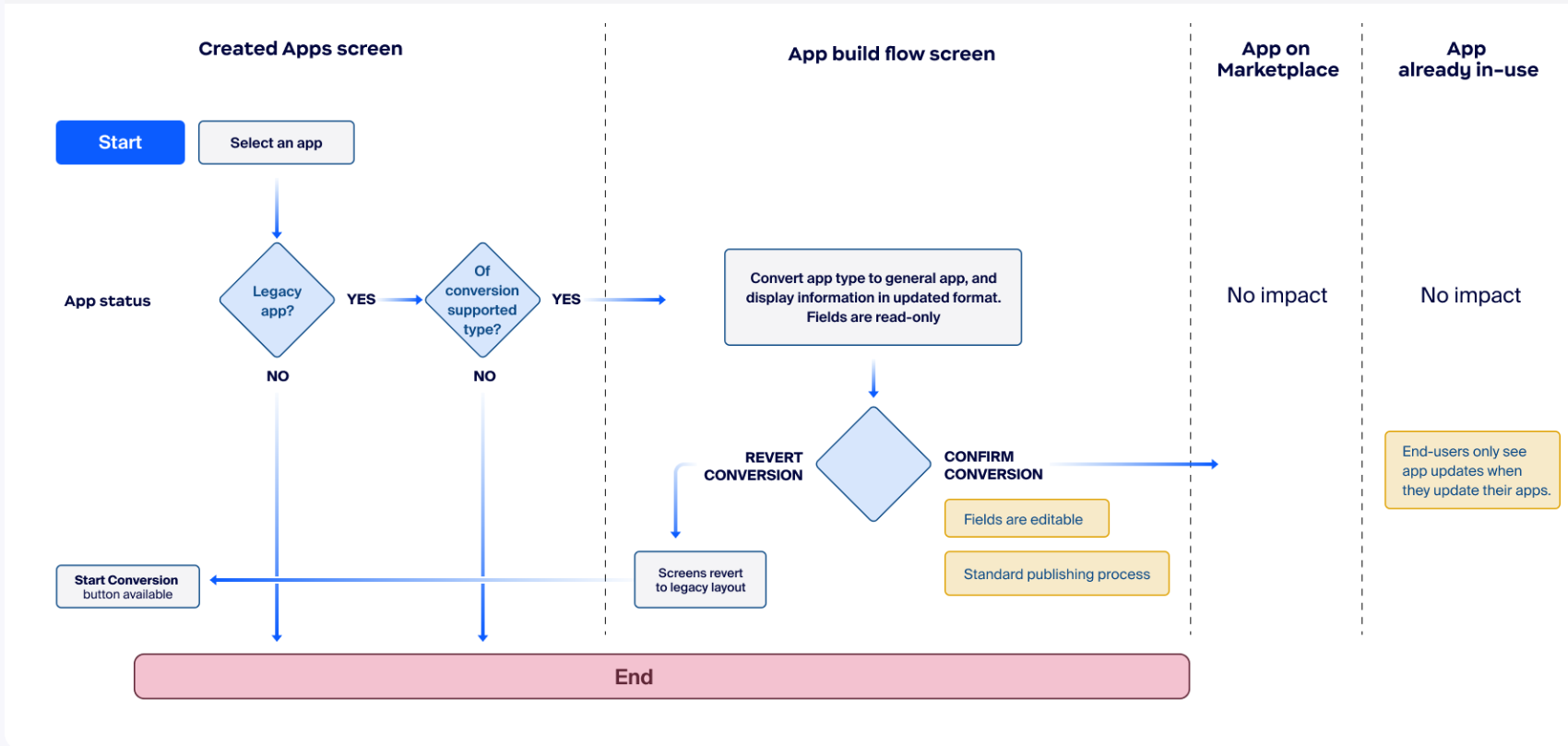
To initiate the app conversion, select a legacy app in the Created Apps screen. The algorithm determines if the legacy app is supported for conversion. Then automatically converts supported legacy apps to a general app with the app information fields in read-only mode.
When you confirm the conversion, the app information fields become editable. If you choose to revert the app, the app type and build flow screens revert to legacy format.
-
There is no impact to end-user's experience or to apps already published to the Marketplace.
Note
If your app is already published and you do not see Start Conversion, click Publish Updates to submit an update request and begin the conversion process.
-
Private apps will have the status of Draft in the Created Apps screen. This is different from legacy, which had the status of Ready to Install, and is an expected result of converting a private app to a general app. All authorizations remain intact.
- To distribute converted private apps, use the client ID and authorization URL on the Development tab > Local Test page.
- For more information, see Sharing Private and Beta Apps.
-
Apps with Awaiting Confirmation status means that you have neither chosen to revert nor confirmed the conversion. This has no effect on already distributed apps (published or private).
Note
We encourage you to confirm the conversion to take advantage of the unified build flow features.
Revert apps
To build confidence in the conversion process, we are providing the revert option. If you choose to revert the app, it will return to its legacy app type.
Note
The revert option is temporary. We will eventually convert all legacy app types to general apps and switch to using the unified build flow for app management. We urge you to convert your legacy apps as soon as possible.
To convert reverted apps to a general app, on the Created Apps screen, select the Start Conversion button next to the app.

Prerequisites
-
You have a Zoom account.
-
You are either the Zoom account owner, account admin, or have been assigned the Zoom for developers permissions.
-
The administrator has enabled view and edit permissions for the Zoom for developers role.
For more information, see Before you start: role permissions
Not able to submit app
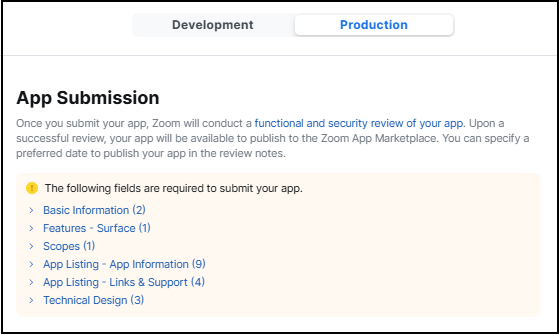
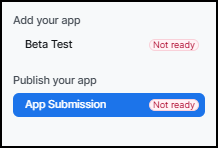
The build flow checks that all required information is completed before it allows you to submit your app for review. The build flow notifies you in two areas:
-
In the left-hand navigation, it displays Not ready.
-
On the App Submission page, it displays links to the areas that you need to complete. Follow the links and provided any missing information.