Sharing Private and Beta Apps
For security reasons, we do not allow private or beta apps to be published to the Zoom Marketplace and we restrict access to them. You can share your private apps and beta apps via distribution of an authorization URL.
You can only share private apps with members within your Zoom account.
Because beta apps are intended for testing, we allow you to share beta apps to a limited number of users outside your Zoom account. You must get approval from Zoom to share the authorization URL outside your account.
This article explains how to generate authorization URLs, how to request to share authorization URLs, and the conditions for using authorization URLs.
Generating an authorization URL
To generate authorization URLs:
- Log into the Zoom Marketplace > Manage, and select your app to open its build flow screen.
- Select the Production tab, and select Beta Test in the lefthand navigation.
- Under the Share App section, if you've completed all the requirements, the build flow automatically generates an authorization URL.
Sharing an authorization URL
There is no mechanism in the build flow to distribute the URL. You can use email or any method of your choice to share the URL.
Request to share outside your account
To share the authorization URL with users outside of your developer account, select Request to Share.
A member of the Zoom app review team responds to your request no longer than 3-4 business days. The duration of the approval time may be affected when additional information or clarification is required.
Testing updates to published apps
After you publish your beta app, the authorization URLs become invalid.
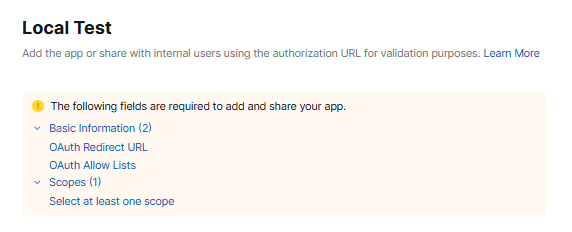
To test unpublished changes to your app, use the development version of the app locally.
At the top of your app's build flow, select Development, and in the left navigation pane select Local Test.
Meeting SDK beta apps joining external meetings
To use your meeting SDK beta apps, and beta apps with SDK enabled, to join external meetings, ensure your request to share the authorization URL is approved. Then share the authorization URL with the external user hosting the meeting.
Security requirements for an authorization URL
Before you submit your application, ensure you have completed the following for your app:
-
All required information in the Technical Design section.
-
Provided supporting evidence of your app's security practices.
For all attestations, provide proof in the form of published policies, screenshots, or internal documentation. At minimum, we prefer to see a Secure Software Development Lifecycle, SAST and/or DAST scanning, and a 3rd Party Penetration Test.
You can contact the Zoom Marketplace Team with any questions about the TDD or review process: marketplace.security@zoom.us.
Approval conditions
The Zoom Marketplace team reviews authorization URL sharing requests on a case-by-case basis.
If your request is approved, we send you a notification email and an Approved label is displayed next to your authorization URL. Remember that the URL is only active for a limited time. During this time, you are strictly prohibited from:
- Making any information about your app public.
- Publicly using any Zoom brands, trademarks, or copyrighted materials to represent your app
- Publicizing the app as a Zoom app / integration and linking or associating your brand or company with Zoom.
Authorization URL expiry
Once approved, an authorization URL is permitted to be shared for a standard duration of 4 weeks. Once the sharing period expires, new users are not allowed to add your app.
For users who have already added the app
The expiry does not affect users who have already added the app. They can continue using the app after the sharing period has expired.
To continue sharing your app beyond the 4 week expiry, submit a request to renew the authorization URL. Extensions are approved up to the maximums:
- The maximum number of additions for a private account-level application is 10.
- The maximum number of additions for a private user-level application is 100.
Renewing authorization URLs
We issue authorization URLs for a period of 4 weeks after which you can request two additional 4-week extensions. To request extensions for expired authorization URLs: in the Share App section, select Request Extension.
For any other questions regarding authorization URL requests, contact integration.testers@zoom.us. We are happy to answer any of your questions.