The Zoom Video SDK UI Toolkit is a prebuilt video chat user interface powered by the Zoom Video SDK.


The UI Toolkit enables you to instantly start using a core set of Video SDK features in your app.
Live-hosted sample
Try a live-hosted sample at https://sdk.zoom.com/videosdk-uitoolkit . Simply enter a session name, password, and display name and click Join Session. The toolkit creates a new session with you as the host if there is no other session by that name. If there is an existing session with that name and you entered the correct password, you will join the session as a manager.
Prerequisites
Install
In your front end project, install the Video SDK UI Toolkit:
npm install @zoom/videosdk-ui-toolkit --save
Vanilla JavaScript
For basic JavaScript applications ("vanilla" JS), download the package and add it to your project. Then, add the following script and CSS style to the HTML page where you want the UI Toolkit to live.
<link rel="stylesheet" href="https://source.zoom.us/uitoolkit/{VERSION}/videosdk-ui-toolkit.css" />
<script src="https://source.zoom.us/uitoolkit/{VERSION}/videosdk-ui-toolkit.min.umd.js">
  const uitoolkit = window.UIToolkit;
</script>
Or
<link rel="stylesheet" href="https://source.zoom.us/uitoolkit/{VERSION}/videosdk-ui-toolkit.css" />
<script type="module">
  import uitoolkit from "https://source.zoom.us/uitoolkit/{VERSION}/videosdk-ui-toolkit.min.esm.js";
</script>
Webpack or single page applications
For webpack or single-page applications like Angular*, Vue, React, and others, import the UI Toolkit, package and styles:
import uitoolkit from "@zoom/videosdk-ui-toolkit";
import "@zoom/videosdk-ui-toolkit/dist/videosdk-ui-toolkit.css";
*Since Angular can't import CSS directly into the component, add the styles to your angular.json file in the styles array.
"styles": [
  "node_modules/@zoom/videosdk-ui-toolkit/dist/videosdk-ui-toolkit.css",
]
Create a configuration object
Create your Video SDK session config object, with your Video SDK JWT, and Video SDK session information, the features you want to render, and any options you want to specify. You'll use this later to join sessions.
var config = {
  videoSDKJWT: "",
  sessionName: "SessionA",
  userName: "UserA",
  sessionPasscode: "abc123",
};
Features
The UI Toolkit supports the following features.
featuresOptions[] | Description |
|---|---|
preview | Enable the preview flow and let the end user choose their preferred video, microphone, speaker, and background before joining the session. |
video | Enable the video layout and send and receive video. |
audio | Show the audio button on the toolbar and send and receive audio. |
share | Show the screen share button on the toolbar and send and receive screen share content. |
chat | Show the chat button on the toolbar and send and receive session chats. |
users | Show the users button on the toolbar and see the list of users in the session. |
settings | Show the settings button on the toolbar and configure virtual background, camera, microphone, speaker devices, and see session quality statistics. |
recording | Show the button for cloud recording (requires a paid plan). |
phone | Show the options to join the session by phone (requires a paid plan). |
invite | Show the invite options to the session by invitation link. |
theme | Show the options in the settings panel to select a theme color. |
viewMode | Show the options to choose view modes. |
feedback | Show the session experience feedback form after the session ends. |
troubleshoot | Show the troubleshooting settings tab that uses Zoom Probe SDK. |
caption | Show the in-session translations (requires a paid plan). |
playback | Show the media file playback options in the settings panel. |
subsession | Show the button for subsessions. |
leave | Show the button to end or leave a session. |
virtualBackground | Show options for the virtual background in the settings panel. |
footer | Show the footer UI with buttons for the session. |
header | Show the session header UI. |
Properties
See index.d.ts for more featuresOptions details.
Build toolkit and start or join sessions
Build with the UI Toolkit using components or a composite.
- Components - Building blocks that let you build a custom communications experience without having to start from scratch. You can control the positioning and layout of these components however you choose.
- Composite - A pre-built video chat experience constructed from components. This enables you to quickly build a complete solution that easily enhances your application with a comprehensive video chat experience.
Click the tabs to choose how to build the toolkit. Since composite is the simplest way to get started, it's shown first.
Join Session
To join a Video SDK session, create an HTML container to render the UI Toolkit.
<div id='sessionContainer'></div>
Then, call the uitoolkit.joinSession function, passing in the container reference, and the Video SDK session config object.
var sessionContainer = document.getElementById('sessionContainer')

uitoolkit.joinSession(sessionContainer, config)
Leave or end session
To leave a Video SDK session, the user can click the red leave button. The host can click the red end button to choose to leave or end the session. If the host leaves the session, the SDK assigns a new host and the session continues. If the host ends the session, it ends for all users.
You can also leave a session programmatically by calling the uitoolkit.closeSession function.
uitoolkit.closeSession(sessionContainer)
Clean up the session
Once your session has ended, we recommend that you properly clean up the UI Toolkit so users can join subsequent sessions. To do this, use the onSessionDestroyed event listener. Call the UI Toolkit destroy function to destroys the UI toolkit instance and cleans up resources. See the following code snippet for an example.
  // ...
  uitoolkit.onSessionDestroyed(sessionDestroyed);
  // ...

  function sessionDestroyed {
    uitoolkit.destroy();
  }
Join session with UI Toolkit components
When building with UI Toolkit components, the UI Toolkit components is a required wrapper around the UI Toolkit components. To begin, create an HTML container that it will be rendered in:
<div id='uitoolkitContainer'></div>
Then, call the uitoolkit.joinSession function, passing in the container reference, and the Video SDK session config object:
var uitoolkitContainer = document.getElementById('uitoolkitContainer')

uitoolkit.joinSession(sessionContainer, config)
Hide UI Toolkit components
To close the wrapper, call the uitoolkit.hideAllComponents function while passing in the container reference:
uitoolkit.hideAllComponents();
Show the controls component
The controls component is a required component that enables users to control their video call experience. To render the controls component, create and HTML container and pass it into the uitoolkit.showControlsComponent function:

To render the controls component, create and HTML container and pass it into the uitoolkit.showControlsComponent function:
<div id='uitoolkitContainer'>
  ...
  <div id='controlsContainer'></div>
  ...
</div>
var controlsContainer = document.getElementById('controlsContainer')

uitoolkit.showControlsComponent(controlsContainer)
Hide the controls component
To close the control bar component, call the uitoolkit.hideControlsComponent function while passing in the container reference:
uitoolkit.hideControlsComponent(controlsContainer)
Show the chat component

To render the chat component, create and HTML container and pass it into the uitoolkit.showChatComponent function:
<div id='uitoolkitContainer'>
  ...
  <div id='chatContainer'></div>
  ...
</div>
var chatContainer = document.getElementById('chatContainer')

uitoolkit.showChatComponent(chatContainer)
Hide the chat component
To close the chat component, call the uitoolkit.hideChatComponent function while passing in the container reference:
uitoolkit.hideChatComponent(chatContainer)
Show the users component
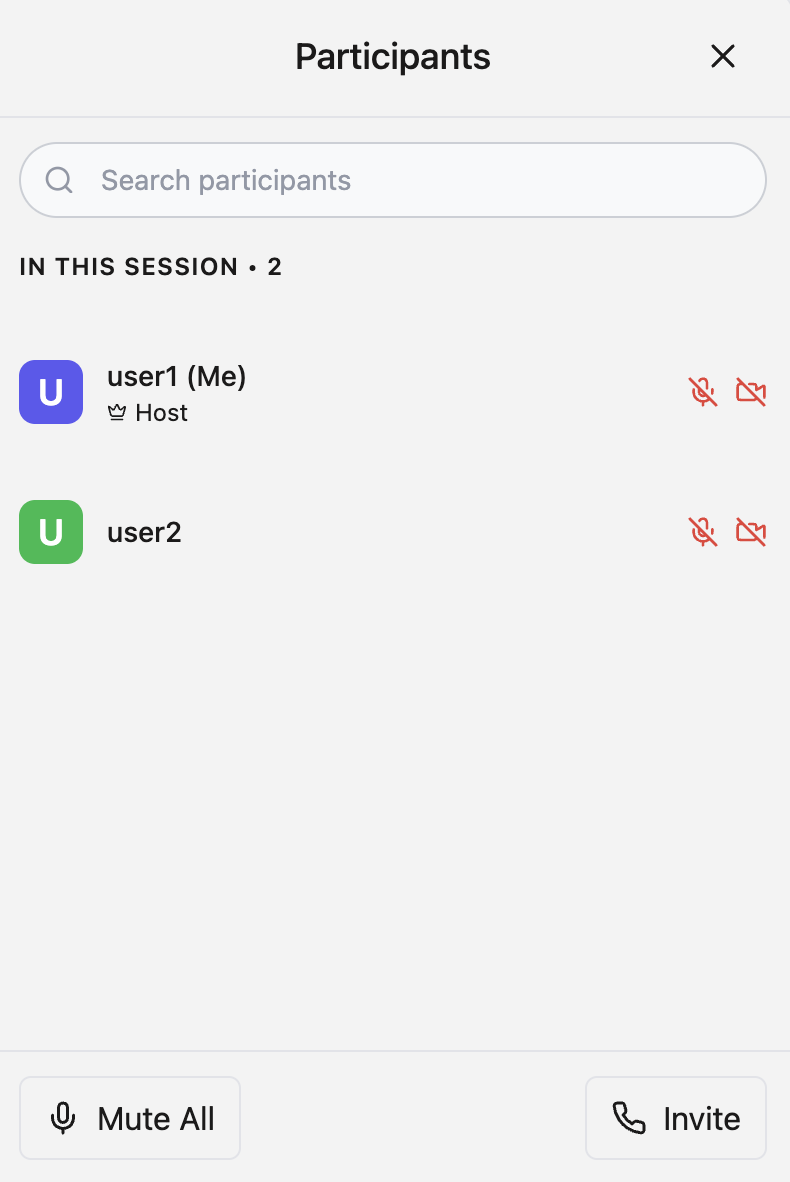
To render the users component, create and HTML container and pass it into the uitoolkit.showUsersComponent function:
<div id='uitoolkitContainer'>
  ...
  <div id='usersContainer'></div>
  ...
</div>
var usersContainer = document.getElementById('usersContainer')

uitoolkit.showUsersComponent(usersContainer)
Hide the users component
To close the users component, call the uitoolkit.hideUsersComponent function while passing in the container reference:
uitoolkit.hideUsersComponent(usersContainer)
Show the settings component

To render the Settings component, create and HTML container and pass it into the uitoolkit.showSettingsComponent function:
<div id='uitoolkitContainer'>
  ...
  <div id='settingsContainer'></div>
  ...
</div>
var settingsContainer = document.getElementById('settingsContainer')

uitoolkit.showSettingsComponent(settingsContainer)
Hide the settings component
To close the settings component, call the uitoolkit.hideSettingsComponent function while passing in the container reference:
uitoolkit.hideSettingsComponent(settingsContainer)
Clean up the session
Once your session has ended, we recommend that you properly clean up the UI Toolkit so users can join subsequent sessions. To do this, use the onSessionDestroyed event listener. Call the UI Toolkit destroy function to destroys the UI toolkit instance and cleans up resources. See the following code snippet for an example.
  // ...
  uitoolkit.onSessionDestroyed(sessionDestroyed);
  // ...

  function sessionDestroyed {
    uitoolkit.destroy();
  }
Event listeners
To subscribe to event listeners, define a callback function that you want to execute when the respective event is triggered.
var sessionJoined = () => {
  console.log("session joined");
};

var sessionClosed = () => {
  console.log("session closed");
};
Then, pass the callback function to the respective on event listener (after calling the uitoolkit.joinSession function).
uitoolkit.onSessionJoined(sessionJoined);

uitoolkit.onSessionClosed(sessionClosed);
Unsubscribe from event listeners
To unsubscribe from event listeners, pass the callback function to the respective off event listener.
uitoolkit.offSessionJoined(sessionJoined);

uitoolkit.offSessionClosed(sessionClosed);
Currently, we support the following event listeners.
| Event Listener | Description |
|---|---|
onSessionJoined | Fires when the user joins the session successfully. |
onSessionClosed | Fires when a user leaves a session or it ends. |
offSessionJoined | Unsubscribes to the onSessionJoined event. |
offSessionClosed | Unsubscribes to the onSessionClosed event. |
Sample apps
From the developer blog
See the following blog posts for more.
See Video SDK Plans & Pricing for Developer for pricing.