The Zoom Video SDK UI Toolkit is a prebuilt video chat user interface powered by the Zoom Video SDK.
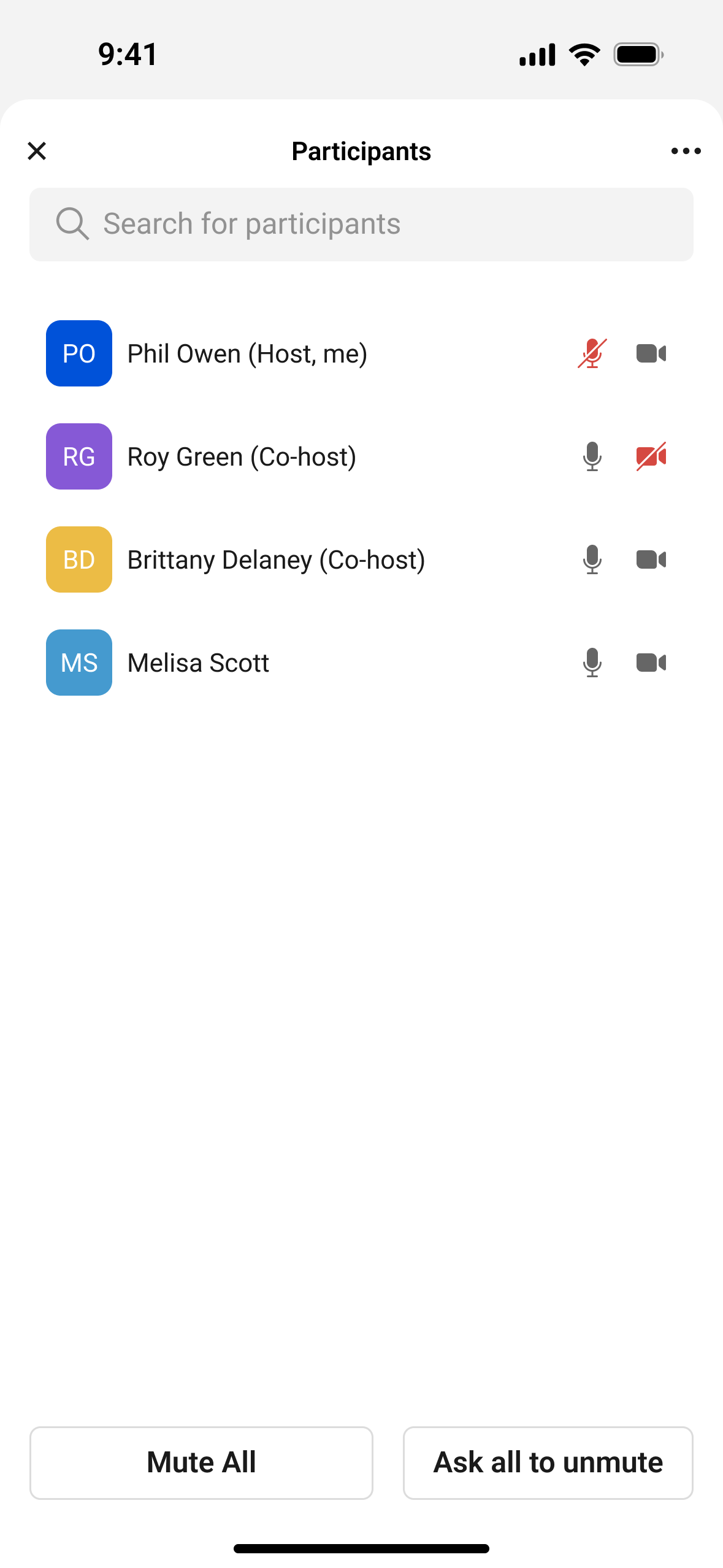
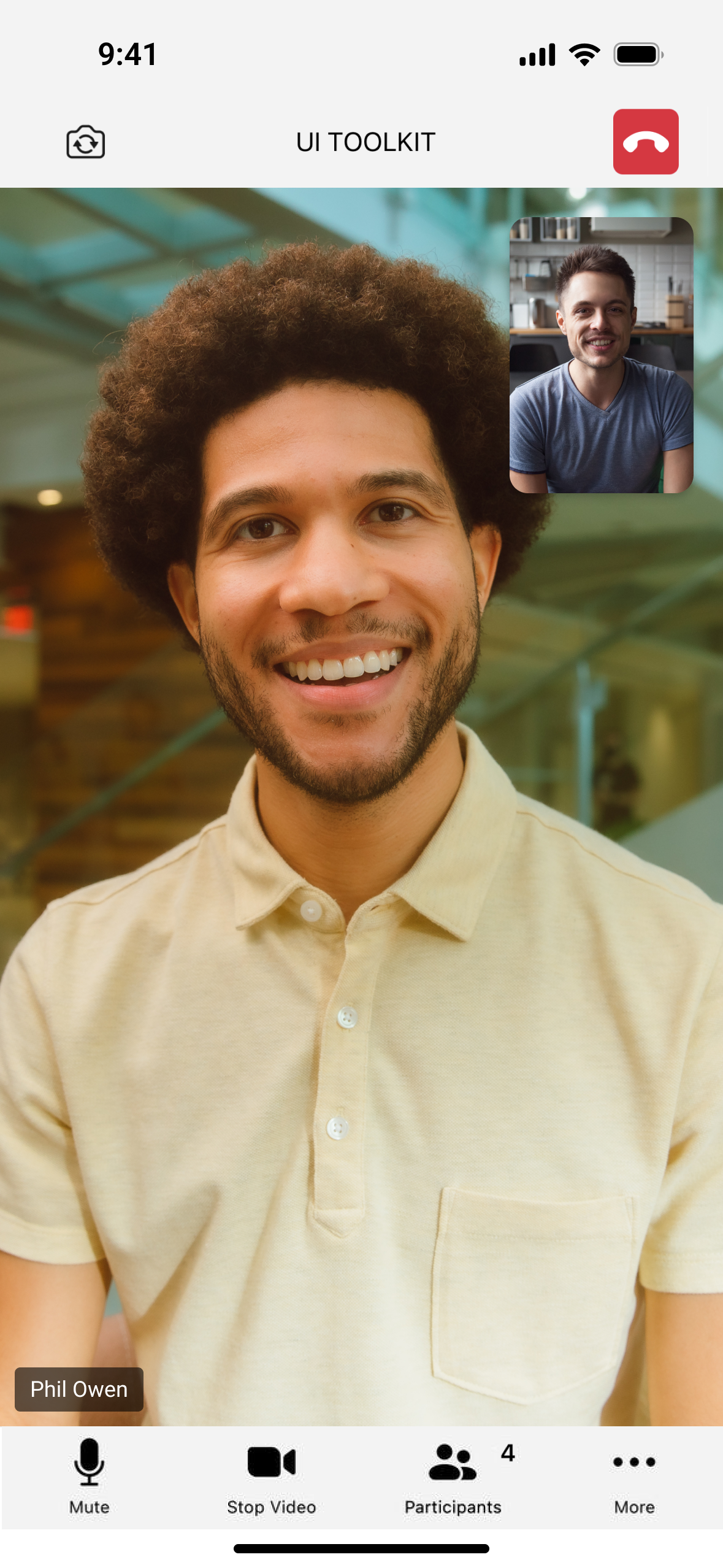

The UI Toolkit enables you to instantly start using a core set of Video SDK features in your app, including:
- Join and leave sessions
- Video on or off
- Front or back camera
- Mute and unmute
- Chat
- Display first two characters of user name when camera is off
- Participant list
- Screen sharing (sending and receiving)
- Host and manager controls
The use of this UI Toolkit is subject to the beta program terms of use and the Video SDK terms of service .
Prerequisites
- Android Studio
- An Android device with API 24+
- A Build platform account with credentials
Install
You can add the Zoom Video SDK UI Toolkit through Maven Central.
implementation 'us.zoom.uitoolkit:uitoolkit:<VERSION>'
Add the version number in place of <VERSION>.
Add required app permissions
In order for the camera and mic to work during the session, add the following:
| Permission Required | Optional | Description |
|---|---|---|
| Camera | Required | Required for Video |
| Microphone | Required | Required for Audio |
Use the UI Toolkit in your project
Follow these steps to add the toolkit to your app.
- Add the toolkit to your layout and ability to join a session.
- Get your authorization credentials.
- Create the UI Toolkit and add it to your layout.
- Create the session data.
- Listen for callbacks.
Get your authorization credentials
Learn how to use your credentials to authorize the SDK so you can connect.
Create the UiToolkitView and add it to your layout
Create the UiToolkitView that takes in the sessionContext. The sessionContext is the class defined by the UI Toolkit which contains information about joining the session.
val uiToolkitView = UiToolkitView(context)
UiToolkitView uiToolkitView = new UiToolkitView(context);
Add with an XML element.
<us.zoom.uitoolkit.UiToolkitView
  android:id="@+id/ui_toolkit_view"
  android:layout_width="match_parent"
  android:layout_height="match_parent"/>
Create the session data
Create the SessionContext that takes in required parameters such as JWT, session name and username (display name). See Generate a Video SDK JWT for more information.
val sessionContext = SessionContext(sessionName, jwt, username, password)
uiToolkitView.joinSession(sessionContext)
SessionContext sessionContext = new SessionContext(sessionName, jwt, username, password);
uiToolkitView.joinSession(sessionContext);
Listen for callbacks
To listen for key events when the UiToolkitView starts, stops, or encounters an error, implement an anonymous inner class and pass it into addListener.
val listener = object : UiToolkit.Listener {
  override fun onViewStarted = Unit
  override fun onViewStopped = Unit
  override fun onError(error: UiToolkitError) = Unit
}

uiToolkitView.addListener(listener)
UiToolkit.Listener listener = new UiToolkit.Listener() {
  @Override
  public void onViewStarted() {}

  @Override
  public void onViewStopped() {}

  @Override
  public void onError(UiToolkitError error) {}
};
uiToolkitView.addListner(listener);
Add screen sharing
To support sending screen share, there are new methods in the SDK. When the someone clicks the share button, the SDK emits the onShareClicked callback. Upon receiving this callback, you can retrieve a screen capture intent through the OS. See the Android developer documentation for details on how to handle the createScreenCaptureIntent method.
After you get the createScreenCaptureIntent, it is passed into onMediaProjectionResult in the UI Toolkit.
See the Video SDK screen sharing documentation or the sample app for more context.
Beta FAQ
What is the goal of this beta?
Before we make this generally available, we want to get feedback on the complete experience , such as getting started, documentation, running the UI Toolkit, troubleshooting, and more.
Reference
- The UI Toolkit for Android uses similar methods to the UI Toolkit for iOS. See the UI Toolkit for iOS reference documentation for details on classes, protocols, structures, and enumerations.
- See error codes for error code details.
- See the changelog for release notes.
- See Video SDK Plans & Pricing for Developer for pricing.