To use Realtime Media Streams (RTMS) with Zoom Phone, add the Zoom Phone RTMS events and scopes to a general OAuth app, and then turn on RTMS for the phone users you want to enable.
This video walks you through adding RTMS features to your app.
Create an app
To use RTMS, create a general OAuth app on the Zoom App Marketplace that you can then add RTMS features to. To surface the app in the Zoom client, create a user-managed app. Admin-managed apps also work, but they can't be surfaced in the client. For more information on creating an app, see Quick start guide in the Build your app guide.
Subscribe to RTMS events
RTMS uses event subscriptions to notify your app when a phone call stream starts, stops, or is interrupted. For the payload of each event, see the Webhook reference.
To subscribe to RTMS events
- Sign into the Zoom App Marketplace .
- To go to the app, in the upper-right of the screen, choose Manage.
- Select your app from the list.
- In the navigation pane, choose Access.
- Turn on Event Subscription, and choose Webhook as the delivery method.
- Choose Add Events, search for RTMS, and add the following Zoom Phone events:
- RTMS started in phone
- RTMS stopped in phone
- RTMS interrupted in phone
- Enter your event notification endpoint URL, then choose Save.
After you subscribe to the events, add the RTMS scopes to your app.
Add RTMS scopes to your app
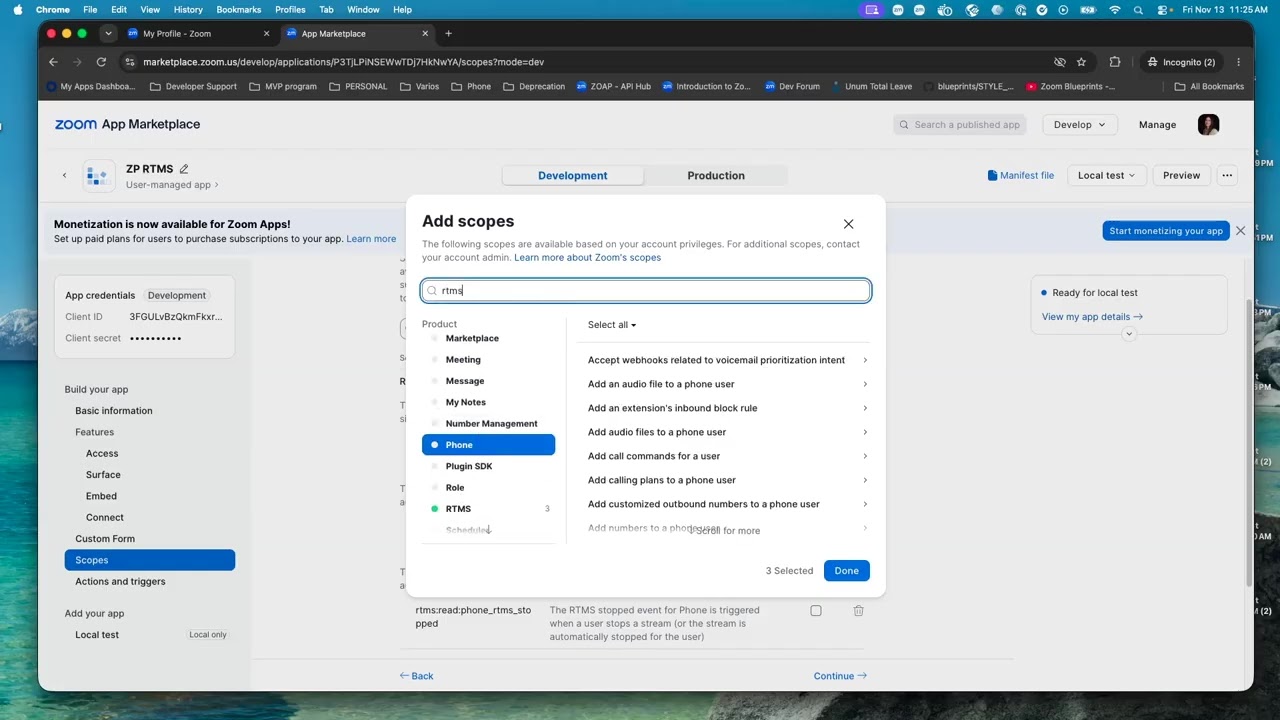
Your app needs scopes to receive Zoom Phone audio and transcript data. Scopes tell the media servers which data to send from phone calls.
To add scopes to your app
- Sign into the Zoom App Marketplace .
- To go to the app, in the upper-right of the screen, choose Manage.
- Select your app from the list.
- In the navigation pane, choose Scopes.
- Add the following Zoom Phone RTMS scopes:
phone:read:voice_call_audioto get audio data from phone calls.phone:read:voice_call_transcriptto get transcript data from phone calls.
Add your app credentials
Your app uses its client ID and client secret to sign the handshake requests that connect to the RTMS servers.
To add your credentials, copy the client ID and client secret from the Basic Information page of your app, and add them to your app's .env file.
Turn on RTMS for phone users
RTMS for Zoom Phone is turned on per user from the phone system policy settings.
To turn on Realtime Media Streams
- Sign in to Zoom as an admin, and in the navigation pane, choose Phone System Management, then choose Users & Rooms.
- Select the user you want to enable RTMS for, then choose Policy from the header menu.
- Scroll to, or select, In-Call Features.
- Scroll to Realtime Media Streams and turn it on.
- Choose Add apps, then find and select your Marketplace RTMS app.
- Configure your RTMS settings to suit your use case:
- Automatic start starts RTMS as soon as a phone call begins, and ends RTMS when the call ends.
- User controls let the user stop RTMS during a call from the Zoom client.
- Audio notifications play a recorded message to inform the callee that the call is being recorded in real time. You can upload a custom audio notification if you select this option.
- Save your settings.
After you save your settings, your app is ready to integrate and use.