Account admins control whether users in their account can use Realtime Media Streams (RTMS) and whether RTMS-enabled apps are automatically started when users join meetings or webinars.
Meeting and webinar hosts control whether participants must request host approval before the RTMS-enabled app can access content, and can grant approval that persists beyond a single request.
Account admin web portal controls
Account admins can enable RTMS and manage how apps access meeting content at the account, group, and user levels.
To enable RTMS at the account level
- Sign in to the Zoom web portal .
- In the navigation pane, choose Account Management, then choose Account Settings, and then choose the Zoom Apps tab.
- Turn on Share realtime meeting content with apps or Share realtime webinar content with apps.
To enable RTMS at the user or group level, follow the same procedure, but instead of choosing Account Management, choose User Management and then Users or Groups.
To manage apps at the account level
-
Sign in to the Zoom web portal .
-
In the navigation pane, choose Account Management, then choose Account Settings, and then choose the Zoom Apps tab.
-
Under Apps that access content in meetings choose + Add app.
-
Select the RTMS-enabled app, set the meeting access settings, and choose Confirm. For more information, see Control meeting access settings.
-
Sign in to the Zoom web portal .
-
In the navigation pane, choose Account Management, then choose Account Settings, and then choose the Zoom Apps tab.
-
Under Apps that access content in meetings choose + Add app.
-
Select the RTMS-enabled app, set the meeting access settings, and choose Confirm. For more information, see Control meeting access settings.
To manage apps at the user or group level, follow the same procedure, but instead of choosing Account Management, choose User Management and then Users or Groups.
Control meeting access settings
When you allow an app to access meeting content, you can control if, and when, the app attempts to auto start in meetings and whether hosts are asked every time this app tries to start in a meeting.
Control where this app starts for your account
Decide when this app auto starts.
- Meetings users own: The app will auto start in all the meetings the owner of the app owns, even if they're not the current host.
- Meeting users attend: The app will attempt to start in meetings users attend.
- Select Internally hosted meetings for meetings hosted on your account
- Select Externally hosted meetings for meetings hosted outside of your account
- Select both for all meetings users attend.
Choose permissions for participants
Decide whether the host is asked in the meeting if the app can start.
- Always ask: Hosts will always be asked whether the app can start.
- Always allow: Permission has already been given for this app to start.
Host in-meeting tools
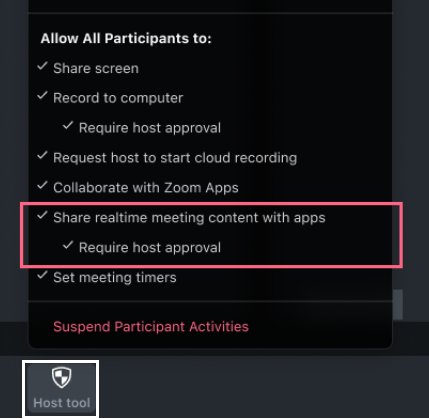
When a host is in a meeting or webinar they'll have the Host tools menu available to them. From there they can decide whether to share content with RTMS-enabled apps.
To share content
-
Click on Host tools
-
Turn Share realtime meeting content with apps, or Share realtime webinar content with apps, on.