Any developer with Zoom Developer Pack credits on their account can use Realtime Media Streams (RTMS). To use it, create a new general app and add RTMS to it, or add RTMS to an existing app. For more information on creating an app, see Quick start guide in the Build your app guide.
To add RTMS to your app, you'll need to add
- Event subscriptions for RTMS started and stopped events
- Scopes for the media (audio, video, transcript, etc) you want to access
- (Optional) Scopes for REST APIs to control RTMS sessions
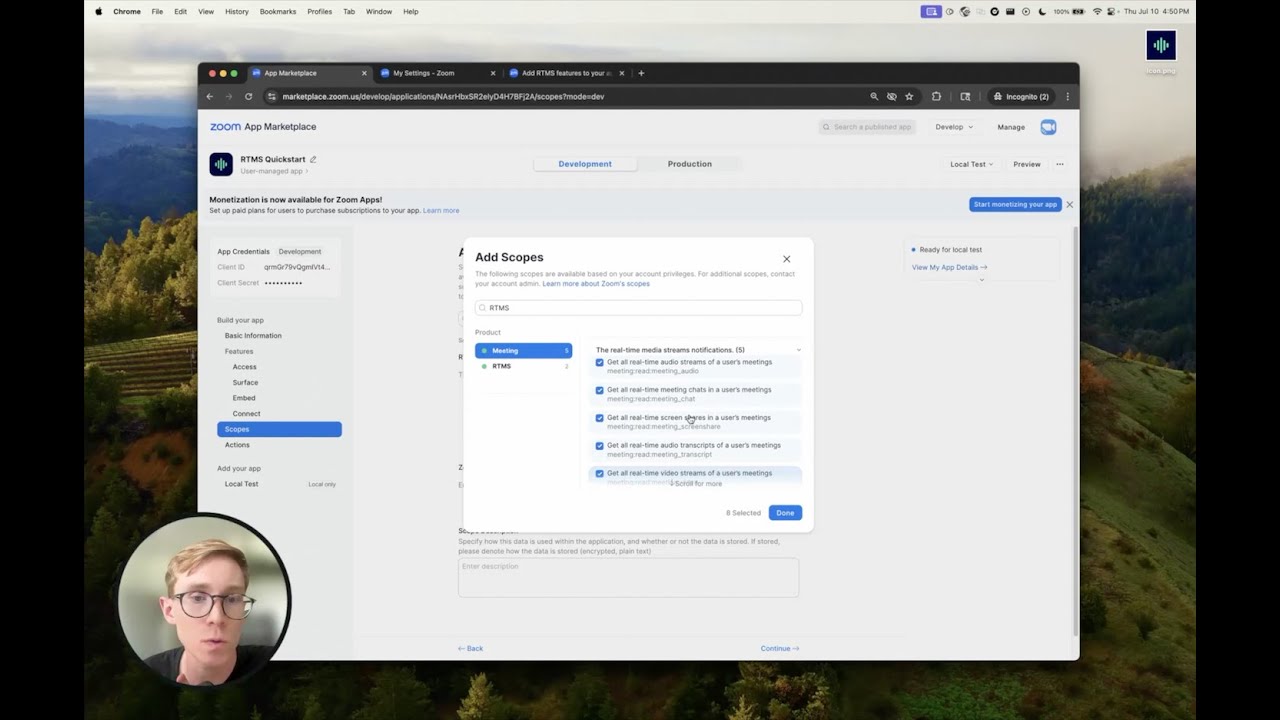
This video walks you through adding RTMS features to your app.
Prerequisites
- Zoom Developer Pack credits on your account. For plan options, see Developer pricing .
Create an app
To use RTMS, you'll need to create a General app on the Zoom App Marketplace that you can then add RTMS features to. For more information on creating an app, see Quick start guide in the Build your app guide.
Subscribe to RTMS started and stopped events
RTMS uses event subscriptions to notify your app when a session starts and stops in a meeting or webinar. Use these events to work with RTMS streams.
To subscribe to RTMS events
-
Sign into the Zoom App Marketplace .
-
To go to the app, in the upper-right of the screen, choose Manage.

-
Select your app from the list.
-
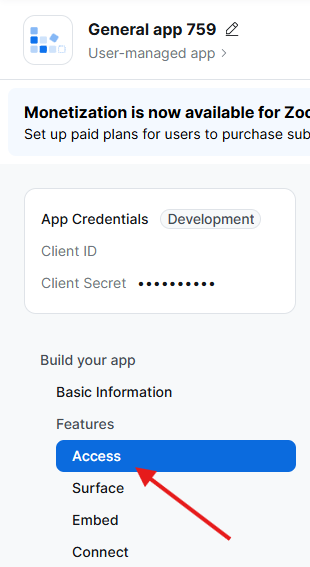
In the navigation pane, choose Access.
-
In the General Features section, turn on Event Subscription.
-
Set up the event subscription
- Give your subscription a name.
- Choose Add Events, search for RTMS, and select the events you want to subscribe to. We recommend subscribing to all of the available ones, but you'll need RTMS Started and RTMS Stopped for RTMS to work.
- Choose Done.
-
Enter the Event notification endpoint URL where you'll receive events.
-
Choose Save.
Now that you've added event subscriptions to your account, you'll need to add RTMS scopes.
Add RTMS scopes to your app
Your app will also require scopes for the media such as audio, video, and transcript data you want to receive. Scopes tell the media servers which data to send and appear to hosts and participants in meetings and webinars.
To add scopes to your app
- Sign into the Zoom App Marketplace .
- To go to the app, in the upper-right of the screen, choose Manage.
- Select your app from the list.
- In the navigation pane, choose Scopes.
- Choose + Add Scopes, search for RTMS, and select the scopes you want to add. For example, if you want to get audio data from a meeting, add the
meeting:read:meeting_audioscope.
(Optional) Add JS SDK APIs for apps
If your app is an in-meeting, or in-webinar, app, you can use JS SDK APIs to start and stop RTMS sessions.
These API methods allow your app to provide enhanced user controls, including launching RTMS with a button or automatically when the user opens the app.
To use JS SDK APIs, your app will need to run as an in-meeting, or in-webinar, surface app.
To make your app a surface app
- Sign into the Zoom App Marketplace .
- To go to the app, in the upper-right of the screen, choose Manage.
- Select your app from the list.
- In the navigation pane, choose Surface.
- In the Select where to use your app section, select Meetings and Webinars.
- In the In-client App Features section, turn on Zoom App SDK.
- Choose + Add APIs, search for RTMS, and select the APIs you want to add. These APIs control what options are available to meeting or webinar participants. We recommend at least adding
StartRTMSandStopRTMS.
(Optional) Add REST APIs for session status
RTMS can also be started and stopped using a REST API from your app to Update participant Real-Time Media Streams (RTMS) app status. This allows your app to start an RTMS session for a participant with an access token.
Using this endpoint requires the meeting:update:participant_rtms_app_status scope. For more information about adding scopes, see Add RTMS scopes to your app
Add app for users and groups
As an admin, once an app is added to your account, you can add the app to multiple users or groups in your account.
- Sign into the Zoom App Marketplace .
- In the upper-right of the screen, choose Manage.
- In the navigation pane, choose Apps on account.
- Select your app from the list.
- On the Users & Groups tab, choose +Add Users.
- Add the users and groups you want to share the app with and choose Allow.
Now the app is ready for the selected users and groups to use.