App triggers enable you to create event-driven workflows for your applications, allowing end users to receive timely notifications and automate tasks more effectively.
Zoom supports:
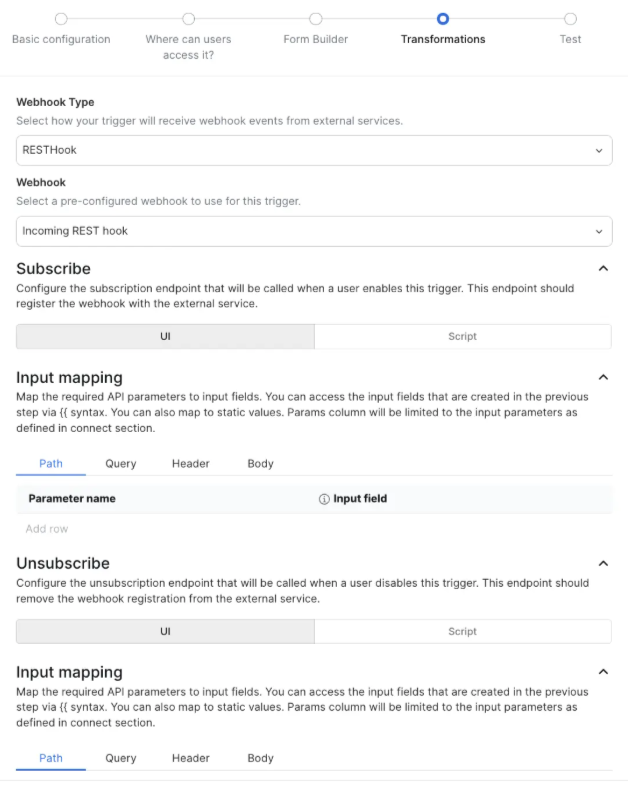
- RESThook triggers - These automatically subscribe Zoom to external event services through API calls when an end user configures a trigger. They include customizable subscribe, unsubscribe, and inbound event processing operations, allowing developers to define how Zoom handles and transforms incoming event data.
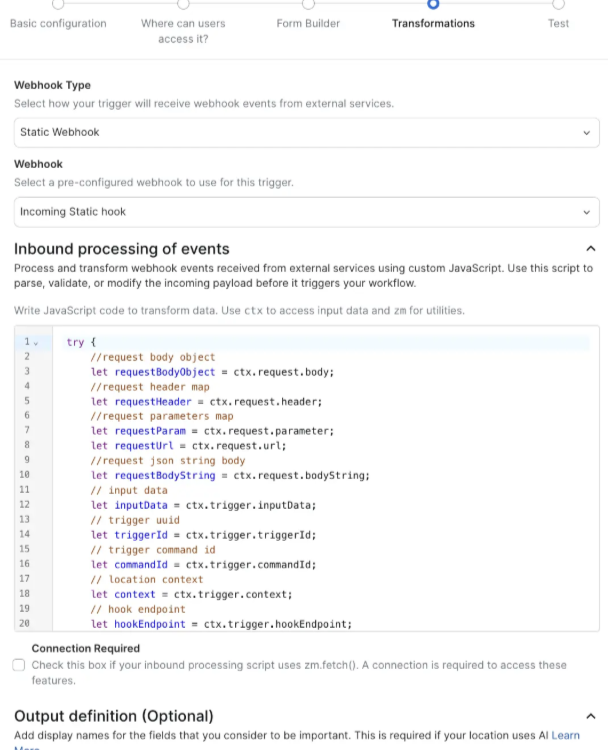
- Static webhook triggers - These use a static URL that receives event data directly from third-party systems. Developers can configure inbound event processing for static webhooks, and optionally require a connection if the event handling needs to call a third-party endpoint
- Polling triggers - These periodically query a third-party API endpoint to retrieve data. Zoom structures the request payload, evaluates returned payloads using deduplication identifiers, and fires the trigger when new or updated items are detected.
Prerequisites
- You have created a Zoom general app configured with at least one connect endpoint. This is required to integrate third-party data into the Zoom platform.
- For RESThook and Static Webhook triggers, you have configured an incoming webhook in Connect.
- For Polling triggers, you must have the specific API endpoint you want to poll configured in Connect.
Add trigger
To add a trigger, in your app's build page, select Actions and Triggers from the left navigation pane, select the Trigger tab, and then select New trigger.
Similar to app actions, the app trigger creation flow consists of five steps:
- Basic configuration to define the trigger.
- Where can users access it? to select the location in the Zoom client where users can use the trigger.
- Form Builder/Custom input form to specify the input fields defined in connect parameters that are available to this trigger.
- Transformation to map the incoming data and convert them from the API response values to the expected schema the Zoom application needs.
- Testing to verify your configuration is successful.
Basic configuration
On the Basic configuration page, you define the core identity of the trigger you are setting up:
- Built-in triggers: Pre-defined by Zoom with all basic information configured. Developers only need to select the desired trigger. Built-in triggers are currently supported for Zoom Phone and Zoom Contact Center.
- Custom triggers: Allow custom setup for workflows (such as ZoomMate workflow).
Where you can users access it
In this step, select the locations in the Zoom Workplace app where you want the action to be available to users. This offers flexibility to display triggers only in locations where they make the most sense.
Form builder (custom input form)
Defining a trigger custom input form is optional. It allows you to capture necessary inputs from end users, which can later be used in trigger subscription calls or event payload transformations using {{ctx.inputData.<fieldId>}}.
To configure input fields in the Form Builder, select Add field, and specify:
- Field ID - Enter a unique ID used to reference values as dynamic variables.
- Field title - The display name for the field.
- Description - A clear explanation of what the field does.
- Data Type - Select the type (a string, number, integer, password).
- Required - Toggled on by default; turn off if the field is optional.
Transformations
In this step, developers combine the Connect endpoint/webhook with any collected custom form inputs to define how data flows and transforms into Zoom's expected object format.
Configuration modes
- UI Mode - User-friendly interface for simple setups.
- Script Mode - Advanced customization mode. (Note: For RESThook triggers, inbound event processing strictly requires Script Mode, though subscribe/unsubscribe operations support both UI and Script modes.)
Configuration details by trigger type
RESThook trigger:
- Subscribe - Defines how Zoom subscribes to external event services when an end user enables the new trigger.
- Unsubscribe - Defines how Zoom unsubscribes from external events when the trigger is removed.
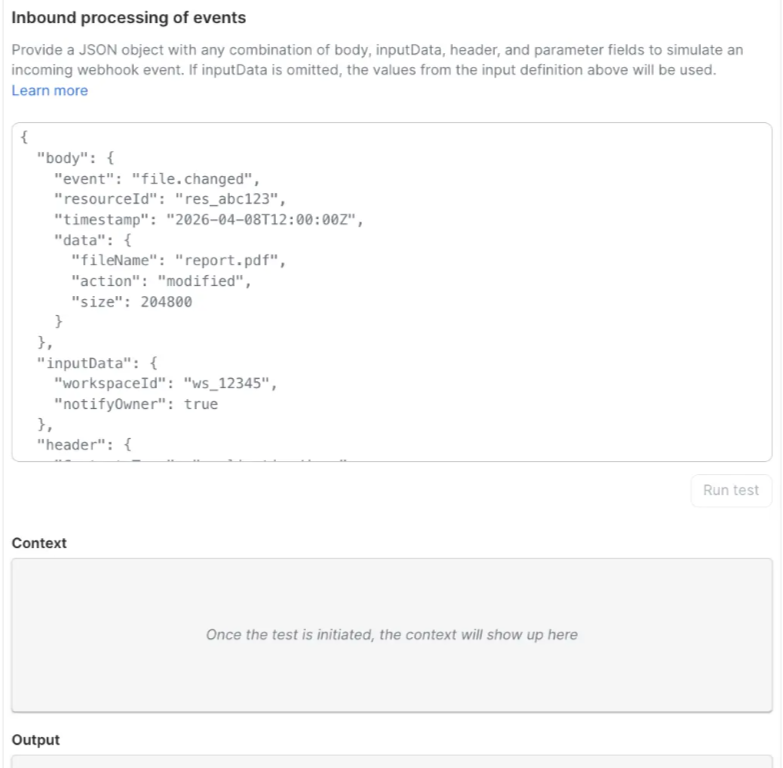
- Inbound processing of events - Defines how Zoom handles and transforms incoming event data. (Requires Script mode.)
- Output definition - Establishes the finalized output structure, including display names shown to end users and field specifications that conform to the expected object format.
Static webhook trigger:
- Inbound Processing of Events - Defines how Zoom processes and transforms incoming payload data.
- Output Definition - Establishes the finalized output structure and user-facing display names.
- Connection Required - Connections are optional for static webhooks. However, if processing inbound events requires calling a third-party Connect endpoint, check **Connection Required **to prompt end users for authentication credentials during setup.
Triggers also support using custom form data in output mapping or output definitions using {{ctx.inputData.<fieldId>}}.
Developers can access app-level or connection-level custom form values captured during app installation by using {{ctx.customField.<fieldId>}}.
Polling trigger
- Polling Endpoint - Defines how Zoom structures the payload when calling the external API endpoint. The output returned by a polling trigger is always an array.
- Output Definition - Establishes the finalized output structure and user-facing field display names.
- Deduplication Identifiers - Defines JSON notation keys within the returned payload for Zoom to monitor. The trigger fires only when a 'new' or 'updated' item is identified across these fields.
Variable mapping syntax
- Trigger Custom Form Inputs - Access inputs collected via the form builder using
{{ctx.inputData.<fieldId>}}. - App/Connection Level Values - Access app-level or connection-level custom form values captured during app installation using
{{ctx.customField.<fieldId>}}.
Test the trigger
Once transformations are configured, test the trigger setup before saving:
- Connections - Supports testing with both Live connections (requires installing the app first) and Test connections (configured beforehand in the Connect section).
- RESThook Testing - Select or add a connection to test subscribe and unsubscribe lifecycle API calls.
- Inbound Event Testing (RESThook & Static Webhook) - Provide a sample JSON payload to test and examine your inbound event processing scripts.
- Polling Testing - Zoom executes a real call to the configured API endpoint to fetch real data. Once the response array is received, you can inspect and verify the data transformation and deduplication logic.