Live Streaming
Video SDK sessions can be live streamed to an unlimited audience using Real-Time Messaging Protocol (RTMP). This is helpful if you need to scale Video SDK attendees beyond the 1,000 real-time session user limit. For example, you can live stream to YouTube Live, Facebook Live, Twitch, AWS IVS, and other services.
See the following for how to set up a streaming event in a third-party platform and implement a feature to start and stop live streaming of a session using the Video SDK.
Retrieve credentials
Live streaming with SDKs requires the following information from third-party streaming platforms: Stream URL, Stream Key, Broadcast URL. See Live stream to YouTube for an example.
Initialize the live stream client
After joining a session, call client.getLiveStreamClient() to get the live stream client.
const liveStreamClient = client.getLiveStreamClient();
Set and start the live stream
The Video SDK broadcasts the live stream to an RTMP endpoint. To receive the live stream, use an RTMP receiver like Youtube live, Facebook live, Twitch, or AWS IVS for an embedded, custom experience.
To set and start the live stream call the liveStreamClient.startLiveStream() function, passing in the streamUrl you are streaming to, the key, token, or live streaming URL password, and the broadcastUrl.
liveStreamClient.startLiveStream(streamUrl, key, broadcastUrl);
The broadcast URL is the URL where an audience member can view the live stream. This may not be required from 3rd party live streaming platforms, but it is required by the startLiveStream function. This URL has no affect on the live stream, if you do not know what to pass in, you can pass in https://zoom.us.
Stop the live stream
To stop the RTMP live stream, call:
liveStreamClient.stopLiveStream();
Live stream event listener
To receive the live streaming status, subscribe to the live-stream-status event. This event is useful for events like if the broadcaster stops the live stream on the receiving end.
client.on(`live-stream-status`, (payload) => {
    console.log(`live streaming status: ${payload}`);
});
Live stream to YouTube
For instance, if you want to live stream a session to YouTube, you must enable live streaming on your Google account.
Step 1:
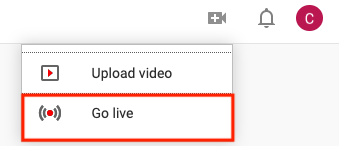
Login to YouTube. Locate the video icon and press "Go Live".
Step 2:
Click the Stream button in the top panel. Note: YouTube Webcam services are not compatible with Zoom SDK.

Step 3:
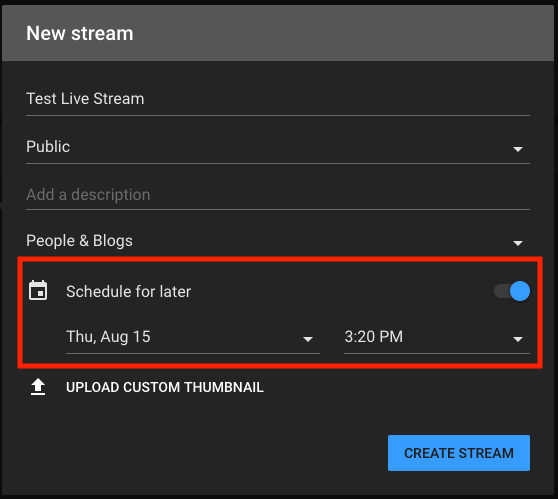
Fill out the required information and toggle "Schedule for later". If this is not selected, the live stream will start immediately and will not provide setting info.
Step 4:
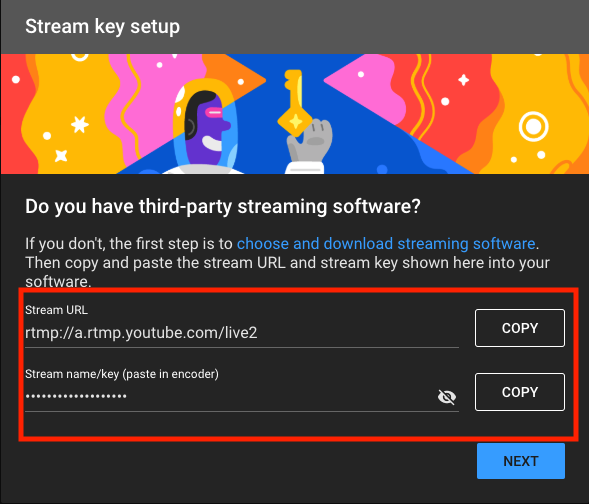
After creating the stream, the Steam URL and Stream Key will be available.
Step 5:
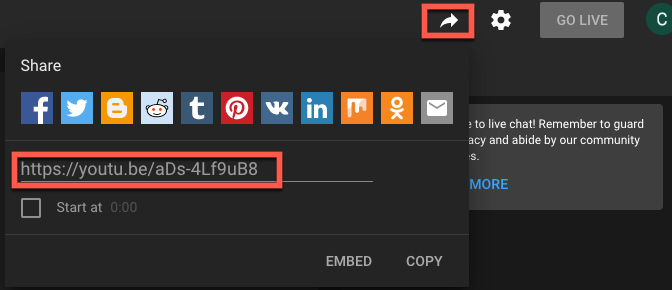
Click the share button beside your account icon to get the broadcast URL.
Use the YouTube Live Streaming API to automate these steps and get stream information programmatically.
More live stream features
For the full set of live stream features, see LiveStreamClient in the Video SDK Reference.
From the developer blog
See the following blogs for examples.
- How to live stream with the Zoom Video SDK by Will Ezrine - 03-07-2024
- On-demand playback scrubbing with Amazon IVS and Zoom Video SDK by James Coon - 03-06-2024