Get started
To quickly understand the capabilities of the Video SDK for Linux, build the Video SDK Electron sample for Linux. You can build the sample in a Linux environment, such as on a Linux machine, a Docker container, or the Windows Subsystem for Linux (WSL). You can also create a Debian distribution package from the built sample package.
Be sure to follow the steps to download the Video SDK package before you get started.
See Video SDK Plans & Pricing for Developer for pricing.
The Video SDK packages contain the libraries (the
*.sofiles) to build your own Linux app with Video SDK for 64-bit x86 and 64-bit ARM processors.
zoom-video-sdk-linux_x86_64-#.#.#.tar.xzzoom-video-sdk-linux_arm64-#.#.#.tar.xz
You can also skip the sample and integrate the SDK into your Linux app instead.
Access the Electron sample app
Access the Video SDK Electron sample app on GitHub.
This sample app contains libraries for Linux, macOS, Windows x86, and Windows x64. You can build the sample for all of these platforms.
The Video SDK for Linux sample is in the /sdk/linux folder. Once you build this, you can create a *.deb package to run it elsewhere.
Prerequisites
Install dependencies.
-
Install node.js 20.17.0.
-
Install the packages at https://nodejs.org/en/
-
Or use the following commands:
sudo apt update
sudo apt install -y curl
curl -fsSL https://deb.nodesource.com/setup_18.x | sudo -E sh -
sudo apt install -y nodejs
-
-
Install Electron 33.0.0.
npm i electron@33.0.0 -
Install Python. Based on the Electron version that you are using, you might install a different python version. Python 2.7 works with Electron 2 to Electron 9, and Python 3 works with Electron 4 and later.
sudo apt update
sudo apt install -y python3
Build and run sample
Follow these steps in an Ubuntu or Debian Linux environment, such as a Linux machine or Docker container, to build the Video SDK Electron sample.
-
Clone the GitHub package.
git clone https://github.com/zoom/videosdk-electron-sample.git -
Download and unzip protobuf 22.3.
wget https://github.com/protocolbuffers/protobuf/archive/refs/tags/v22.3.zip -O protobuf-22.3.zip unzip protobuf-22.3.zip -
Download
abseil-cpp 20230802.1.git clone https://github.com/abseil/abseil-cpp.git cd abseil-cpp git checkout 20230802.1 -
Put the
abslfolder inprotobuf-22.3/src.cp -r abseil-cpp/absl protobuf-22.3/src -
Copy the protobuf 22.3 source code into the SDK dependency folder and name it
protobuf_src.cp -r protobuf-22.3/src zoom_electron_video_sdk/lib/node_add_on mv zoom_electron_video_sdk/lib/node_add_on/src zoom_electron_video_sdk/lib/node_add_on/protobuf_src -
Set up dependencies for running the Electron demo app and create a
/.zoom/logsfolder.sudo apt install -y libglib2.0-dev liblzma-dev libxcb-image0 libxcb-keysyms1 libxcb-xfixes0 libxcb-xkb1 libxcb-shape0 libxcb-shm0 libxcb-randr0 libxcb-xtest0 libgbm1 libxtst6 libgl1 libnss3 libasound2 libpulse0 mkdir -p ~/.zoom/logs -
Build the Electron sample app, for example, for v1.6.2, run:
cd ../Electron/zoom-video-sdk-electron-demo-1.6.2/Sample
npm i
npm run electron:buildNode
npm run electron:build
Replace the version number with the latest version that you downloaded.
- Run
npm run electron:buildto build the*.debpackage.
To run the demo on another machine, copy the *.deb file to another Linux machine and follow the steps to copy and run the DEB package, then go to the next step on the machine where you want to run the demo.
Run the demo
Enter the following command in a terminal to start the demo:
npm run electron:serve
Demo walkthrough
The demo displays buttons to Create a Session or Join a Session:
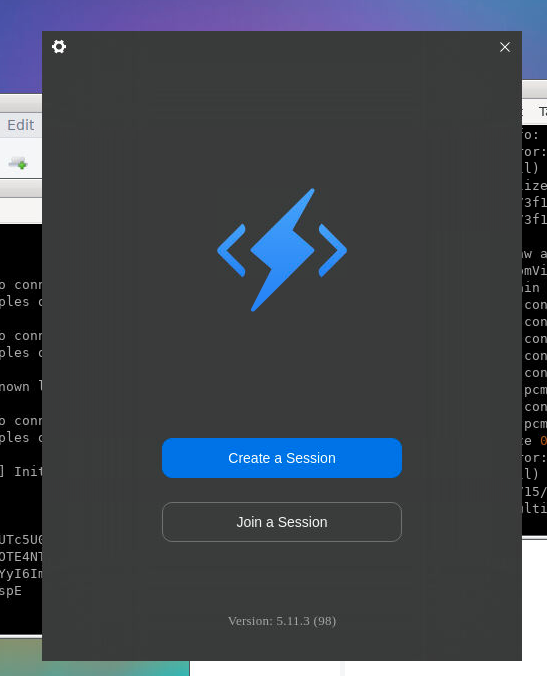
Click one of the buttons and choose your camera, speaker, and microphone options (note that you can't use audio or video with a Docker-hosted instance).
For the Token, enter your SDK JWT.
The demo adds you to the session.
Create and run from a Debian distribution package
You can also create a Debian distribution package from the built demo package.
You can create a Debian (DEB) Distribution package to install and run the Video SDK on another Linux machine or in a Docker container after you have built the package.
Create a DEB package
In a terminal, under the zoom_electron_video_sdk folder, run:
npm run electron:build
After successfully running this command, you will find a DEB package in the dist_electron folder. For example, zoom-video-sdk_Setup_<versions>.deb.
cd dist_electron
ls *.deb
Copy and run the DEB package
-
Copy the Debian (
*.deb) package to a Linux machine. -
To install, in a terminal, type:
sudo dpkg -i zoom-video-sdk_Setup_<versions>.deb -
To run the Electron demo app, in a terminal, type:
electron-video-sdk
Run demo in a Docker container
See the following instructions to run Zoom Video SDK for Linux in an Ubuntu Docker container with a Virtual Network Computing (VNC) service.
Run Docker container
-
Install Docker Desktop if you haven't already.
-
Run the Docker container with the command:
docker run -p 6080:80 -v /dev/shm:/dev/shm dorowu/ubuntu-desktop-lxde-vnc -
Go to
http://localhost:6080to connect to the container.
Copy Zoom Video SDK package to Docker
Follow these steps to copy the Zoom Video SDK from your local host to the Docker host.
-
Go to the Video SDK file directory on your local host.
-
In Docker, navigate to File Explorer > Application > System Tools > LXTerminal to open LXTerminal.
-
In LXTerminal, create a Downloads directory:
mkdir Downloads -
In a terminal on your local machine (local terminal), run
docker psto find the container ID of the running docker container. For example:CONTAINER ID IMAGE COMMAND CREATED STATUS PORTS NAMES e7073f1a7aee dorowu/ubuntu-desktop-lxde-vnc "/startup.sh" 28 hours ago Up 28 hours (healthy) 0.0.0.0:6080->80/tcp priceless_payne -
In your local terminal, execute the
docker cpcommand to copy the Zoom Video SDK zip file from your local host to the Docker host. This command copies the file, for example, "zoom-video-sdk-electron-demo-1.6.4.zip" to the container's/usr/sharedirectory:docker cp zoom-video-sdk-electron-demo-1.6.4.zip <CONTAINER ID>:/root/Downloads -
In Docker, install the advanced package tool to handle installation and removal of packages:
sudo apt-get update sudo apt-get upgrade -
In Docker, check if unzip and vim is available. If not, install them with:
sudo apt install -y unzip
sudo apt install -y vim
Build and run
In Docker, follow the previous instructions to build and run the demo.
Extra steps for camera and microphone
The Docker container does not have a camera or microphone. You would have to develop interfaces to use these features. However, you can test how you can use this to create a bot that sends or captures raw data using virtual devices.