Screen sharing
Enhance the collaborative experience of a session by allowing users in a session to share their screen content on an iPhone or iPad.
This guide will provide you with an overview of the two screen sharing implementation options that are supported by the Video SDK:
- Broadcast the device screen - This approach uses broadcasting with the
ZoomVideoSDKScreenShare.xcframework, ReplayKit, and other Apple video frameworks to share a user's full device screen in a session. - Share a
UIView- Use this approach to share a singleUIViewin a session.
These two approaches require the CptShare.xcframework.
Types of screen sharing
This table shows the differences between the screen sharing options and things to consider when implementing them.
| Broadcast the device screen | Share a single UIView |
|---|---|
| Shares the entire screen in the session. | Only shares a single UIView in the session |
| Broadcasting happens at the operating system level, not application level. | UIView sharing happens at the application level, not at the operating system level. |
| Uses an application extension. The application extension, not the application itself, controls the sharing. Use App Group IDs to leverage communication between the application and application extension. | Doesn't require an application extension. |
| Highly optimized - it is a native operating system level implementation provided by Apple. | Has optimization limitations. |
| Not encouraged for complex views. |
Broadcast the device screen
This tutorial demonstrates the steps required to enable and start broadcasting a user's screen in a session using ReplayKit and the Video SDK.
Prerequisites
- You have a good understanding of Broadcast Extensions, AppGroupIDs, and ReplayKit. Zoom uses these technologies and various Apple video frameworks to implement screen sharing. If you're unfamiliar with these topics, we encourage you to gain an understanding before you begin.
- You have integrated the
ZoomVideoSDK.xcframeworkinto your project and implemented a basic video session feature.
1. Create a new target
Use the Broadcast Upload Extension template to create a new target in your app. Click File->New->Target, select Broadcast Upload Extension in the iOS tab, and click Next. Set the target name as ScreenShare, select your desired language, and click Finish. If you are prompted to activate a scheme, click Activate.
After the target creation, Replaykit framework will be added automatically under Frameworks and Libraries option of the ScreenShare target. Ensure that the Do not Embed option is applied to this framework.
2. Configure target settings
The Video SDK does not support Bitcode. Therefore, you must disable bitcode for your targets.
Under Targets, navigate to ScreenShare -> Build Settings -> Build Options -> Setting and set the value of Enable Bitcode setting to No. Repeat this step for your main target if you haven't already done so.
Ensure that the deployment target version is lower than or equal to your device's OS version for both the main target and the ScreenShare target.
The ZoomVideoSDKScreenShare framework utilizes C++ libraries. To make your project compatible with these libraries, make the following changes within your ScreenShare target:
- If you are using Objective-C, navigate to ScreenShare -> SampleHandler.m and rename it to SampleHandler.mm.
- If you are using Swift, navigate to the ScreenShare target -> Build Settings -> Other Linker Flags, and add the value "-lc++".
Add Background mode in the project target to enable screen share when minimizing the app. To do so, go to Project_Target -> Signing & Capabilities -> Background Modes -> and select Audio, AirPlay and Picture in Picture.
3. Import frameworks
Under Frameworks, Libraries, and Embedded Content, copy the CptShare.xcframework into your Xcode project folder and "Embed & Sign" it.
Import the ZoomVideoSDKScreenShare framework into the ScreenShare app extension target. You can do so by either dragging the framework into Xcode or by navigating to the Frameworks section of the ScreenShare target. If you are asked to specify the target, select the ScreenShare target (not the main target).
The ZoomVideoSDKScreenShare framework utilizes the following Apple video frameworks to improve the screen sharing experience.
- CoreGraphics.framework
- CoreVideo.framework
- CoreMedia.framework
- VideoToolbox.framework
Navigate to the Frameworks and Libraries option in the General tab of the ScreenShare target and click the "+" icon to search and include these frameworks.
In certain versions of Xcode, you may have to navigate to Build Phases -> Link Binary with Libraries to import these frameworks.
4. Implement a bridging header
The ZoomVideoSDKScreenShare framework works by utilizing the callbacks within the SampleHandler. If you are using Swift in your project , you must implement a bridging header to expose the ZoomVideoSDKScreenShare framework to SampleHandler.swift.
If you are using Objective-C instead of Swift in your project, skip to the next step.
Create a temporary Objective-C file within your target by navigating to SampleHandler.swift in the project explorer, and clicking File -> New File -> Objective-C File. Give this file a name and click Next. Add this file to the ScreenShare target only and click Create.
Once Xcode prompts you to create an Objective-C bridging header, click Create Bridging Header. If you didn't see a prompt, you must create the bridging header manually within the ScreenShare target.
After completing these steps, in the ScreenShare target, you should see the bridging header file. The file name contains the product module name followed by -Bridging-Header.h.
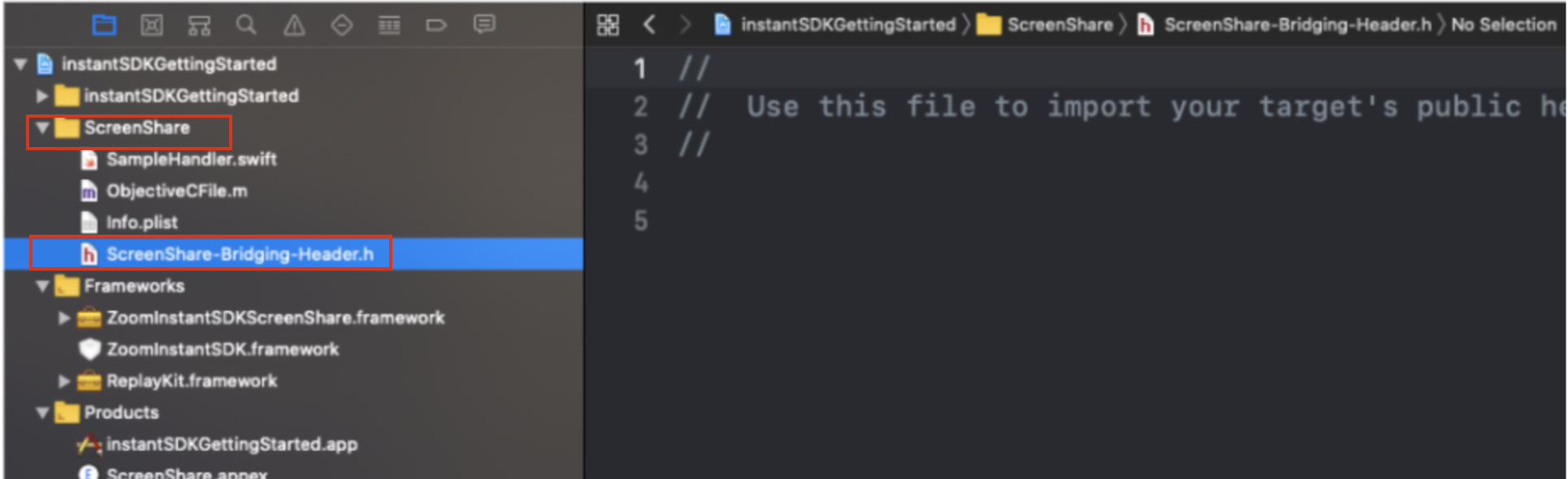
Import the ZoomVideoSDKScreenShareService framework by adding the following line of code in the bridging header file (ScreenShare-Bridging-Header.h):
#import <ZoomVideoSDKScreenShare/ZoomVideoSDKScreenShareService.h>
This framework will now be exposed to all the Swift files in your ScreenShare target. Thus, you do not need to include import statements for this framework in your Swift files.
You may now delete the temporary Objective-C file(not the bridging header file) that you created earlier.
5. Set up SampleHandler
The SampleHandler class is where the code to handle different broadcasting events resides. To handle the events, you must:
-
Conform
SampleHandlertoZoomVideoSDKScreenShareServiceDelegateto establish communication betweenReplayKitand the Video SDK. -
Pass the
SampleHandlercallbacks into the VideoSDK. To do this, create aZoomVideoSDKScreenShareproperty, assign theSampleHandleras its delegate, and call the delegate functions from the relativeSampleHandlercallbacks.
SampleHandler.swift
import Foundation
import ReplayKit
class SampleHandler: RPBroadcastSampleHandler, ZoomVideoSDKScreenShareServiceDelegate {
    var screenShareService: ZoomVideoSDKScreenShareService?
    override init() {
        super.init()
        // Create an instance of ZoomVideoSDKScreenShareService to handle broadcast actions.
        let params = ZoomVideoSDKScreenShareServiceInitParams()
        // Provide your app group ID from your Apple Developer account.
        params.appGroupId = "your app group ID here"
        // Set this to true to enable sharing device audio during screenshare
        params.isWithDeviceAudio = true
        let service = ZoomVideoSDKScreenShareService(params: params)
        self.screenShareService = service
        screenShareService?.delegate = self
    }
    override func broadcastStarted(withSetupInfo setupInfo: [String : NSObject]?) {
        guard let setupInfo = setupInfo else { return }
        // Pass setup info to SDK.
        screenShareService?.broadcastStarted(withSetupInfo: setupInfo)
    }
    override func broadcastPaused() {
        // Notify SDK the broadcast was paused.
        screenShareService?.broadcastPaused()
    }
    override func broadcastResumed() {
        // Notify SDK the broadcast was resumed.
        screenShareService?.broadcastResumed()
    }
    override func broadcastFinished() {
        // Notify SDK the broadcast has finished.
        screenShareService?.broadcastFinished()
    }
    override func processSampleBuffer(_ sampleBuffer: CMSampleBuffer, with sampleBufferType: RPSampleBufferType) {
        // Pass sample bugger into SDK.
        screenShareService?.processSampleBuffer(sampleBuffer, with: sampleBufferType)
    }
    func zoomVideoSDKScreenShareServiceFinishBroadcastWithError(_ error: Error?) {
        guard let error = error else { return }
        // Terminate broadcast when notified of error from SDK.
        finishBroadcastWithError(error)
    }
}
SampleHandler.m
#import "SampleHandler.h"
#import <ZoomVideoSDKScreenShare/ZoomVideoSDKScreenShareService.h>
@interface SampleHandler () <ZoomVideoSDKScreenShareServiceDelegate>
@property (strong, nonatomic) ZoomVideoSDKScreenShareService * screenShareService;
@end
@implementation SampleHandler
- (instancetype)init
{
    self = [super init];
    if (self) {
        // Create an instance of ZoomVideoSDKScreenShareService to handle broadcast actions.
        ZoomVideoSDKScreenShareServiceInitParams *params = [[ZoomVideoSDKScreenShareServiceInitParams alloc] init];
        // Provide your app group id from your Apple Developer account.
        params.appGroupId = @"your app group ID here";
        // Set this to true to enable sharing device audio during screenshare
        params.isWithDeviceAudio = YES;
        ZoomVideoSDKScreenShareService * service = [[ZoomVideoSDKScreenShareService alloc]initWithParams:params];
        self.screenShareService = service;
        self.screenShareService.delegate = self;
    }
    return self;
}
- (void)dealloc
{
    self.screenShareService = nil;
}
- (void)broadcastStartedWithSetupInfo:(NSDictionary<NSString *,NSObject *> *)setupInfo {
    // User has requested to start the broadcast. Setup info from the UI extension can be supplied but optional.
    [self.screenShareService broadcastStartedWithSetupInfo:setupInfo];
}
- (void)broadcastPaused {
    [self.screenShareService broadcastPaused];
    // User has requested to pause the broadcast. Samples will stop being delivered.
}
- (void)broadcastResumed {
    [self.screenShareService broadcastResumed];
    // User has requested to resume the broadcast. Samples delivery will resume.
}
- (void)broadcastFinished {
    // User has requested to finish the broadcast.
    [self.screenShareService broadcastFinished];
}
- (void)processSampleBuffer:(CMSampleBufferRef)sampleBuffer withType:(RPSampleBufferType)sampleBufferType {
    [self.screenShareService processSampleBuffer:sampleBuffer withType:sampleBufferType];
}
- (void)ZoomVideoSDKScreenShareServiceFinishBroadcastWithError:(NSError *)error
{
    [self finishBroadcastWithError:error];
}
@end
If using the virtual speaker, screen share will only share video data and will not share the audio data.
6. Set up App Groups
Use App Groups to establish communication between your ScreenShare target, and your application's main target.
Enable App Groups by navigating to your application's main target -> Signing and Capabilities -> + Capability and selecting App Groups.
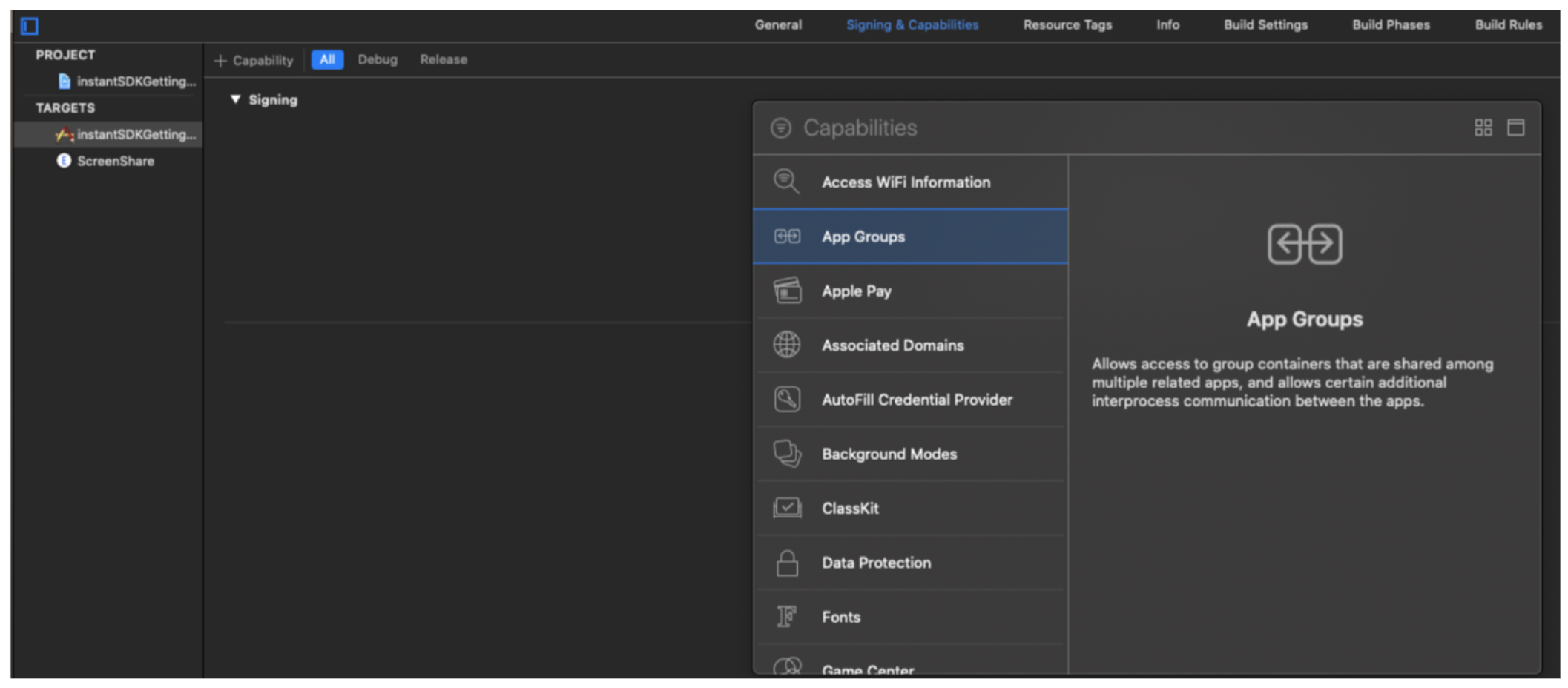
Click the "+" icon at the bottom of the App Groups section to create a new App Group in your main target and set its name. This name will serve as the App Group ID. Similar to Bundle IDs, these are in reverse domain order starting with "group.".
We recommend appending your Bundle ID to "group." to form the App Group ID as it is easy to keep track of. The following image shows an example of what an App Group ID could look like. You must create your own unique App Group ID.
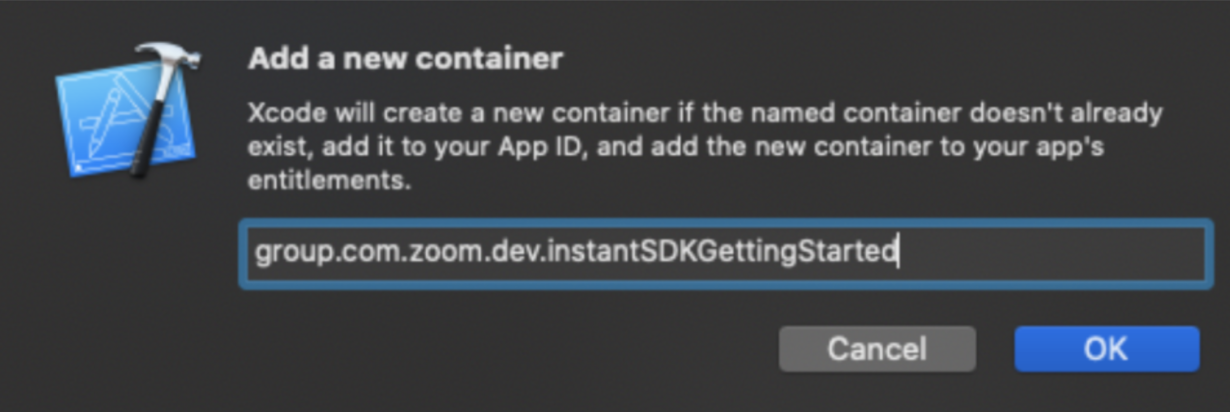
Next, enable this App Group by selecting the checkbox next to the App Group ID.

Repeat the above steps to enable the same App Group in your Screenshare extension target. Note that the same App Group ID must be used in both targets.
After completing these steps, navigate to the code where you initialized the Video SDK in your application and pass the App Group ID to your SDKInitContext object.
initParams.appGroupId = "Your AppGroupId."
initParams.appGroupId = @"Your AppGroupId.";
Next, pass the App Group ID into the ZoomVideoSDKScreenShare within your SampleHandler. Add the following code inside the init method where the other screenShareService properties are set.
SampleHandler.swift
AppGroupId." ```
**SampleHandler.m**
```objectivec
//Pass your App Group ID to the SDK.
self.screenShareService.appGroup = @"Your AppGroupId.";
7. Run the App
Run your app extension to start broadcasting. To do this, first, select the ScreenShare scheme at the top left corner of Xcode and click Run.

If you're prompted to choose an app to run, select your main target application and click Run.
To avoid this prompt and allow Xcode to select your application for you, click your ScreenShare scheme -> Edit Scheme and select your application under "Executable". By default, you can either debug your ScreenShare extension or your main application. If you would like to debug both, select "Debug executable".
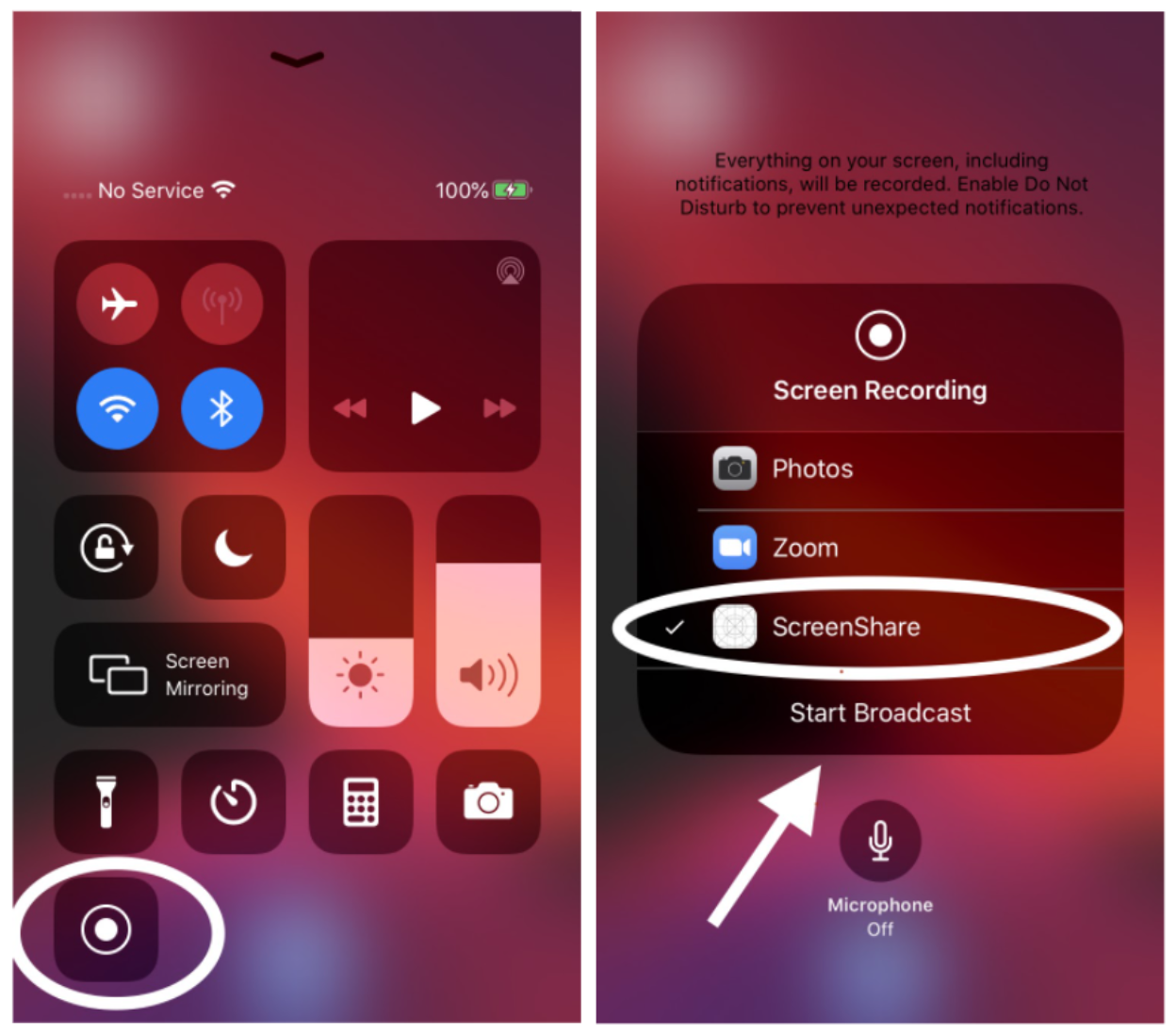
While your application is running, navigate to the Control Center of your iOS device, tap the Screen Record button, choose the ScreenShare application extension and tap the Start Broadcast option to start broadcasting your screen.
8. Manage the display of the shared content
Before the local user starts broadcasting a session, you have to get the ZoomVideoSDKShareHelper to receive its share status under the onUserShareStatusChanged callback function. Before any sharing can happen, check if share feature is allowed through isShareLocked.
if let isShareLocked = ZoomVideoSDK.shareInstance()?.getShareHelper()?.isShareLocked(), !isShareLocked {
    // Continue with screen sharing
}
if ([[[ZoomVideoSDK shareInstance] getShareHelper] isShareLocked]) {
    // Do something if share is locked
} else {
    // Continue with screen sharing
}
Once any user starts broadcasting during a session, you must use the onUserShareStatusChanged callback function of the ZoomVideoSDKDelegate to monitor screen share events (get notified when a user starts or stops sharing their screen). ZoomVideoSDKDelegate is located within ZoomVideoSDK.xcframework. Implement this delegate within your main target.
The SDK calls the onUserShareStatusChanged function when a user starts or stops the broadcast in a session.
Once the user starts sharing the screen, call the subscribeWithView method to start rendering the shared screen in the session. To stop sharing the screen, call the unSubscribeWithView method.
public func onUserShareStatusChanged(_ helper: ZoomVideoSDKShareHelper?, user: ZoomVideoSDKUser?, shareAction: ZoomVideoSDKShareAction?) {
    // Get the current share status and handle your use case according to the new status
    let status = shareAction?.getShareStatus()
    switch (status) {
    case .none:
        return
    case .start:
        // User has begun sharing.
        // Retrieve the share canvas and subscribe it to your view
        shareAction?.getShareCanvas()?.subscribe(with: yourView, aspectMode: .original, andResolution: ._Auto)
    case .pause:
        return
    case .resume:
        return
    case .stop:
        return
    default:
        return
    }
}
- (void)onUserShareStatusChanged:(ZoomVideoSDKShareHelper * _Nullable)helper user:(ZoomVideoSDKUser * _Nullable)user shareAction:(ZoomVideoSDKShareAction*_Nullable)shareAction {
        // Get the current share status and handle your use case according to the new status
    ZoomVideoSDKReceiveSharingStatus status = [shareAction getShareStatus];
    switch (status) {
        case ZoomVideoSDKReceiveSharingStatus_None: {
        }
        // User has begun sharing.
        case ZoomVideoSDKReceiveSharingStatus_Start: {
            // Retrieve the share canvas and subscribe it to your view
            [[shareAction getShareCanvas] subscribeWithView:self.yourView aspectMode:ZoomVideoSDKVideoAspect_Original andResolution:ZoomVideoSDKVideoResolution_Auto];
        }
        case ZoomVideoSDKReceiveSharingStatus_Pause: {
        }
        case ZoomVideoSDKReceiveSharingStatus_Resume: {
        }
        // User has stopped sharing.
        case ZoomVideoSDKReceiveSharingStatus_Stop: {
            // Retrieve the share canvas and unsubscribe it from your view
            [[shareAction getShareCanvas] unSubscribeWithView:self.yourView];
        }
    }
}
If the SDK fails to subscribe to a view, it triggers the onShareCanvasSubscribeFailWithUser callback.
public func onShareCanvasSubscribeFailWithUser(_ user: ZoomVideoSDKUser?, view: UIView?, shareAction: ZoomVideoSDKShareAction?) {
    // Get the subscribe fail reason
    let reason = shareAction?.getSubscribeFailReason()
}
- (void)onShareCanvasSubscribeFailWithUser:(ZoomVideoSDKUser *_Nullable)user view:(UIView *_Nullable)view shareAction:(ZoomVideoSDKShareAction*_Nullable)shareAction {
// Get the subscribe fail reason
    ZoomVideoSDKSubscribeFailReason reason = [shareAction getSubscribeFailReason];
    }
Share a UIView
This tutorial demonstrates how to use the Video SDK to share the in-app screen (single UIView) of a user in a session. There are some network limitations with this method, but if the UIView is not complex, it can be used to share your view.
Prerequisites
- You have integrated the
ZoomVideoSDK.xcframeworkinto your project and implemented a basic video session feature.
1. Import frameworks
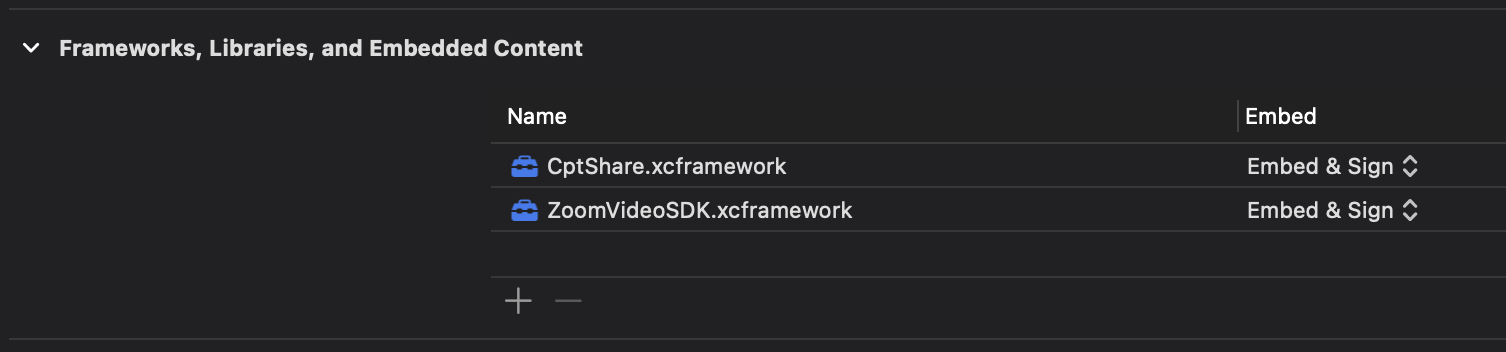
Import the ZoomVideoSDK.xcframework into your project similarly to how you've done previously, however, this time copy the CptShare.xcframework into your Xcode project folder and "Embed & Sign" it.
2. Start sharing the screen
Use the startShareWithView function of the ZoomVideoSDKShareHelper to start sharing a UIView with the session.
// Get the ZoomVideoSDKShareHelper to perform UIView sharing actions.
if let shareHelper = ZoomVideoSDK.shareInstance()?.getShareHelper() {
    // Call startShareWithView to begin sharing.
    let returnValue = shareHelper.startShare(with: view)
    if returnValue == .Errors_Success {
        // Your view is now being shared.
    } else {
        // The view could not be shared.
    }
}
// Get the ZoomVideoSDKShareHelper to perform UIView sharing actions.
ZoomVideoSDKShareHelper *shareHelper = [[ZoomVideoSDK shareInstance] getShareHelper];
if (shareHelper) {
    // Call startShareWithView to begin sharing.
    ZoomVideoSDKERROR returnValue = [shareHelper startShareWithView:view];
    if (returnValue == Errors_Success) {
        // Your view is now being shared.
    } else {
         // The view could not be shared.
    }
}
Use the subscribeWithView method of the ZoomVideoSDKVideoCanvas class to subscribe to the UIView that is being shared and render it in the session.
let user: ZoomVideoSDKUser  // Get the specific user you want to subscribe to their share screen
let shareActionList = user.getShareActionList()
// The shareActionList can contain 0 to multiple shares coming from the selected user
if let shareActionList = shareActionList, shareActionList.count > 0 {
    // Get the specific share to subscribe to, such as the first one
    let shareAction = shareActionList[0]
    // Get the render canvas helper object of the share action
    if let shareCanvas = shareAction.getShareCanvas() {
             // Sharing must be done on main thread
	Task(priority: .background) {
                // Set video aspect.
                let videoAspect = ZoomVideoSDKVideoAspect.panAndScan
	    let resolution = ZoomVideoSDKVideoResolution.Auto
                // Render the share action's share stream
                shareCanvas.subscribe(with: view, aspectMode: videoAspect, andResolution: resolution)
            }
    }
}
ZoomVideoSDKUser *user; // Assume this is already obtained
NSArray<ZoomVideoSDKShareAction *> *shareActionList = [user getShareActionList];
if (shareActionList != nil && shareActionList.count > 0) {
    ZoomVideoSDKShareAction *shareAction = shareActionList[0];
    ZoomVideoSDKVideoCanvas *shareCanvas = [shareAction getShareCanvas];
    if (shareCanvas != nil) {
        // Ensure UI operations happen on the main thread
        dispatch_async(dispatch_get_main_queue(), ^{
            ZoomVideoSDKVideoAspect videoAspect = ZoomVideoSDKVideoAspect_PanAndScan;
            [shareCanvas subscribeWithView:view andAspectMode:videoAspect andResolution:ZoomVideoSDKVideoResolution_Auto];
        });
    }
}
3. Stop Sharing the Screen
Use the stopAppShare method of the ZoomVideoSDKShareHelper class to stop sharing the screen.
// Get the ZoomVideoSDKShareHelper to perform UIView sharing actions.
if let shareHelper = ZoomVideoSDK.shareInstance()?.getShareHelper() {
    // Call stopShare to stop sharing view.
    let returnValue = shareHelper.stopShare()
    if returnValue == .Errors_Success {
        // Your view has stopped being shared.
    } else {
        // Could not stop sharing view.
    }
}
// Get the ZoomVideoSDKShareHelper to perform UIView sharing actions.
ZoomVideoSDKShareHelper *shareHelper = [[ZoomVideoSDK shareInstance] getShareHelper];
if (shareHelper) {
    // Call stopShare to stop sharing view.
    ZoomVideoSDKERROR returnValue = [shareHelper stopShare];
    if (returnValue == Errors_Success) {
        // Your view has stopped being shared.
    } else {
        // Could not stop sharing view.
    }
}
Share multiple views
Since multiple users can share their screens, other users can choose which view to display. See Sharing multiple screens simultaneously for details about this feature.
Limitations
- Multiple people can share their screens at the same time, but only one screen can be rendered at a time.
- The current person sharing their screen cannot see another person's screen share stream.
Choose which view to display
If the local user would like to subscribe to a specific view instead of the latest view shared from the delegate callback onUserShareStatusChanged, identify the user to subscribe to, retrieve the user's share action list, and subscribe to the selected share action.
let user: ZoomVideoSDKUser  // Get the specific user you want to subscribe to their share screen
let shareActionList = user.getShareActionList()
// The shareActionList can contain 0 to multiple shares coming from the selected user
if let shareActionList = shareActionList, shareActionList.count > 0 {
    // Get the share you want to subscribe to - Example the first share
    let shareAction = shareActionList[0]
    shareAction.getShareCanvas()?.subscribe(with: yourView, aspectMode: .original, andResolution: ._Auto)
}
ZoomVideoSDKUser* user; // Get the specific user you want to subscribe to their share screen
NSArray* shareActionList = [user getShareActionList];
// The shareActionList can contain 0 to multiple share coming from the selected user
if (shareActionList.count > 0) {
   // Get the share you want to subscribe to - Example the first share
   ZoomVideoSDKShareAction* shareAction = [shareActionList objectAtIndex:0];
   [[shareAction getShareCanvas] subscribeWithView:self.yourView aspectMode:ZoomVideoSDKVideoAspect_Original andResolution:ZoomVideoSDKVideoResolution_Auto];
}
Troubleshooting
We have compiled a list of common scenarios that you may encounter when attempting to implement the screen sharing functionality into your Zoom iOS SDK application. Most scenarios incorporate "workarounds" to address the majority of commonly encountered scenarios.
Nothing happens when I begin broadcasting or I do not see my app in the broadcast picker
This may be caused by the App Group ID. The App Group ID must be valid and passed to four different locations in Xcode. Furthermore, you must ensure that the App Group ID are all identical within these locations. Otherwise, the screen share functionality will fail to appear within the session.
Solution
-
Pass the ID as a string value into your
ZoomVideoSDKInitParamsobject wherever you initialize the SDK.let initParams = ZoomVideoSDKInitParams() initParams.appGroupId = "group.com.yourTeam.yourAppGroupID" -
Pass the ID as a string value into your
ZoomVideoSDKScreenShareServiceobject within yourBroadCast Extensiontarget. This is likely within a class calledSampleHandler.self.screenShareService = ZoomVideoSDKScreenShareService() screenShareService?.appGroup = "group.com.yourTeam.yourAppGroupID" -
Set the App Group in the "Signing & Capabilities" tab of your main target.
-
Set the App Group in the "Signing & Capabilities" tab of your Broadcast Extension target.
I am using the sample application, but I still can't broadcast
As of version 5.2.42099.1207, screen sharing via Broadcasting is functional. However, the App Group ID, "group.us.zoom.videosdk," which is set by default, will not work for you.
Solution
Provide your own App Group ID within the four locations mentioned in the above section. Also, verify that the provisioning profile settings are properly set.
I don't want to use a Broadcast Extension, but I would like to broadcast it to the session
The SDK uses ReplayKit to send the video and audio data from the device. Without using a broadcast extension, the SDK cannot properly broadcast.
Solution
You must use a broadcast extension.
I imported both ZoomVideoSDK.xcframework and ZoomVideoSDKScreenShare.framework, but I am getting errors when I build
Caused by incorrect importing.
Solution
- Import the ZoomVideoSDK.xcframework into your main target, and not in the Broadcast Extension target. Make sure it is set to "Embed & Sign".
- Import the ZoomVideoScreenShareSDK.xcframework into your Broadcast Extension target, and not your main target. Make sure it is set to "Do not embed".
After importing ZoomVideoSDKScreenShare.framework into my Broadcast Extension target, I received over 50 errors
Caused by missing imports or naming issues.
Solution
- Make sure you have also imported the other required frameworks into your Broadcast Extension target: CoreGraphics, CoreMedia, CoreVideo, ReplayKit, VideoToolbox, and set them all to "Do not embed".
- If you are using Objective-C in your Broadcast Extension target, make sure your SampleHandler source file is named "SampleHandler.mm", and not "SampleHandler.m"
- If you are using Swift in your Broadcast Extension target, make sure you have added "-lc++" to "Other linker flags" in your build settings.