Live streaming
Video SDK sessions can be live streamed to an unlimited audience using Real-Time Messaging Protocol (RTMP). This is helpful if you need to scale Video SDK attendees beyond the 1,000 real-time session user limit. For example, you can live stream to YouTube Live, Facebook Live, Twitch, AWS IVS, and other services.
See the following for how to set up a streaming event in a third-party platform and implement a feature to start and stop live streaming of a session using the Video SDK.
Retrieve credentials
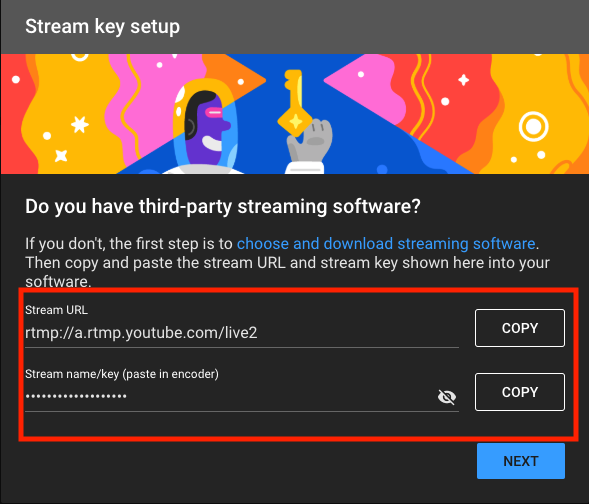
Live streaming with SDKs requires the following information from third-party streaming platforms: Stream URL, Stream Key, Broadcast URL. See Live stream to YouTube for an example.
Start live streaming
To start live streaming a session from your app, first obtain an instance of ZoomVideoSDKLiveStreamHelper and verify that the current user can start streaming. Next, call startLiveStreamWithStreamingURL within ZoomVideoSDKLiveStreamHelper to begin live streaming.
// Get the ZoomVideoSDKLiveStreamHelper to perform livestream actions.
if let liveStreamHelper = ZoomVideoSDK.shareInstance()?.getLiveStreamHelper() {
    // Check if live stream can start.
    if liveStreamHelper.canStartLiveStream() == .Errors_Success {
        // Call startLiveStreamWithStreamingURL to begin live stream.
        let liveStreamStartReturnValue = liveStreamHelper.startLiveStream(withStreamingURL: streamingURL, streamingKey: streamingKey, broadcastURL: broadcastURL)
        switch liveStreamStartReturnValue {
        case .Errors_Success:
            // Live stream successfully began.
            break
        case .Errors_Session_Live_Stream_Error:
            // Live stream could not start.
            break
        default:
            break
        }
    }
}
// Get the ZoomVideoSDKLiveStreamHelper to perform livestream actions.
ZoomVideoSDKLiveStreamHelper *liveStreamHelper = [[ZoomVideoSDK shareInstance] getLiveStreamHelper];
// Check if live stream can start.
if ([liveStreamHelper canStartLiveStream] == Errors_Success) {
    // Call startLiveStreamWithStreamingURL to begin live stream.
    ZoomVideoSDKERROR liveStreamStartReturnValue = [liveStreamHelper startLiveStreamWithStreamingURL:streamingURL StreamingKey:key BroadcastURL:broadcastURL];
    switch (liveStreamStartReturnValue) {
        case Errors_Success:
            // Live stream successfully began.
            break;
        case Errors_Session_Live_Stream_Error:
            // Live stream could not start.
            break;
        default:
            break;
    }
}
Stop live streaming
To stop the stream using the SDK, call stopLiveStream.
// Get the ZoomVideoSDKLiveStreamHelper to perform livestream actions.
if let liveStreamHelper = ZoomVideoSDK.shareInstance()?.getLiveStreamHelper() {
    // Call stopLiveStream to stop the live stream.
    liveStreamHelper.stopLiveStream()
}
// Get the ZoomVideoSDKLiveStreamHelper to perform livestream actions.
ZoomVideoSDKLiveStreamHelper *liveStreamHelper = [[ZoomVideoSDK shareInstance] getLiveStreamHelper];
// Call stopLiveStream to stop the live stream.
[liveStreamHelper stopLiveStream];
Listen for updates
After calling the startLiveStream function, you can listen for updates through your ZoomVideoSDKDelegate implementation's onLiveStreamStatusChanged callback.
| Name | Description |
|---|---|
| ZoomVideoSDKLiveStreamStatus_None | No live stream is active. |
| ZoomVideoSDKLiveStreamStatus_Connecting | The live stream is connecting. |
| ZoomVideoSDKLiveStreamStatus_InProgress | Live streaming is in progress. |
| ZoomVideoSDKLiveStreamStatus_Ended | Live streaming has ended. |
| ZoomVideoSDKLiveStreamStatus_StartFailed | The live stream failed to start. |
| ZoomVideoSDKLiveStreamStatus_FailedTimeout | The live stream failed because the connection timed out. |
Get notified when a user starts or stops their livestream
func onLiveStreamStatusChanged(_ helper: ZoomVideoSDKLiveStreamHelper?, status: ZoomVideoSDKLiveStreamStatus) {
    // Use helper to perform live stream actions.
    // Status is the new live stream status.
    switch status {
    case .inProgress:
        print("Live stream now in progress.")
    case .ended:
        print("Live stream has ended.")
    default:
        print("Live stream status unknown.")
    }
}
- (void)onLiveStreamStatusChanged:(ZoomVideoSDKLiveStreamHelper *)helper status:(ZoomVideoSDKLiveStreamStatus)status {
    // Use helper to perform live stream actions.
    // Status is the new live stream status.
    switch (status) {
        case ZoomVideoSDKLiveStreamStatus_InProgress:
            NSLog(@"Live stream now in progress.");
            break;
        case ZoomVideoSDKLiveStreamStatus_Ended:
            NSLog(@"Live stream has ended.");
            break;
        default:
            NSLog(@"Live stream status unknown.");
            break;
    }
}
Live stream to YouTube
For instance, if you want to live stream a session to YouTube, you must enable live streaming on your Google account.
Step 1:
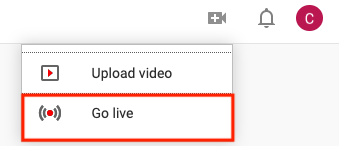
Login to YouTube. Locate the video icon and press "Go Live".
Step 2:
Click the Stream button in the top panel. Note: YouTube Webcam services are not compatible with Zoom SDK.

Step 3:
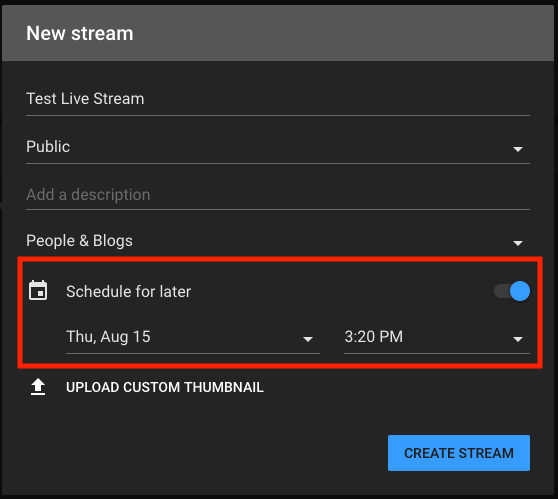
Fill out the required information and toggle "Schedule for later". If this is not selected, the live stream will start immediately and will not provide setting info.
Step 4:
After creating the stream, the Steam URL and Stream Key will be available.
Step 5:
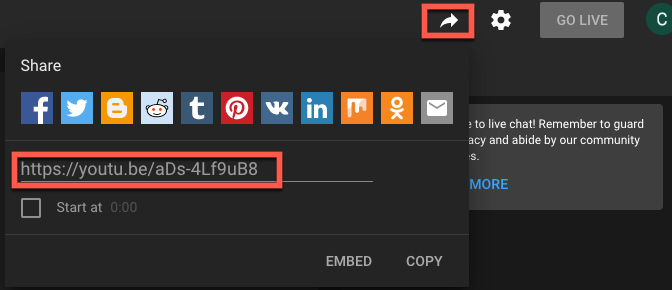
Click the share button beside your account icon to get the broadcast URL.
Use the YouTube Live Streaming API to automate these steps and get stream information programmatically.