Submit apps for review
The App Submission section in the build flow acts as a staging area where you confirm all required fields are complete and provide app reviewers with testing information.
Required fields
The page displays required fields that you need to complete before you can interact with the rest of the page and continue with app submission. The list is dynamic and only displays fields with incomplete information.
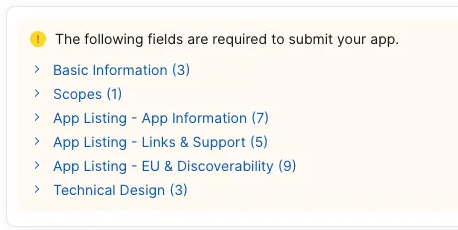
The fields in the list are hyperlinked. Clicking a field takes you to the respective required information sections.
Once all required fields are completed, the rest of the App Submission page becomes accessible.
Domain validation
We perform a one-time verification to make sure that the domain where you receive Zoom callbacks is owned by you.
The build flow reads these URL fields, which you've entered as part of the app listing information for your app:
- Privacy Policy URL
- Terms of Use URL
- Redirect URL for OAuth
- Zoom Chat Subscription Bot URL
- Webhook Callback URL
- Home URL
And displays the unique domains under Verify Domains.
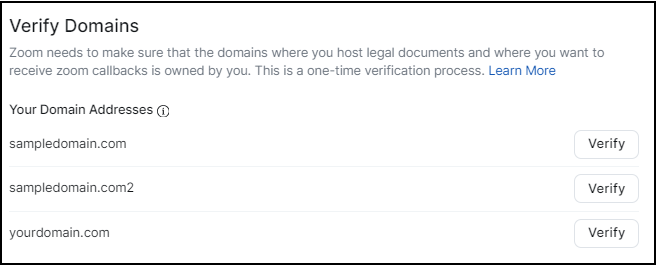
Select Verify for each domain address. The build flow provides several methods to verify your domain addresses.
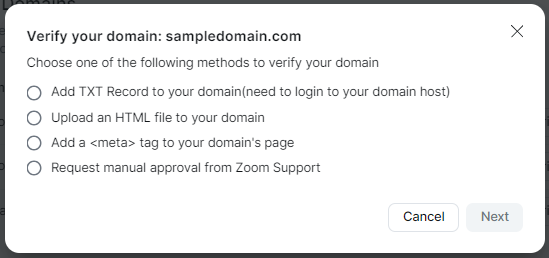
Select the method to use to verify the domain, and complete the steps in the instructions.
- Add TXT record to your domain. Requires you to have permission to login to your domain host and update the TXT record.
- Upload an HTML file to your domain. Requires you to have permission to login to your domain's web server and upload the HTML file to the root folder.
- Add a
<meta>tag to your domain's page. Requires you to have permission to login to your domain's homepage and add<meta>data to the<head>section. - Request manual approval from Zoom support. This is a good option to choose if you do not have permission to update your domain host, web server, or homepage.
For more information, see Verify your domains.
Release notes for app reviewer
The release notes field is your opportunity to include any notes or information that would help the app reviewer review your app. This may help to both expedite the review and make it more effective.
The best practice for this field is to include a test plan, so that reviewers have everything they need to begin functional testing on the first submission.
See Common Rejection Issues to learn more about how to best prepare your app for review.
Release notes for users (optional)
This text field only appears for published apps, which means you would only use it when you are updating an existing app and are submitting an Update request.
When an updated app is published to the Zoom Marketplace, if there is a scope change, we send automated emails to the app's subscribers informing them of the change.
Though the text field is optional, it is an opportunity for you to add your own text to the email - explaining the changes and benefits or the need to update their app.
Note
The Marketplace Notifications settings may be different for your users and will be impacted if they receive the automated email.
App activation
You must activate your app before it can be used. These are options for when it gets activated:
- Activate my app immediately after it is approved - let us activate your app. After we review your app, we activate it for you. Use this option, when you want the app to be activated as soon as possible.
- I will manually activate my app - you activate your app yourself at a later time. After we review your app, your app is listed in your Created Apps screen with the status of Active for internal only. When you want to activate it, select the Activate action. Use this option, when you want to control the activation or you have a specific release date.
Test account and credentials
To facilitate a smooth review process, provide test credentials that allow Zoom reviewers to fully experience your integration. Ideally, use a test account populated with placeholder data to help us quickly validate your app's functionality.
If your app supports multiple user roles (e.g., doctor and patient, teacher and student), be sure to include login credentials for all roles so we can test each user flow end-to-end.
Important
- For First-time submissions
Make sure your environment is using the Production Client ID during authorization.
- For Update Requests
Make sure you are the Development Client ID during authorization.
For more information, refer to this article on the Zoom Developer Forum.
Marketplace developer agreement
Read the Marketplace Development Agreement and confirm the information you provided is true and correct.
Responding to review notes
During the app review process, the Marketplace Review Team provides feedback and actions through review notes. Review notes are displayed as a speech bubble icon in the app status panel. The icon is only displayed when there is a new note or response needing your attention.

You must review all notes from the Review Team and respond to or acknowledge them before resubmitting your app.
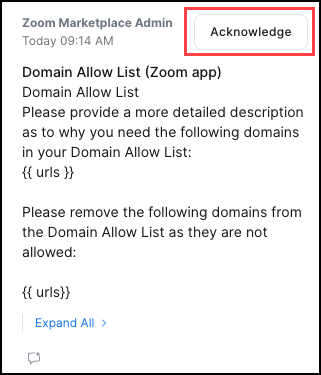
For more information, see Check review status.