Add features
The Cobrowse SDK supports connecting the customer and agent to a session with a 6-digit PIN code that the customer shares with the agent. As shown in create customer form, add a button for the customer to click to generate the form and start the session. The customer must pass this code to the agent to input on their end to connect.
Once the agent opens the agent endpoint UI, they'll see a form to input the customer's PIN code. Once they enter the code, both the agent and customer will see the in-session UI for the cobrowse session.
The agent will be able to see the customer's shared page activity. The agent will have tools to zoom in and out, go fullscreen, and leave the session. Either the customer or the agent can end the session by clicking the button to end the session. See the rest of this page for examples of additional features such as annotation and data masking.
Feature switches
You can manage the Mask data in cobrowse, Remote assist, Multi-tab session persistence, and Link accounts to an organization features through switches in the Build account web portal. When you enable a feature in the portal, the SDK applies the configuration specified in the initialization settings. If you don't include any initialization settings for the feature, the SDK uses the default values defined in the portal. To disable a feature, turn it off in the portal. Any corresponding initialization settings will be ignored. For more information, Update Cobrowse SDK session settings.
Session handling
The session will automatically end when either of the following conditions is met.
- The agent has been waiting for the customer to join the session for more than 3 minutes.
- If the customer refreshes the page or navigates through different pages, they will be disconnected from the current session. Once they return to the cobrowsing page, the session will attempt to reconnect. If it takes more than two minutes for either side to reconnect, the session will end.
- When the customer or the agent disconnects from the existing cobrowse session, the SDK attempts to reconnect at most two times. If either party fails to reconnect after two times or the overall time it takes to reconnect is longer than two minutes, the session ends.
Refresh and automatic session recovery
When refreshing the browser during a session connection, if you want to automatically rejoin the previous session after the page reloads, you can call to get the session status after the page loads. When the status is session_recoverable, you can call session.join() to rejoin the session before the refresh. By default, the refresh reconnection will use the token information from before the refresh.
Sample code
// autojoin session
ZoomCobrowseSDK.init(settings, function ({ success, session, error }) {
    if (success) {
        // ZoomCobrowseSDK is ready to use now
        const sessionInfo = session.getSessionInfo();
        if (sessionInfo.sessionStatus === "session_recoverable") {
            session.join();
        }
    } else {
        console.log(error);
    }
});
Agent tools
The agent has access to the following tools for annotation and other interactions.
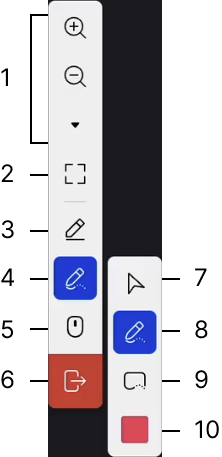
The following numbered items correspond to the numbered items in the image.
- Zoom In and Zoom Out - Zoom in or out of the page. Click the more options triangle to show or hide these options.
- Toggle full screen - Click to toggle the view from full screen to window.
- Pen - Choose to open the pen tools. The following options are available - Mouse, Pen, Rectangle, Eraser, Color, Undo, Redo, and Delete. The annotations will stay on the screen until you delete them or leave the session.
- Vanishing pen - Choose to open the vanishing pen tools. The following options are available - Mouse (7), Vanishing pen (8), Vanishing rectangle (9), Color (10). Annotations will vanish after four (4) seconds.
- Remote Assist - Toggle remote assistance. You'll get a confirmation modal to turn it off.
- Leave Cobrowse - Click to leave the session. You'll get a conformation modal.
Annotation
We provide configuration options to enable the annotation feature for agents or customers. Annotation supports collaborative drawing tools. You can configure allowCustomerAnnotation and allowAgentAnnotation in the customer initialization settings. By default, annotation is enabled for agents and disabled for customers.
Sample code
// autojoin session
ZoomCobrowseSDK.init(
    {
        allowCustomerAnnotation: true,
        allowAgentAnnotation: true,
    },
    function ({ success, session, error }) {
        if (success) {
            // ZoomCobrowseSDK is ready to use now
            session.start({
                sdkToken: "{SDK_TOKEN}",
            });
        } else {
            console.log(error);
        }
    },
);
Data masking
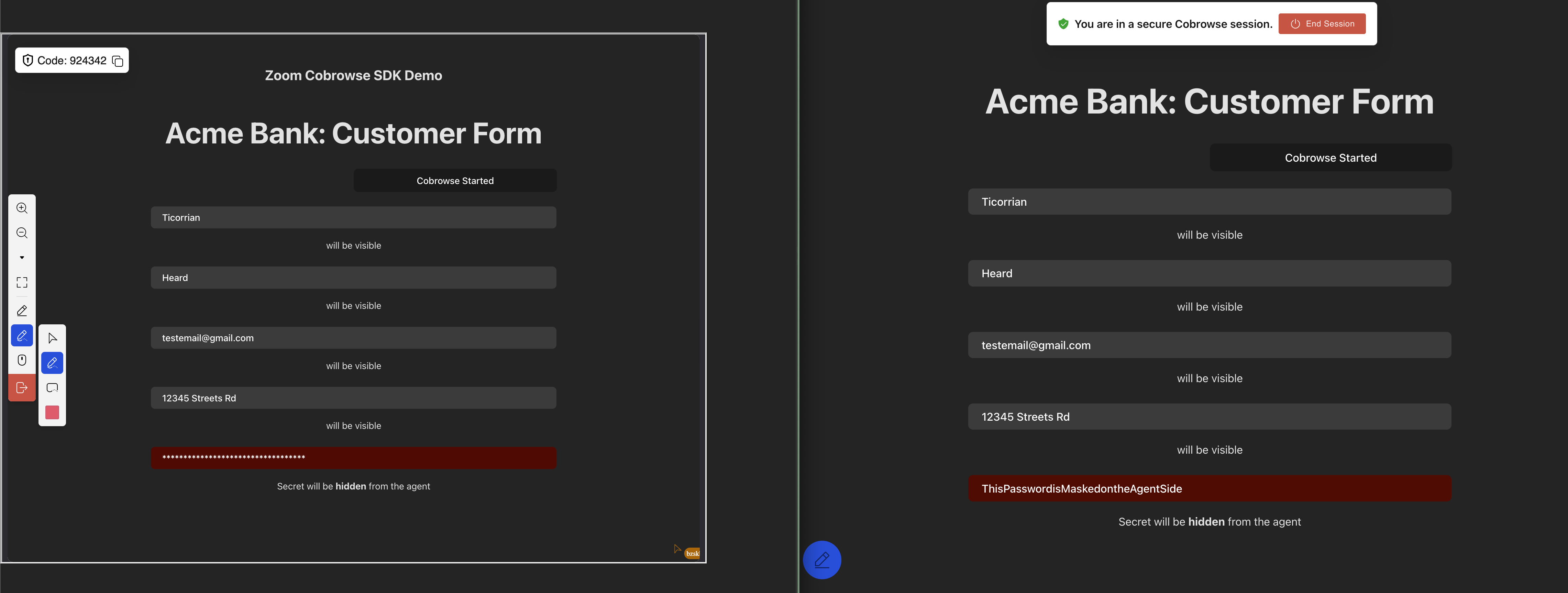
YYou can mask data in form fields or page elements on the customer page to prevent it from being displayed on the agent page. Data in masked fields appear as asterisks, similar to password fields. Once configured, sensitive data will not be synchronized to the agent side. By default, all data is displayed. Enable data masking by turning on the Mask data in cobrowse switch in the Build account web portal. Then set the piiMask values in the customer initialization settings. If you don't specify these settings, the SDK uses the default values defined in the web portal.
Note
The
custom_elementmask type is currently supported only through SDK initialization and is not configurable in the web portal. The web portal supports onlyall_inputandcustom_input.
Sample code
ZoomCobrowseSDK.init(
    {
        piiMask: {
            maskType: "custom_input",
            // Mask fields matching CSS Selectors below
            maskCssSelectors: ".class1, #id1",
            // Mask fields matching HTML attributes below
            maskHTMLAttributes: "senstive=true,senstive",
        },
    },
    function ({ success, session, error }) {
        if (success) {
            // ZoomCobrowseSDK is ready to use now
            session.start({
                sdkToken: "{SDK_TOKEN}",
            });
        } else {
            console.log(error);
        }
    },
);
The following image shows how a masked field appears for a customer and an agent.
piiMask Options
| Key | Necessity | Value | Description |
|---|---|---|---|
maskType | Optional | custom_input, all_input , custom_element | all_input - Hide the content of all input fields.custom_input - Hide specific input fields. You must use maskCssSelectors or maskHTMLAttributes on the fields that you wish to hide. custom_element - Masks elements based on configured selectors or attributes. Supports masking iframe, img, and svg elements directly. Input and select elements follow the same masking behavior as custom_input. See Using custom_element for details. |
maskCssSelectors | Optional | string | Configure standard CSS selectorsmaskCssSelectors:'.class1'Supports configuring multiple selectors at oncemaskCssSelectors:'.class1, #id1' |
maskHTMLAttributes | Optional | string | Configure standard HTML attributesmaskHTMLAttributes: 'type =text'Supports configuring multiple attributes at oncemaskHTMLAttributes:'type=text, type=email, data-key1=value,data-key2^=value' |
maskFill | Optional | string | Specifies the fill color used to mask elements. This option is effective only when maskType is set to custom_element. The value should be a valid CSS color format (for example, #000000, black, or rgba(0,0,0,0.5)). If not specified, the default mask color is used. |
Using custom_element
When using custom_element, masking is applied to elements that match the configured selectors, based on supported element types. An element will be masked if the element itself matches the selector or if one of its container elements matches.
Currently supported element types include form fields, text elements, iframe, img, and svg elements.
Elements inside the Shadow DOM are not supported at this time.
Multi-tab session persistence
The Cobrowse SDK supports multi-tab session persistence. When a customer opens a new tab, the existing session is automatically restored in that tab. By default, multi-tab session persistence is disabled. To enable it, turn on the Multi-tab session persistence switch in the Build account web portal, and configure multiTabSessionPersistence in the customer initialization settings.
Sample code
ZoomCobrowseSDK.init(
    {
        multiTabSessionPersistence: {
            //Whether to enable session continuation, the default is false.
            enable: true,
            // The cookie key for session continuation, the default is '$$ZCB_SESSION$$'(base64 encoded).
            stateCookieKey: "test",
        },
    },
    function ({ success, session, error }) {
        if (success) {
            // ZoomCobrowseSDK is ready to use now
            session.start({
                sdkToken: "{SDK_TOKEN}",
            });
        } else {
            console.log(error);
        }
    },
);
Multi-tab session persistence options
| Key | Necessity | Value | Description |
|---|---|---|---|
enable | Optional | Boolean | all_input - Whether to enable session continuation, the default is false. |
stateCookieKey | Optional | string | The cookie key for session continuation, the default is $$ZCB_SESSION$$ (base64 encoded). |
Remote assistant
The Cobrowse SDK supports remote assist. When this feature is enabled, the agent can provide remote assistance to the customer. By default, remote assist is disabled. To enable it, turn on the Remote assist switch in the Build account web portal and configure remoteAssist in the customer initialization settings.
Sample code
ZoomCobrowseSDK.init(
    {
        remoteAssist: {
            //Whether to enable session continuation, the default is false.
            enable: true,
            // Whether to enable customer consent, the default is false.
            enableCustomerConsent: true,
            // The types of remote assistant, the default is ['scroll_page'].
            remoteAssistTypes: ["scroll_page"],
        },
    },
    function ({ success, session, error }) {
        if (success) {
            // ZoomCobrowseSDK is ready to use now
            session.start({
                sdkToken: "{SDK_TOKEN}",
            });
        } else {
            console.log(error);
        }
    },
);
Remote assistant options
| Key | Necessity | Value | Description |
|---|---|---|---|
enable | Optional | Boolean | Whether to enable remote assistant, the default is false. |
enableCustomerConsent | Optional | Boolean | Whether to enable customer consent, the default is false. |
remoteAssistTypes | Optional | Array | The types of remote assistant, currently only support 'scroll_page', the default is ['scroll_page']. |
requireStopConfirmation | Optional | Boolean | Whether to enable secondary confirmation, the default is false. |