Customize Video SDK streams with watermarks
With the release of Zoom Video SDK 2.1.5, we've added support for media processors. This allows you to modify user's audio, video or screen share feed before it is sent to remote users. In this blog post, we'll show you how to use a media processor to dynamically add a watermark to the user's video stream.
Prerequisites
- Node & NPM LTS
- A Zoom Video SDK account
We'll build on top of the Zoom Video SDK quickstart guide. If you're new to the SDK, we recommend checking out the quickstart guide first. You can clone that repo and follow the steps to get started:
git clone https://github.com/zoom/videosdk-web-helloworld
The completed code for this guide is available on GitHub.
Media processors
The media processor design is inspired by the AudioWorklet API. The processor runs within a web worker to enhance performance. To define custom video processing logic, we'll create a video processor and use the Canvas API to modify each video frame.
For this watermark example, we'll build a video processor to overlay a watermark image on top of each video frame:

Step 1: Create a watermark video processor
We can define a video processor by extending the VideoProcessor interface. We'll define a context field to store the canvas context and a watermarkImage field to store the image we'll use for the overlay:
class WatermarkProcessor extends VideoProcessor {
    context = null;
    watermarkImage = null;
}
To define custom video processing logic, you need to override the following functions in the class:
constructor
The constructor initializes the processor and sets up the message listener. We listen for an update_watermark_image event and update the watermark image from the message:
class WatermarkProcessor extends VideoProcessor {
    ...
    constructor(port, options) {
        super(port, options);
        port.addEventListener('message', (e) => {
            if (e.data.cmd === 'update_watermark_image') {
                this.watermarkImage = e.data.image;
            }
        });
    }
onInit
The onInit function is called when the processor is initialized. We'll use this to access the output canvas and initialize the context:
class WatermarkProcessor extends VideoProcessor {
    ...
    onInit() {
        const canvas = this.getOutput();
        if (canvas) {
            this.context = canvas.getContext('2d');
            if (!this.context) {
                console.error('2D context could not be initialized.');
                return;
            }
        }
    }
onUninit
The onUninit function is called when the processor is uninitialized. We'll use this to clean up resources:
class WatermarkProcessor extends VideoProcessor {
    ...
    onUninit() {
        this.context = null;
        this.watermarkImage = null;
    }
processFrame
The processFrame function is called for every video frame. We use this to modify the video frame. We'll draw the input frame onto the canvas by calling the drawImage method. It takes the input image, the x and y coordinates of the top-left corner, and the width and height of the image.
class WatermarkProcessor extends VideoProcessor {
    ...
    async processFrame(input, output) {
        if (!this.context) return;
        this.context.drawImage(input, 0, 0, output.width, output.height);
Now we can draw the watermark image on top of the input frame. We'll use the globalAlpha property to set the transparency of the watermark image to 50%. We then call the drawImage method to draw the watermark image on top of the input frame. We reset the globalAlpha property to 1.0 to ensure the next frame data is drawn with full opacity:
    async processFrame(input, output) {
    ...
        if (this.watermarkImage) {
            this.context.globalAlpha = 0.5;
            const { width, height } = this.watermarkImage;
            this.context.drawImage(this.watermarkImage, 0, 0, width, height);
            this.context.globalAlpha = 1.0;
        }
        return true;
    }
}
Now that we've defined the processor class, we need to register it with the SDK. This is done by calling the registerProcessor function with the processor name and the processor class.
registerProcessor("watermark-processor", WatermarkProcessor);
Step 2: Add the media processor to the Video SDK
To use the video processor script within the Video SDK, we first check if the browser has support for video processor using the isSupportVideoProcessor method on the mediaStream:
const client = ZoomVideo.createClient();
const mediaStream = client.getMediaStream();
if (!mediaStream.isSupportVideoProcessor()) {
    alert("Your browser does not support video processor");
}
We can then create a processor instance by calling the createProcessor method on the mediaStream:
const processor = await mediaStream.createProcessor({
    name: "watermark-processor",
    type: "video",
    url: window.location.origin + "/watermark-processor.js",
});
We'll pass in a name for the processor and the type of the processor. The url specifies the script location, it must originate from the same domain or have the appropriate CORS headers.
We can add the processor to the video stream pipeline using the addProcessor method. You can perform this operation before or after starting the video.
await mediaStream.addProcessor(processor);
Step 3: Apply a watermark
To apply a watermark, we need to send an image bitmap to the watermark processor. You can use different methods to create a bitmap image. Let's create one using fabric.js for this example:
import { Canvas, FabricText } from "fabric";
export async function getBitmap(message: string) {
    const canvas = new Canvas(document.createElement("canvas"), {
        width: 1280,
        height: 720,
    });
    const text = new FabricText(message, {
        left: 10,
        top: 10,
        fontSize: 60,
        fill: "red",
    });
    canvas.add(text);
    canvas.renderAll();
    const dataUrl = canvas.toDataURL();
    const response = await fetch(dataUrl);
    const blob = await response.blob();
    const imageBitmap = await createImageBitmap(blob);
    return imageBitmap;
}
This creates a bitmap image of the text in red and returns it as an ImageBitmap object.
We can call the getBitmap function and pass the image bitmap data to the video processor using the postMessage method:
const imageBitmap = await getBitmap("hello world");
processor.port.postMessage({
    cmd: "update_watermark_image",
    image: imageBitmap,
});
This renders red text reading "hello world" on the top left of each video frame of the user's video. This is visible to all other remote participants as well. You can modify the text/image by calling the postMessage method with the new image bitmap:
// later in the app
processor.port.postMessage({
    cmd: "update_watermark_image",
    image: newImageBitmap,
});
That's all the code you need to get a basic watermark working.
Next steps
Video processors open up a world of possibilities—you’re only limited by your creativity. For instance, I also built a “business card” overlay that displays on top of the video stream:
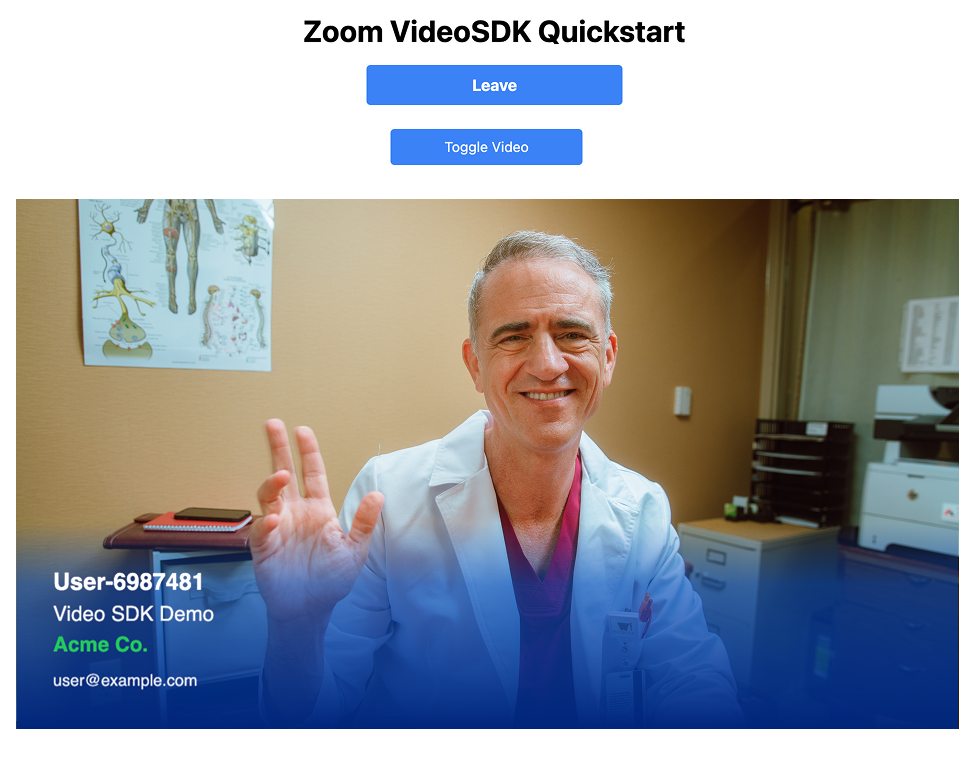
You can explore the implementation in the advanced branch of the repo.
Conclusion
With just a few lines of code, you can create powerful custom video processors in the Zoom Video SDK. Beyond watermarks you can experiment with stylistic filters, AR-style overlays, or even real-time content moderation.
To dive deeper, check out our raw-data documentation and explore the sample processor repo for more inspiration.